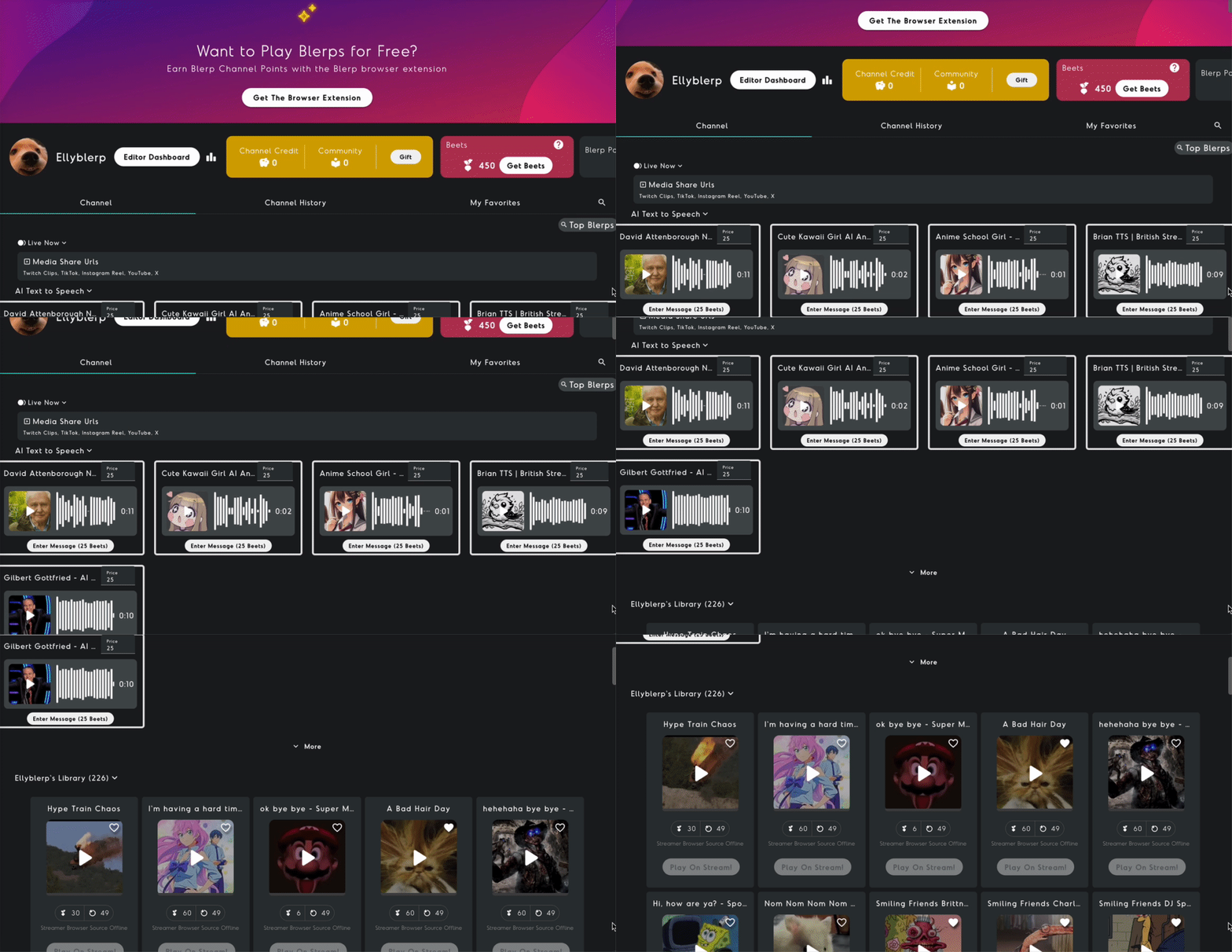
If you’re looking for a way to boost viewer engagement on your Noice stream, adding sound alerts is a great tool for making your content more interactive. With the Blerp Universal Extension, you can easily integrate channel point sound alerts to your Noice stream. Follow this step-by-step guide to set up Blerp on your channel.
Noice Streamers Can Set Up Channel Point Sound Alerts With the Blerp Universal Extension
The Blerp Universal Extension is a web browser extension that works across multiple streaming platforms, including Noice, Rumble, YouTube, and more. Viewers can spend Blerp Beets and Blerp Channel Points to play sound bites and more during live streams. Installing the Chrome extension is required to earn Blerp Channel Points, making it an essential tool for an interactive streaming experience.
Learn more about the Universal Extension.
How to Add the Universal Extension to Your Noice Stream
To get started, you’ll need a Blerp account. If you don’t have one yet, you can sign up at Blerp.com. If you’re already a user, simply log in to your account.
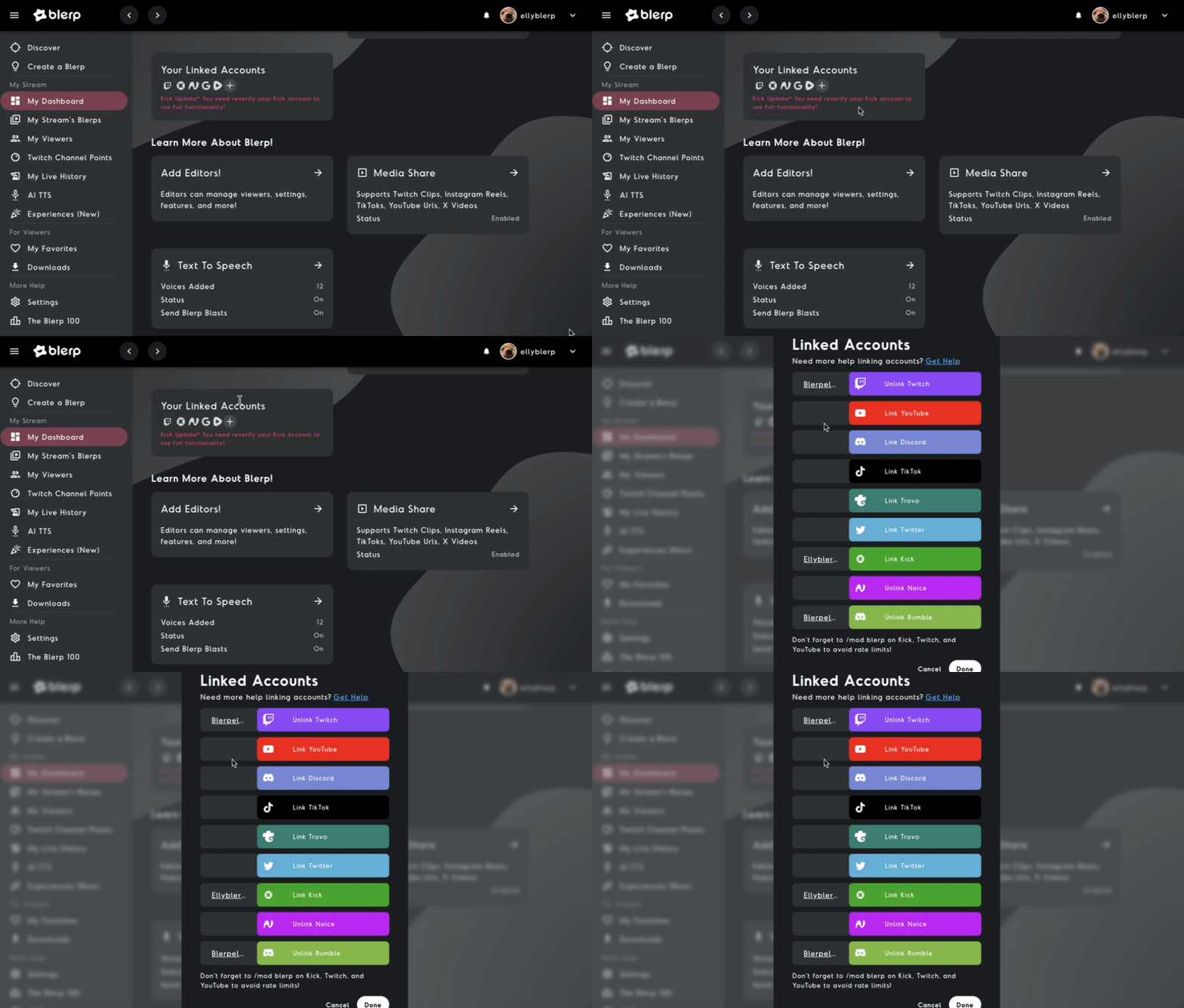
Step 1: Link Your Noice Stream
Once logged in, navigate to your Blerp dashboard and link your Noice stream. This allows Blerp to integrate with your channel and enable sound alerts.
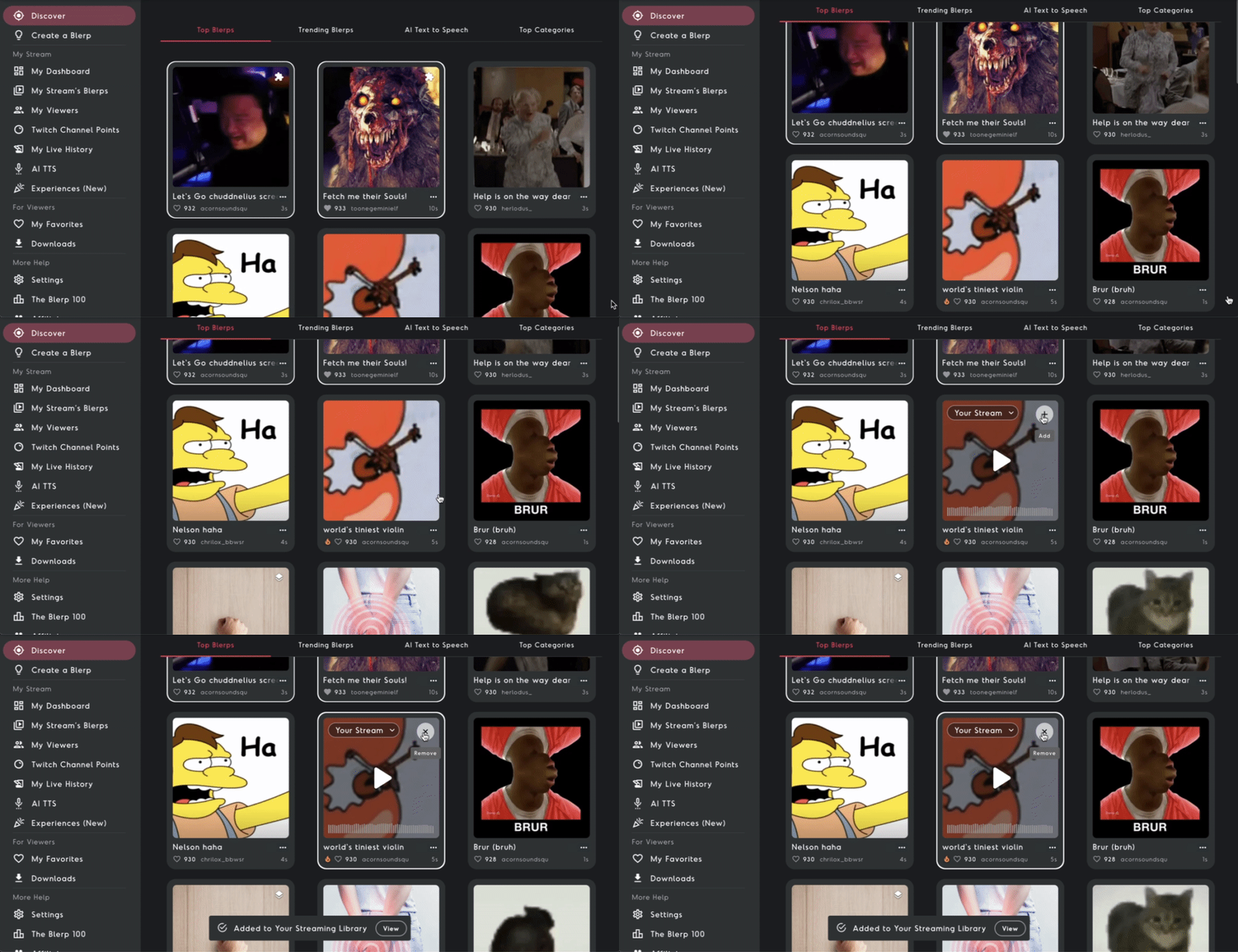
Step 2: Browse and Add Sounds to Your Extension
Explore Blerp’s extensive sound library by clicking on the Discover tab. From here, you can search and add sounds that you want to feature on your stream’s extension. Choose sounds that match your style and audience’s preferences.
Step 4: Set Up Channel Point Pricing for Sound Alerts
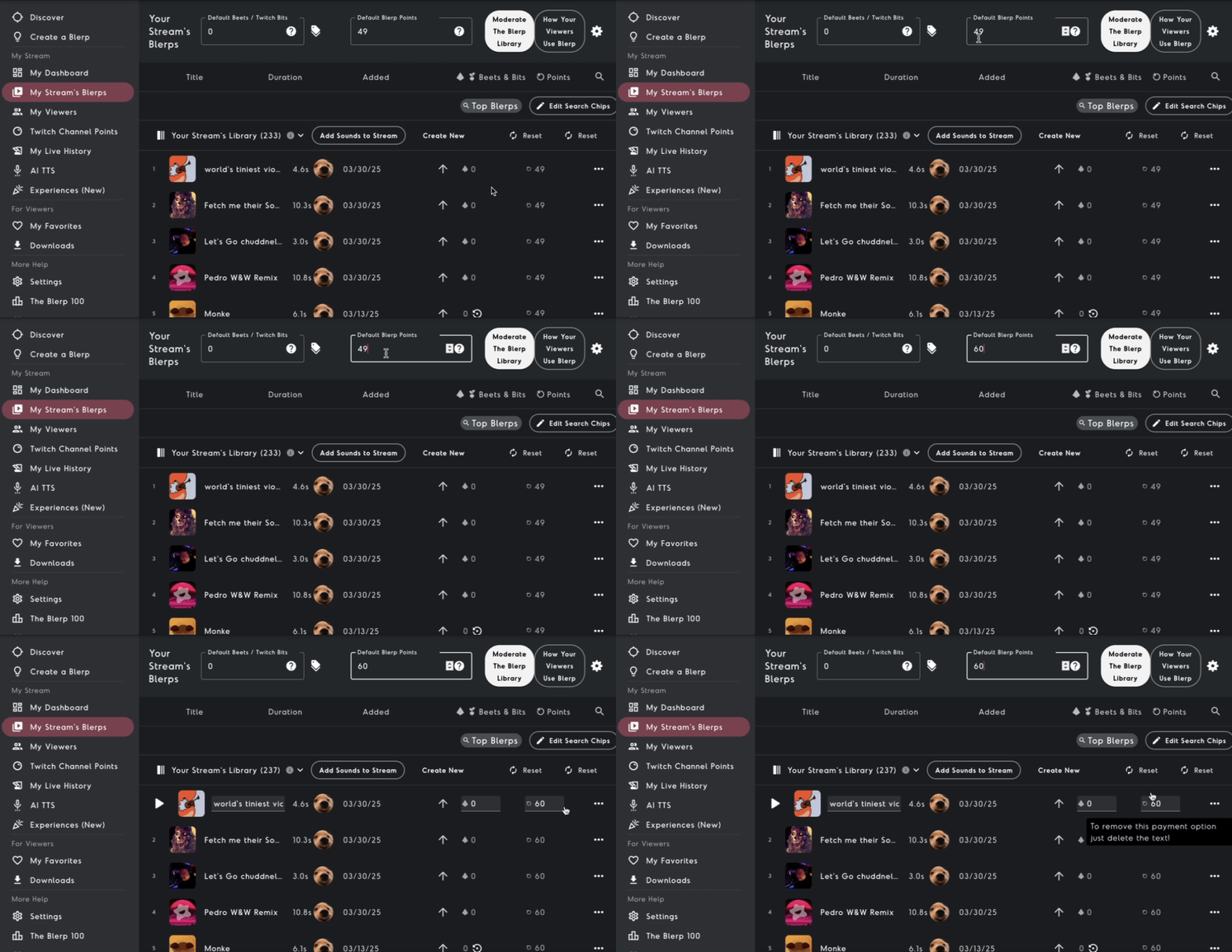
After adding sounds to your collection, head over to the My Stream Blerps tab:
- Set a Global Blerp Channel Point Price – This will be the default cost for playing a sound on your stream.
- Adjust Individual Sound Prices – Under the "Your Stream’s Library" section, you can fine-tune the price of each specific sound to fit your preferences.
Step 5: How Do Your Viewers Share Sounds?
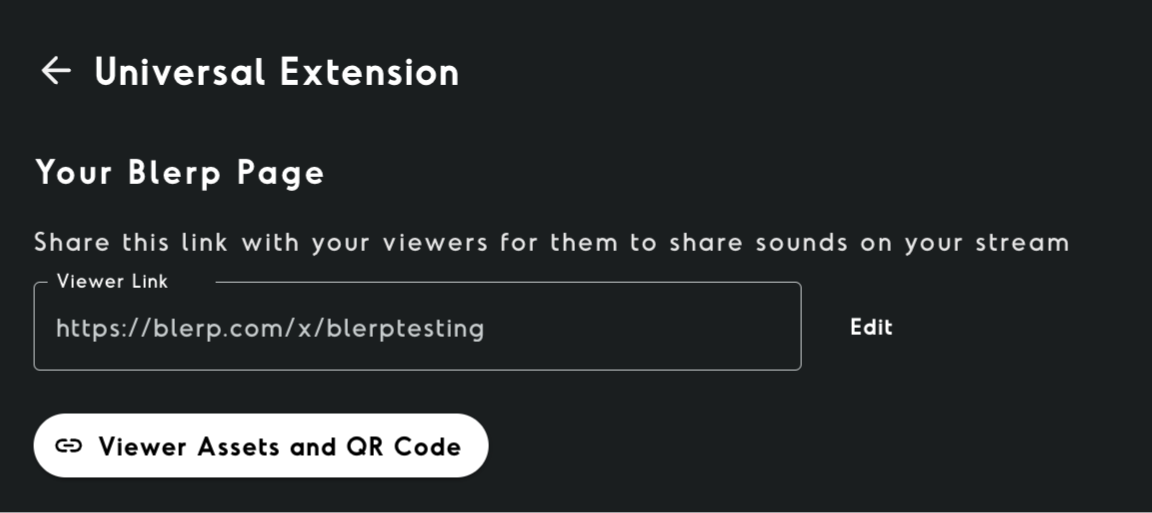
To share Blerp Channel Point Alerts, viewers will need your viewer link.
Locate Your Viewer Link
Find it in your Blerp dashboard or under Settings > Universal Extension.
Share Your Viewer Link
- Copy and share the link with your audience.
- Add it to your Noice channel description or set up a timed chatbot reminder.
How Viewers Can Share Sounds
Once your viewers have access to your viewer link, they can easily interact with your stream by following these steps:
- Visit Your Viewer Link: Viewers can visit your viewer link to redeem sounds, videos, or other media that you’ve set up for sharing. This link is essential for allowing them to submit content to your stream.
- Install the Blerp Web Browser Extension: Viewers can install the Blerp browser extension to interact with the media share feature. This extension is available for popular web browsers like Chrome and Firefox. After installation, they’ll be able to access the extension directly from your stream.
Explore More Blerp Features
Blerp offers more than just channel point rewards! Discover how you can enhance your streams with AI TTS, Media Share, and other exciting features. Check out our Everything You Need to Know About the Blerp Extension guide to unlock Blerp’s full potential.