Adding Blerp to Moblin is a great way to boost audience engagement with sound alerts on your irl stream. If you're ready to get started, this quick guide will walk you through the full setup process using Moblin's widget system.
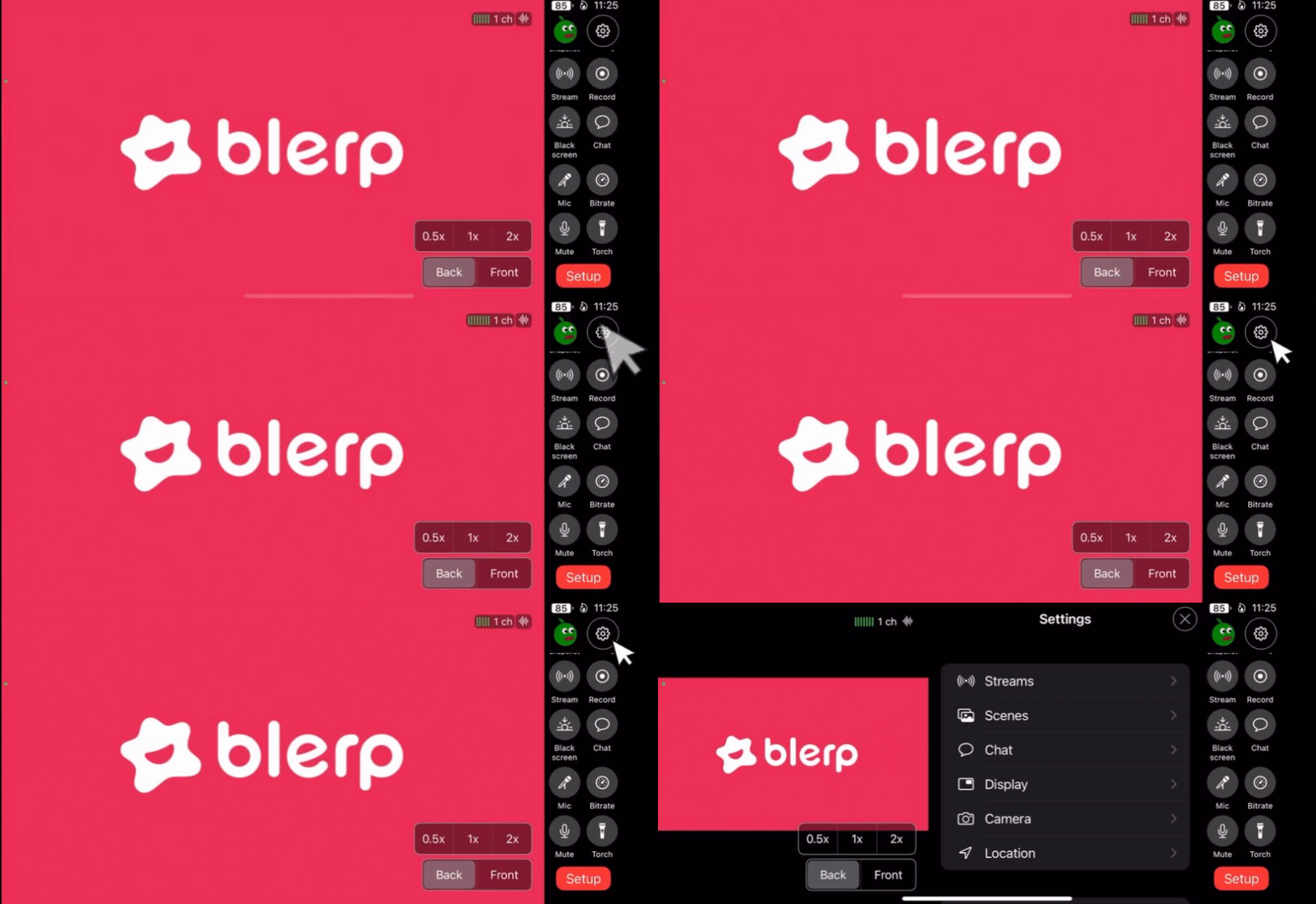
1. Open Moblin Settings
Start by clicking the settings wheel in the top-right corner of your Moblin dashboard. This will open your account settings.
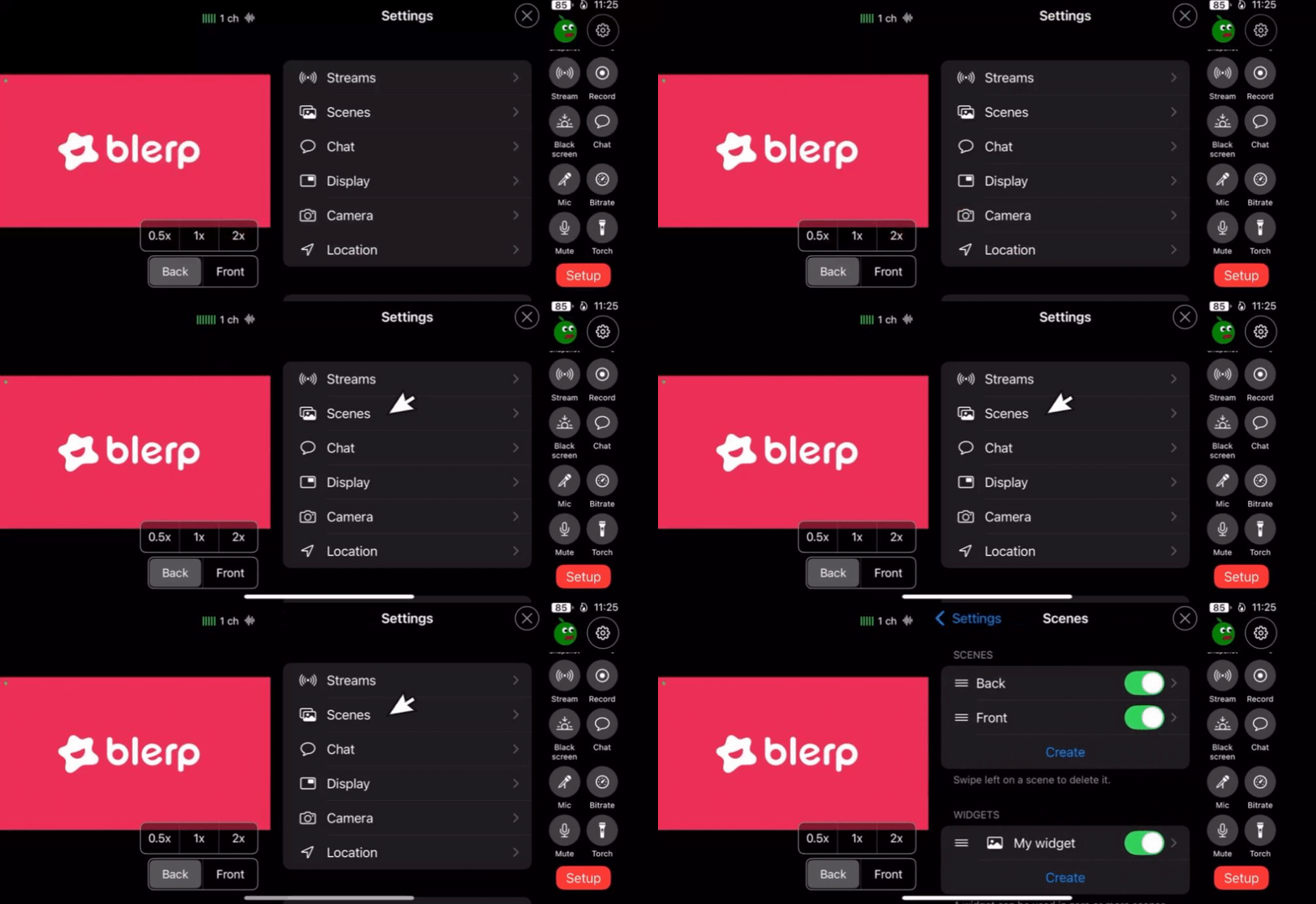
2. Navigate to the Scenes Tab
In the left-hand menu, select “Scenes” to access your live streaming tools and configuration.
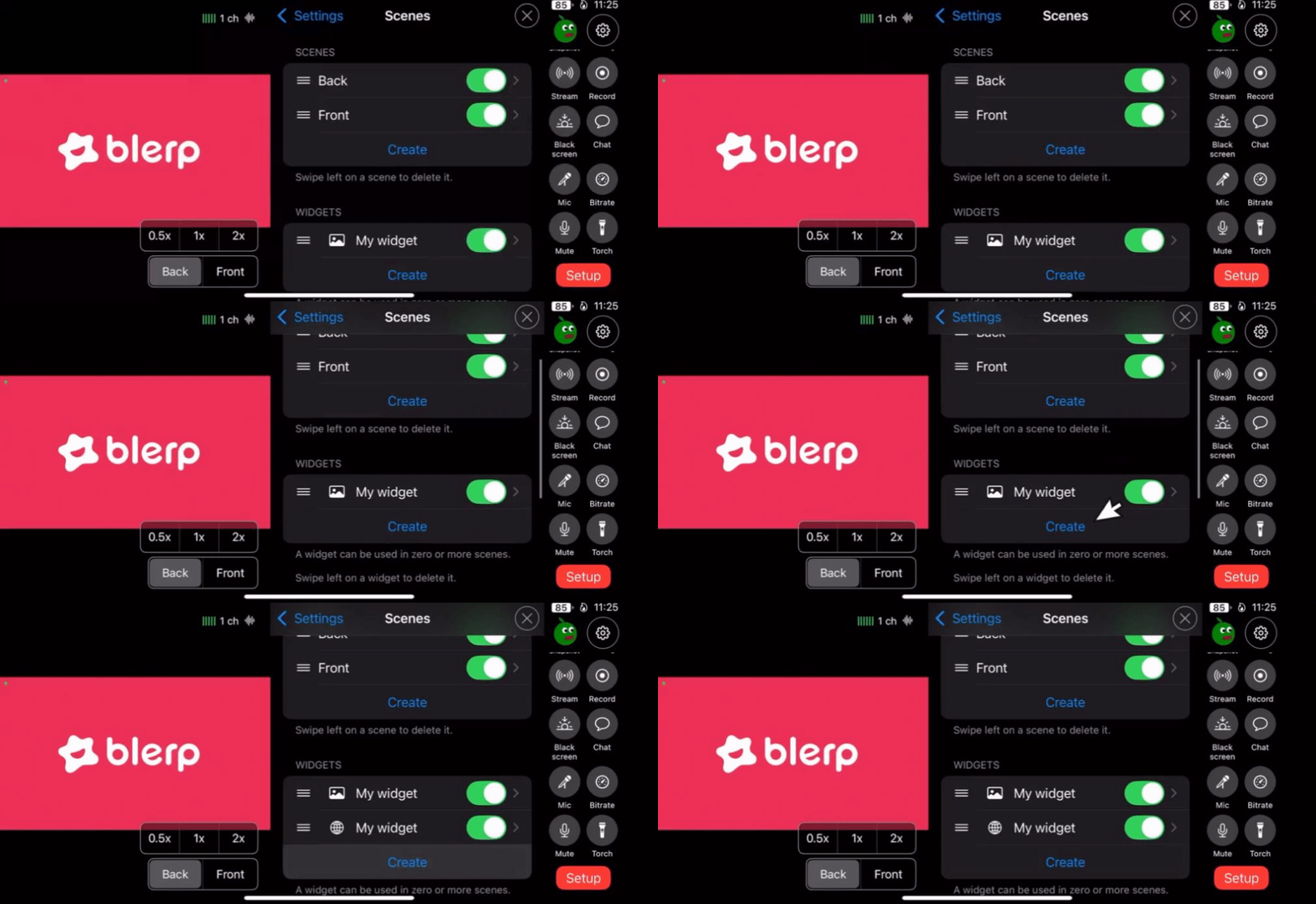
3. Create a New Widget
Scroll down to the Widgets section and click the “Create” button.
This will generate a new, blank widget that you can customize.
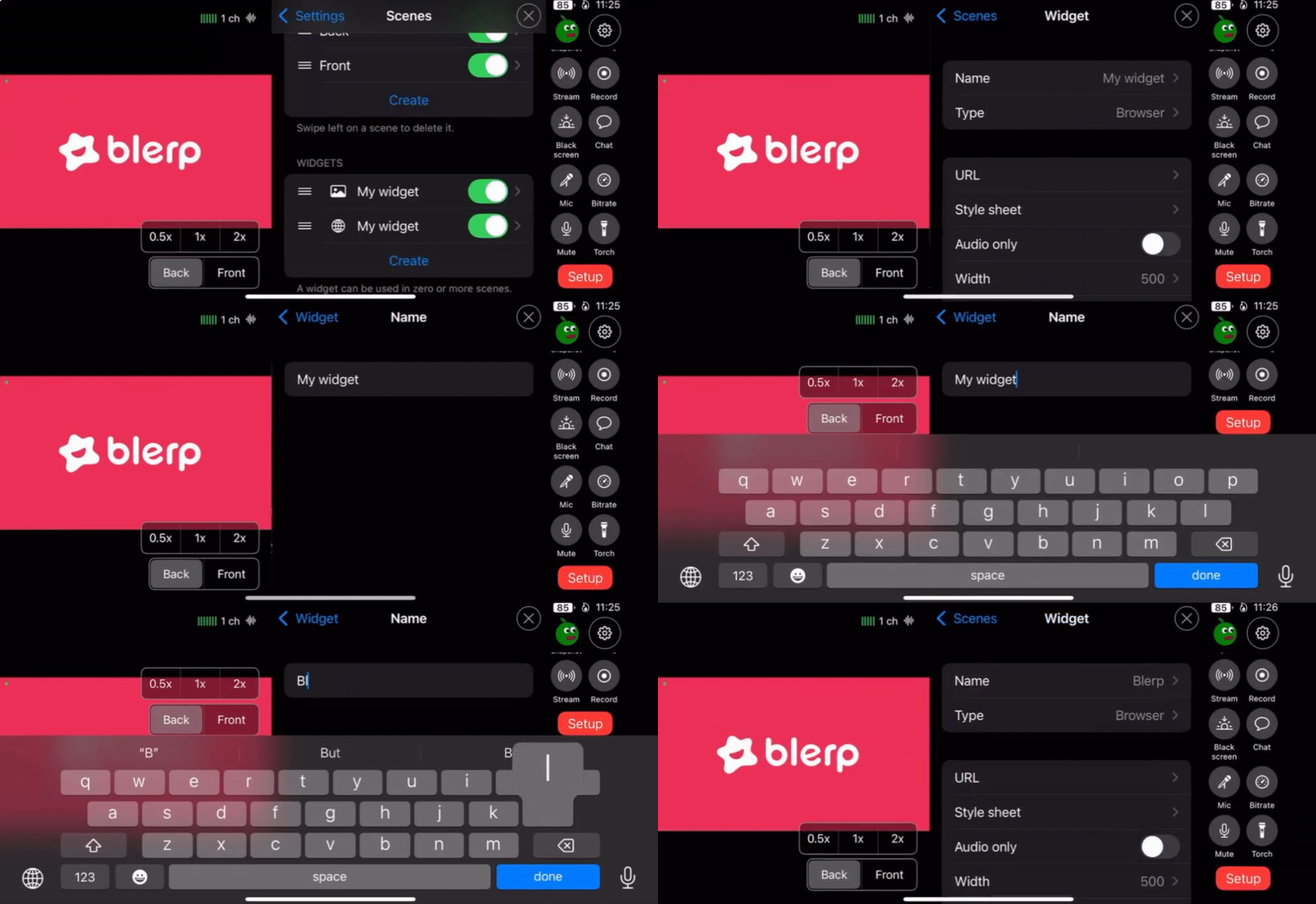
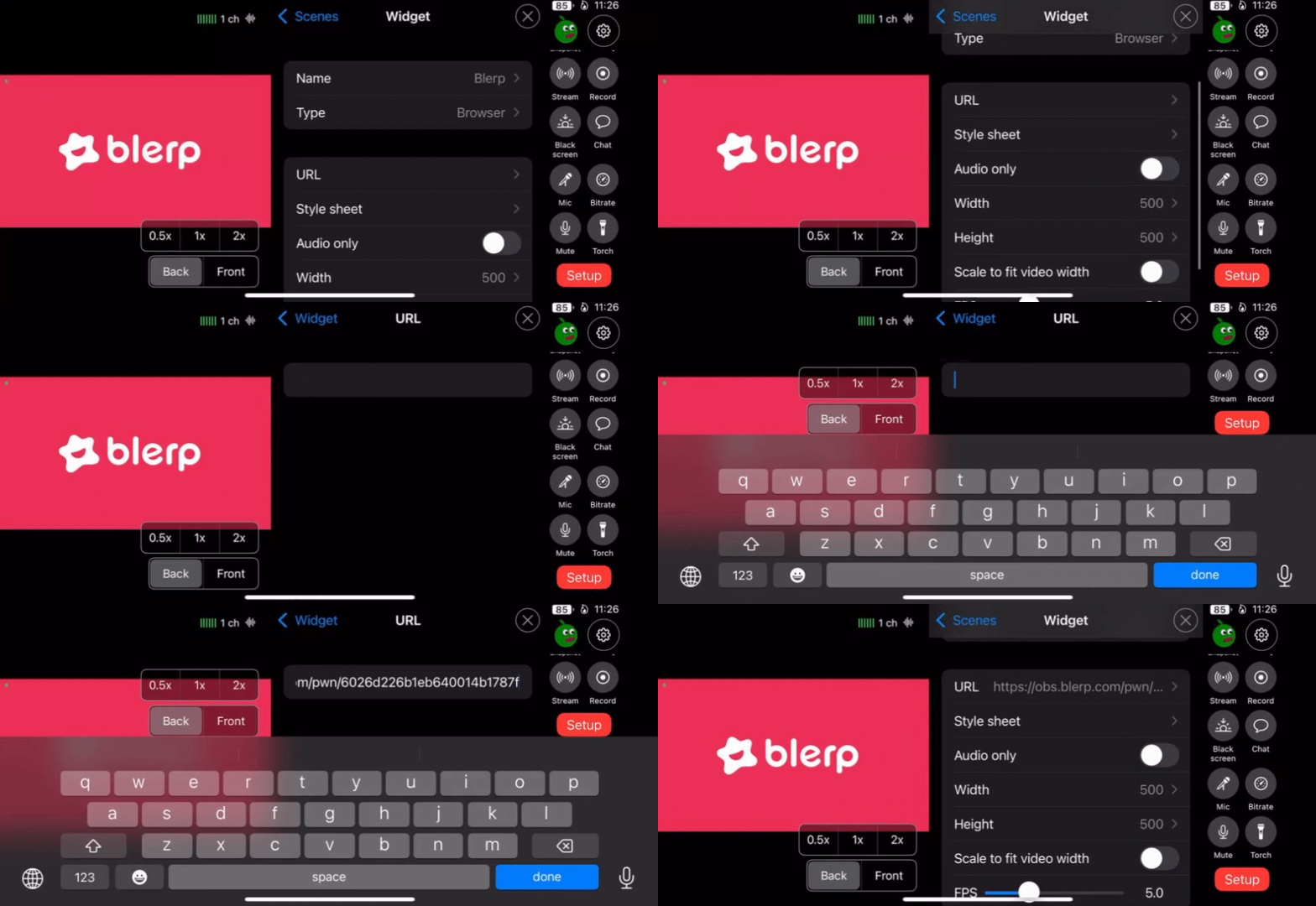
4. Configure Your Widget for Blerp
Click on the new widget you just created.
- Name it something recognizable like "Blerp Alerts"
You can find this browser source URL in your Blerp account dashboard or under settings > browser source.
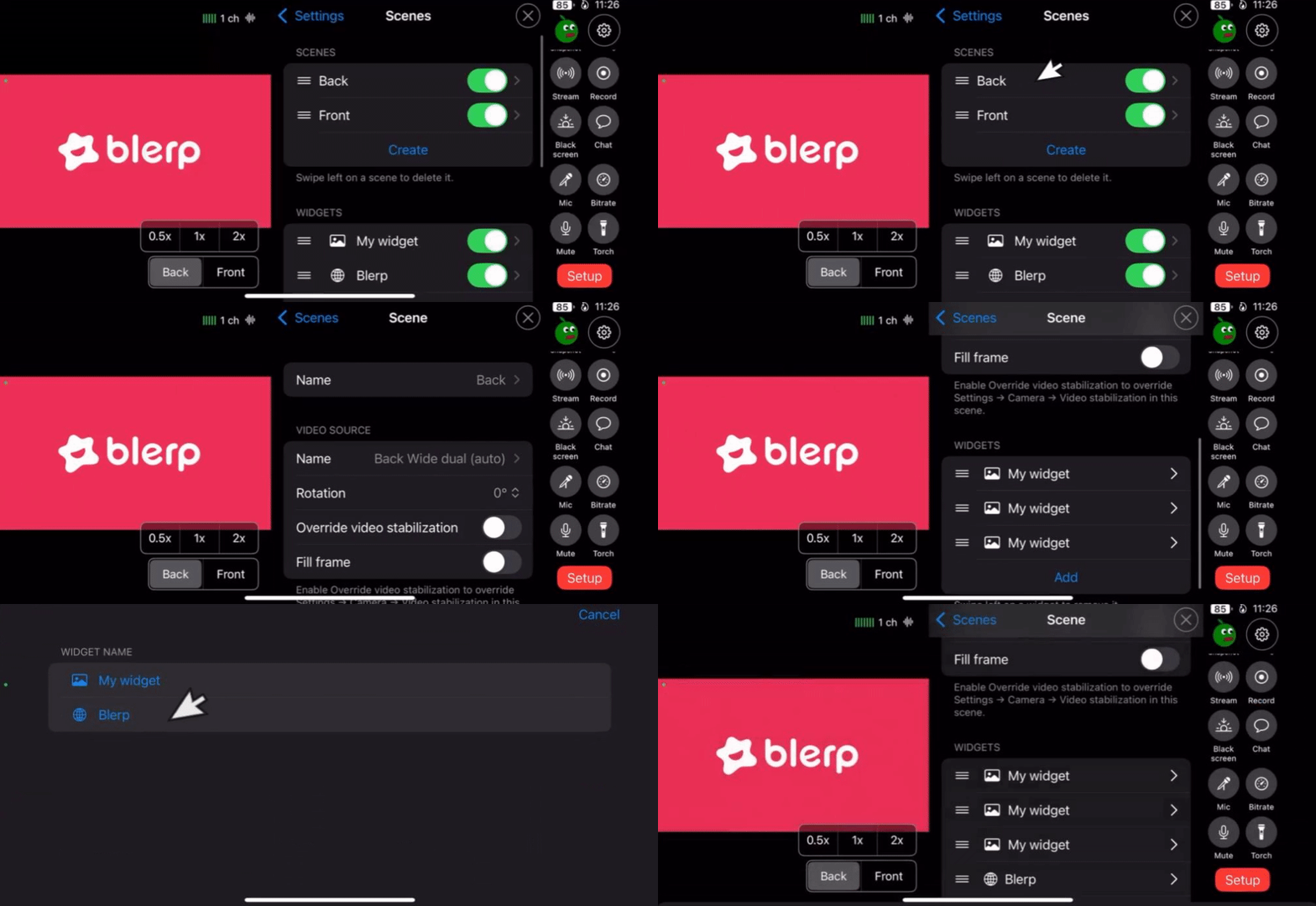
5. Add the Blerp Widget to Your Scene
Next, return to the Scenes tab and choose the scene you want to add Blerp to.
Scroll down to add a widget, then select the Blerp widget you just configured.
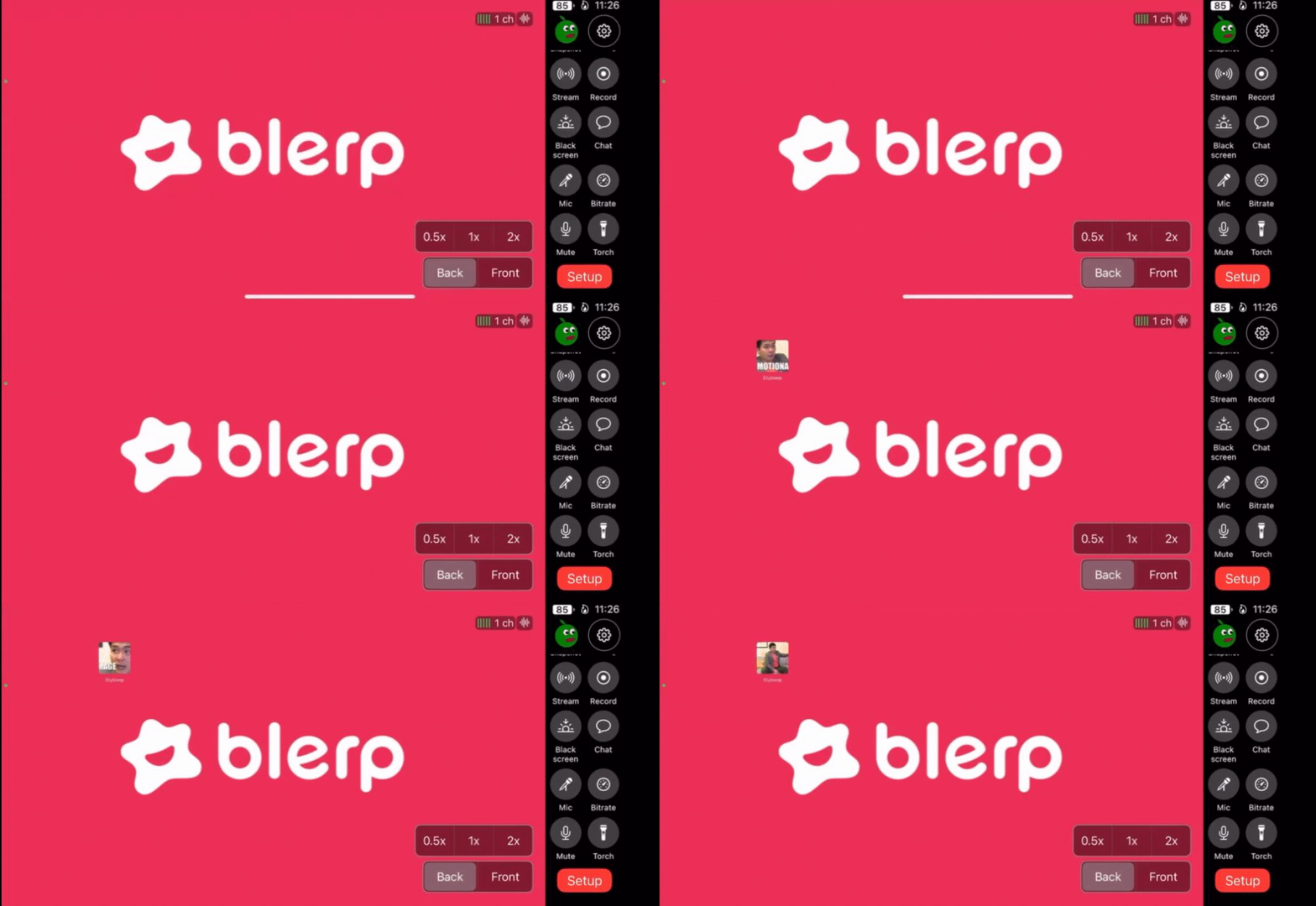
6. Test Your Blerp Setup
To make sure everything is working properly, go back to your Blerp settings and click “Test Share.”
This will confirm that both the overlay and audio are showing up correctly in your Moblin scene.
Final Thoughts
Once you’ve added Blerp to Moblin, your audience can start interacting with sound alerts right away. It’s a quick setup that adds real-time engagement to your stream. For more customization options or troubleshooting help, visit Blerp’s Discord Server.