Want to make your mobile streams more fun and interactive? With Blerp, your viewers can trigger sound bites, audio memes, and alerts that keep the energy high and the laughs rolling. Here’s how you can easily add Blerp to your mobile stream using the Streamlabs Mobile app.
Step 1: Set Up Streamlabs Mobile
Before you can add Blerp, make sure Streamlabs Mobile is installed and ready to go. If you haven’t set it up yet, follow Streamlabs’ official guide to get your mobile stream up and running.
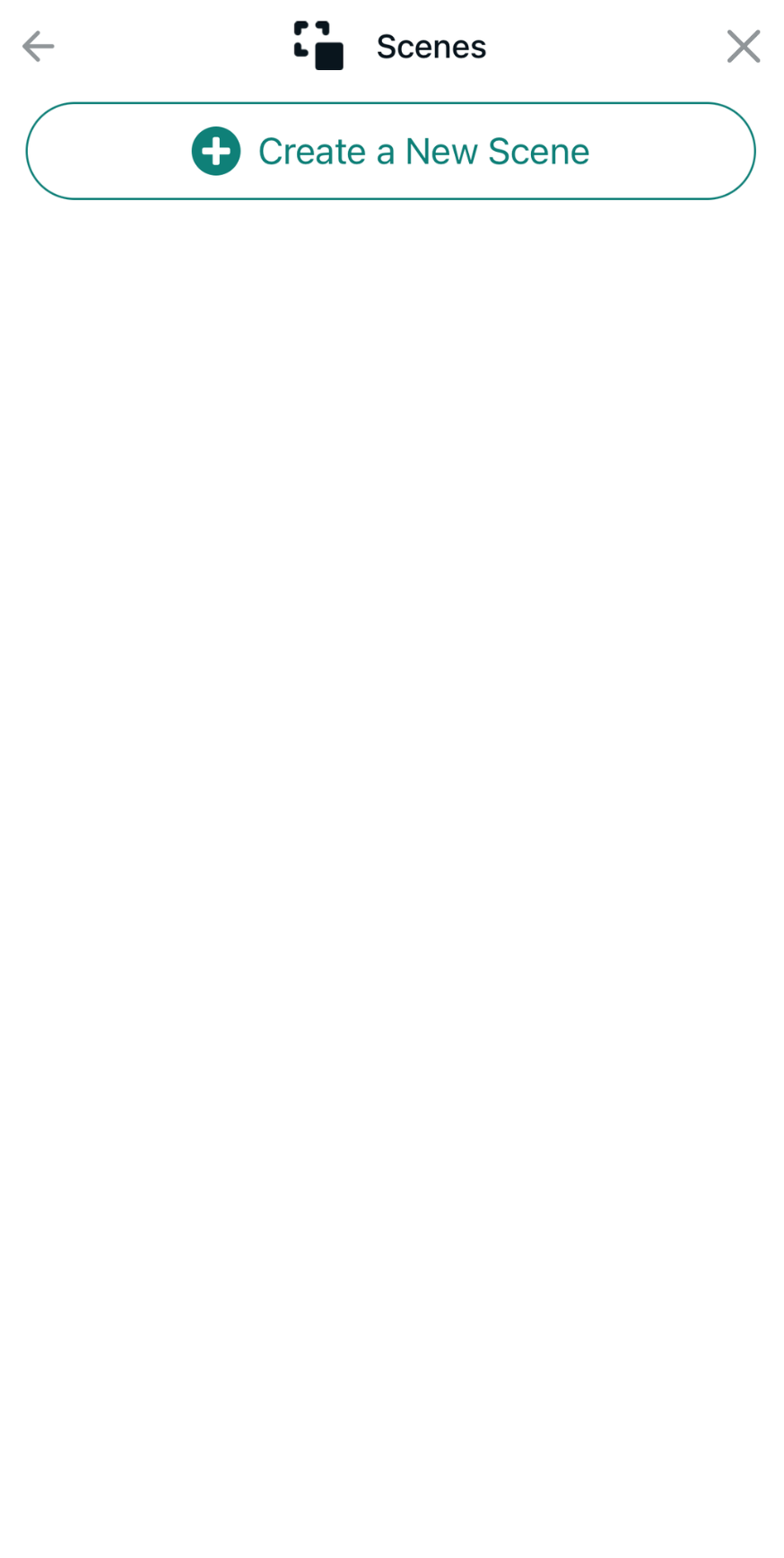
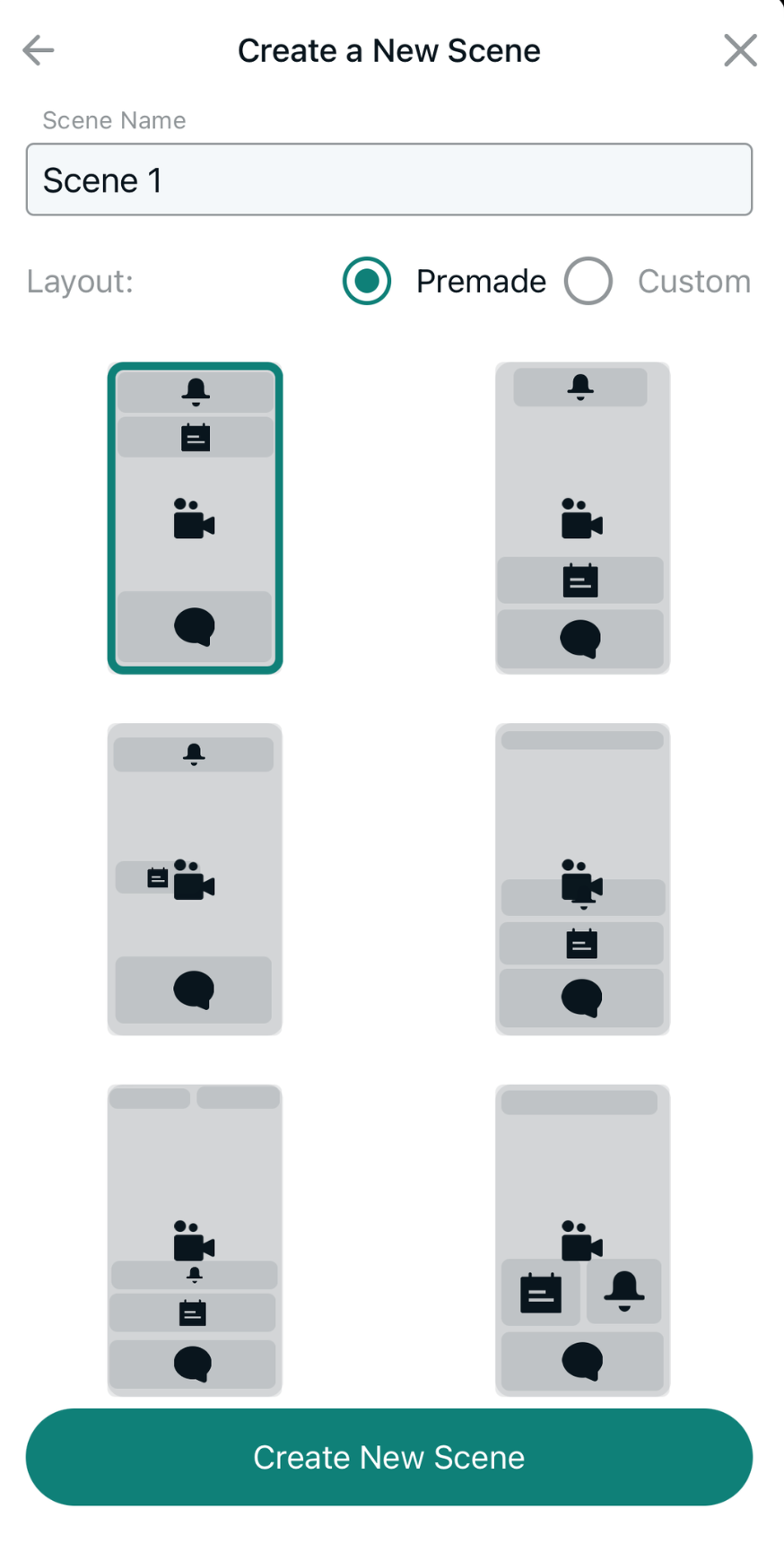
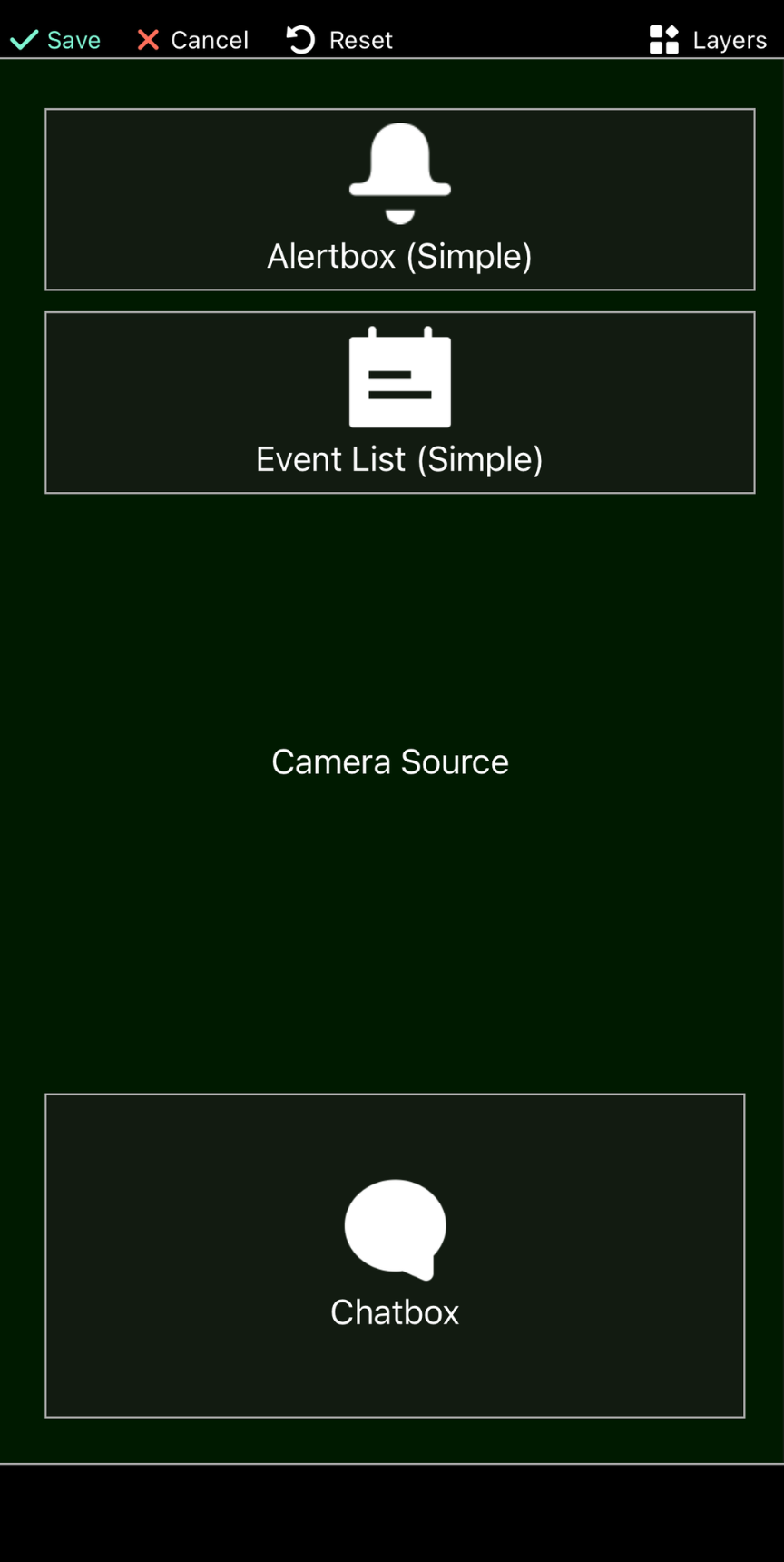
- Name your scene something relevant, like “Blerp Alerts”
- Choose a premade layout or customize your own.
This scene will be the base where you add your streaming elements, including Blerp.
Step 3: Add Blerp Using a Browser Source
Time to bring Blerp into the mix:
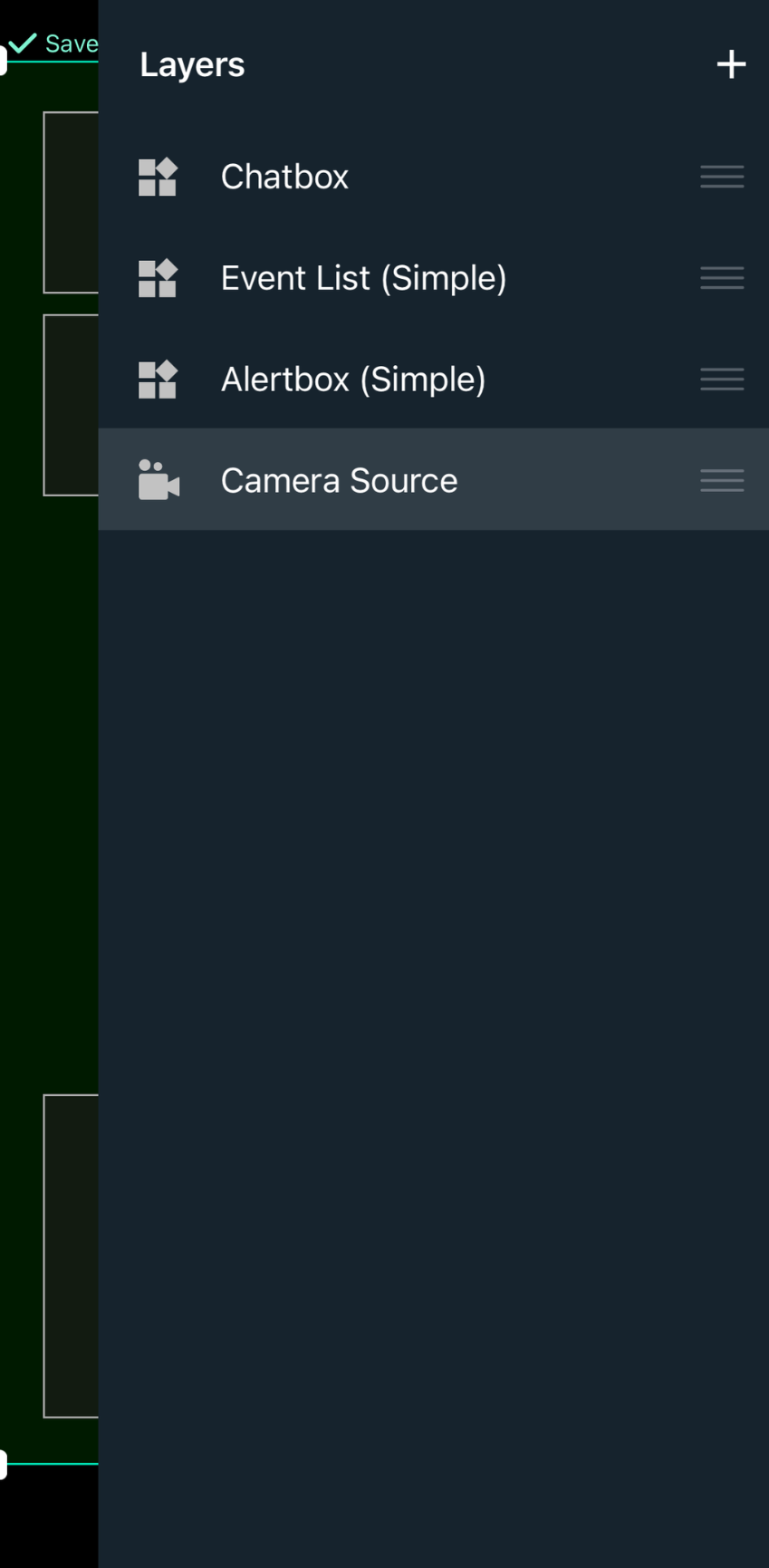
- In your new scene, tap on the “Layers” icon (top right).
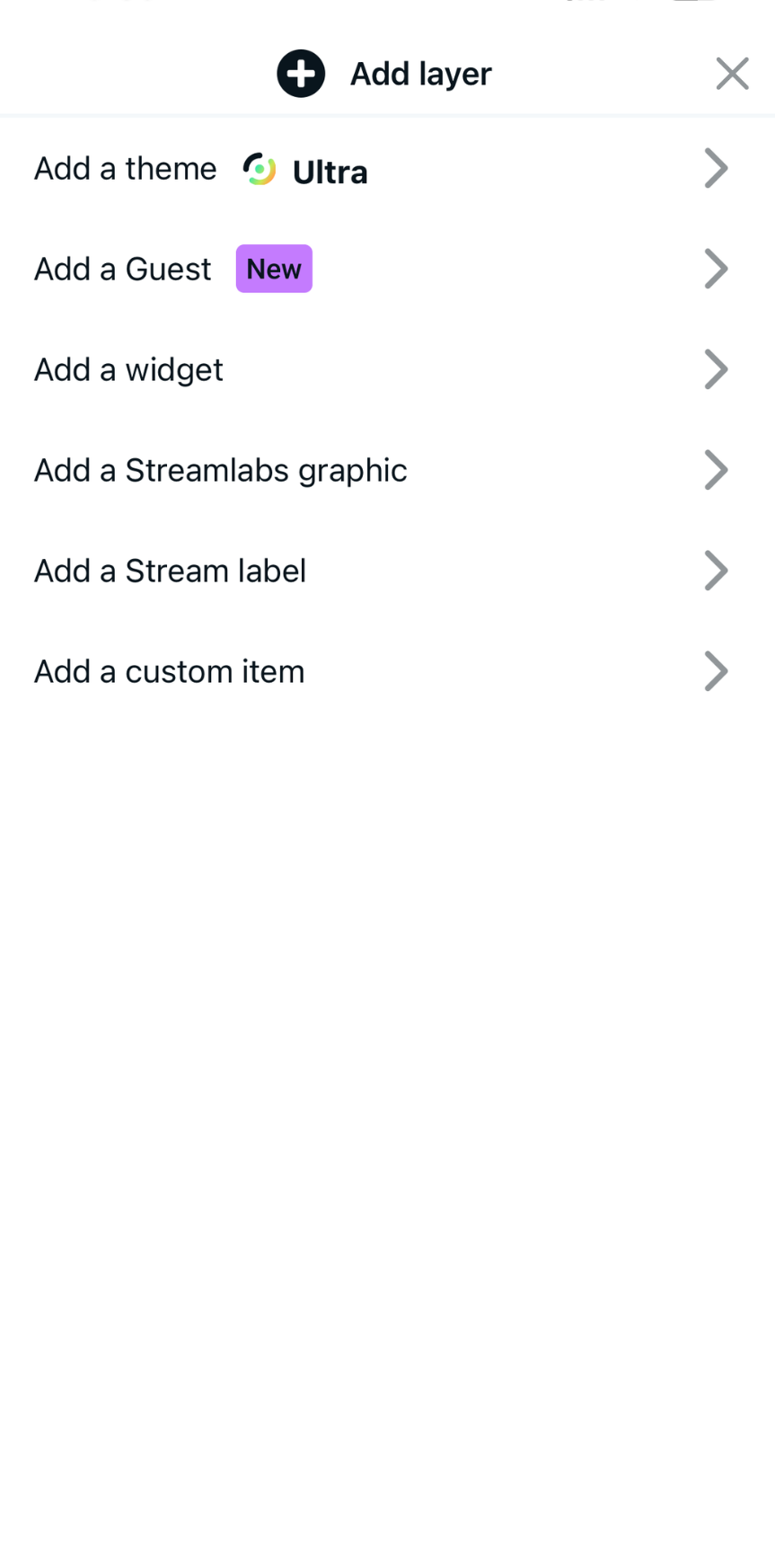
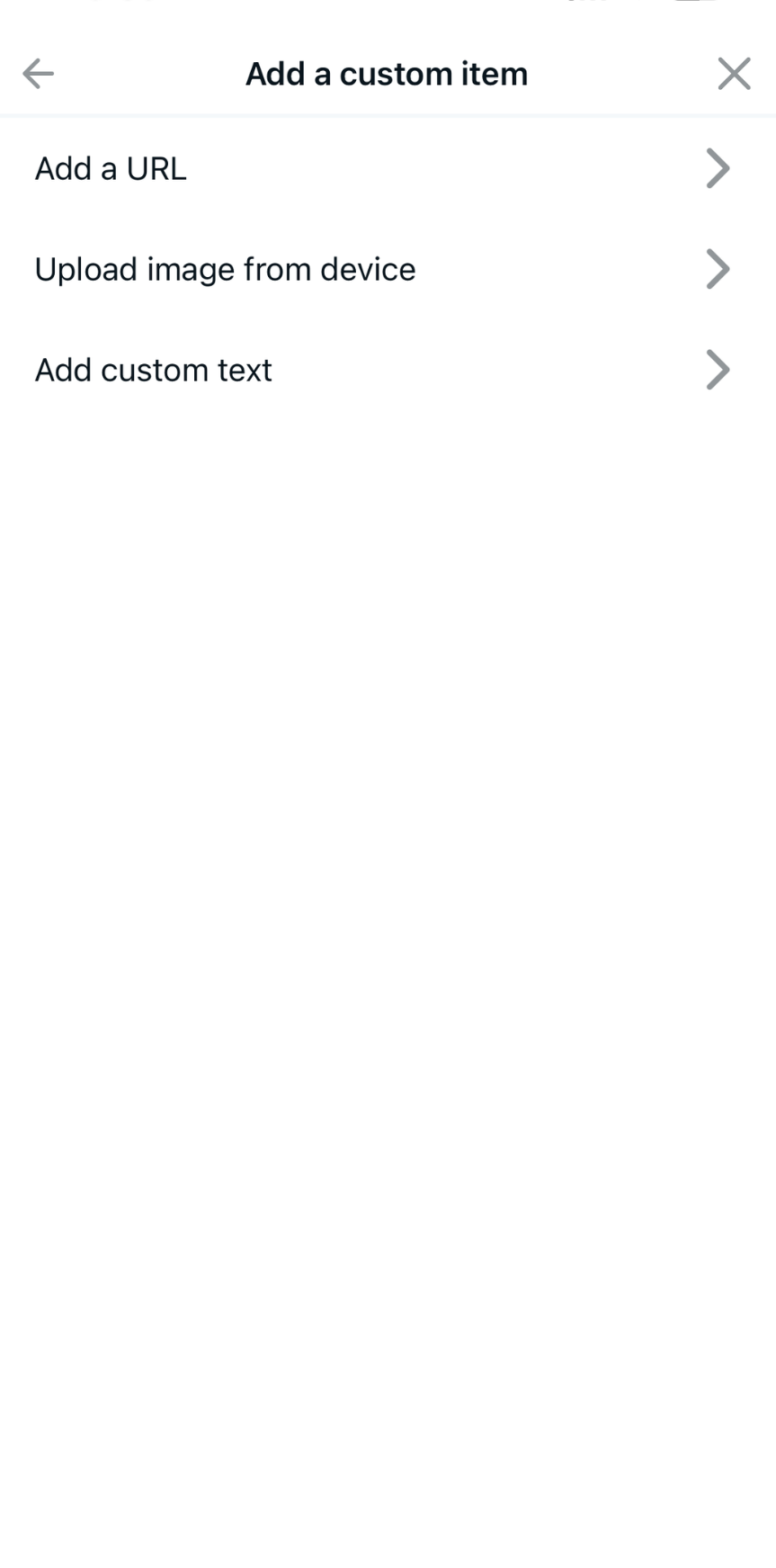
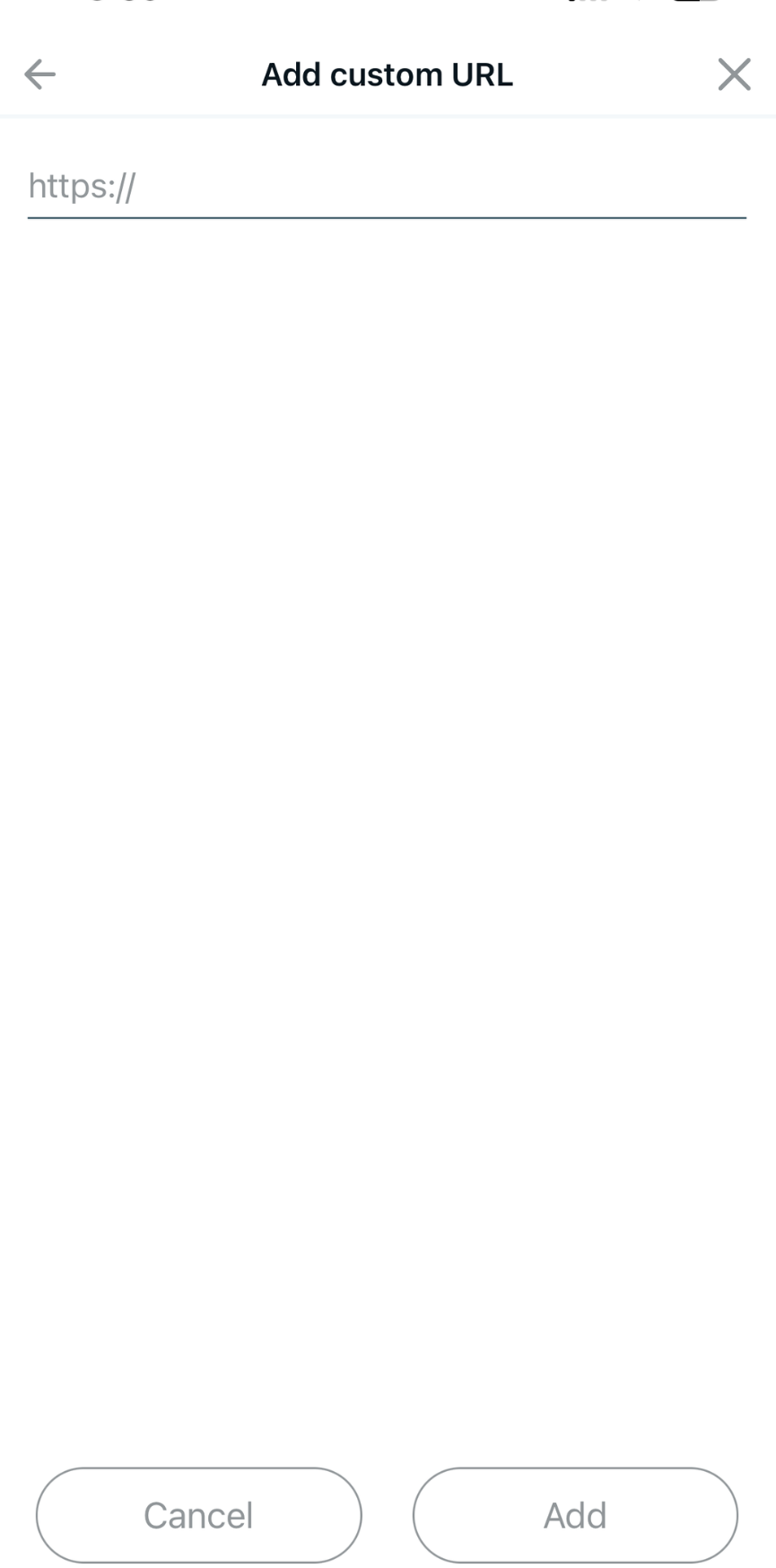
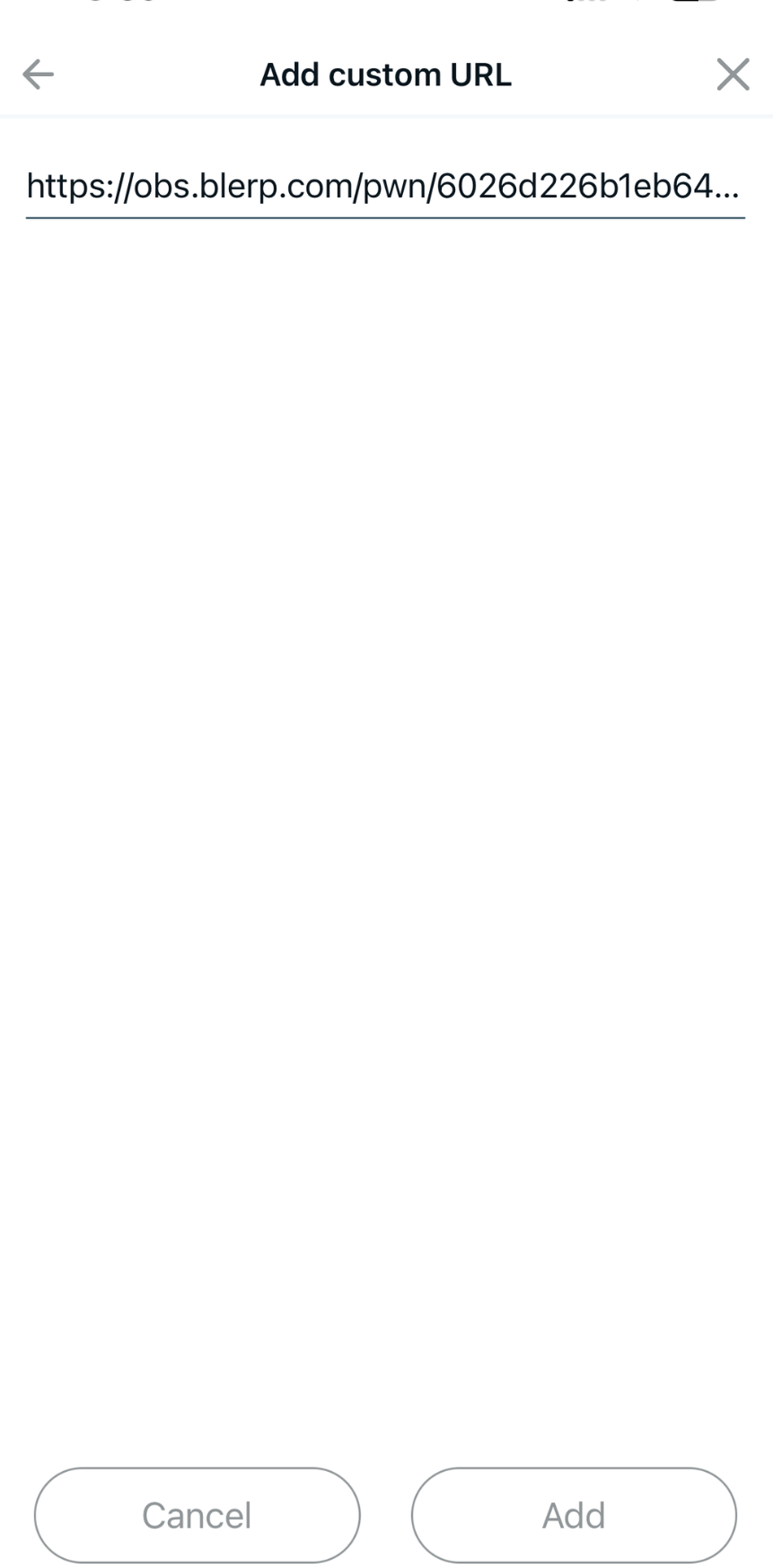
- Click "Add" to insert the Blerp browser source into your scene.
Now Blerp is officially part of your scene!
Step 4: Adjust and Save
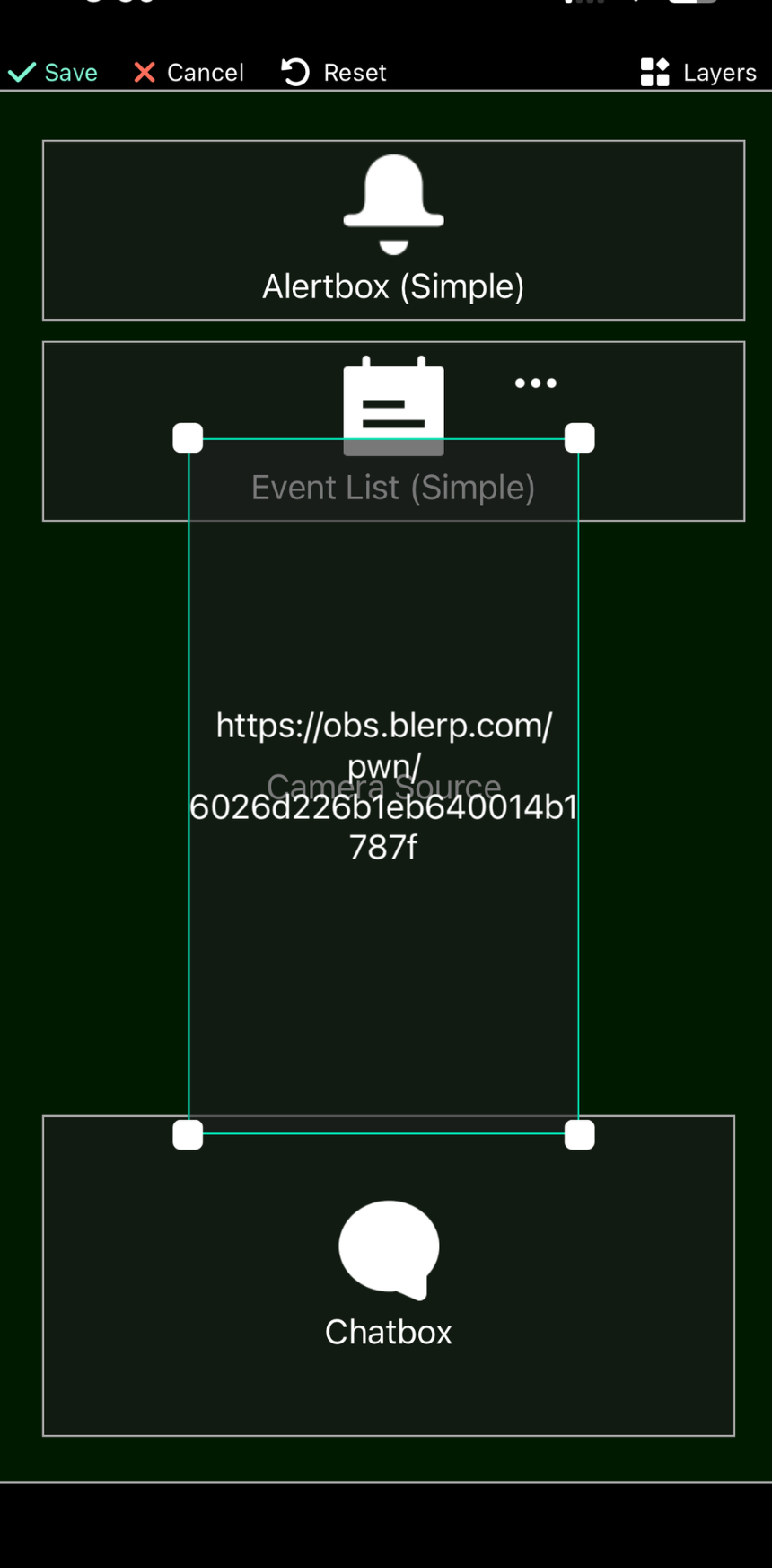
Once added, you'll see the Blerp widget as a layer on your canvas:
- Drag it where you want it.
- Resize if needed to keep things clean.
- When you're happy with the setup, tap “Save” to lock in your changes.
Step 5: Go Live and Let the Sounds Roll
That’s it! You’re ready to stream with Blerp on mobile. Now, whenever you go live, your viewers can use bits or channel points to trigger sounds in real time.