How to Add the Blerp Universal Extension to Your Stream
The Blerp Universal Extension is a web browser extension compatible across multiple streaming platforms, including Kick, YouTube, Twitch, Facebook, and more. Viewers can use Beets or channel points (earned through watch time) to interact with features like sound memes, media share, AI text-to-speech (TTS), and more.
Additionally, streamers earn more when viewers spend Beets on their stream because Blerp takes 0% of the cut from beets shared on stream.
How to Set Up the Blerp Universal Extension
Follow these simple steps to enable the extension:
Go to Blerp Settings
Enable the Universal Extension
- Navigate to the "Universal Extension" tab and toggle it ON.
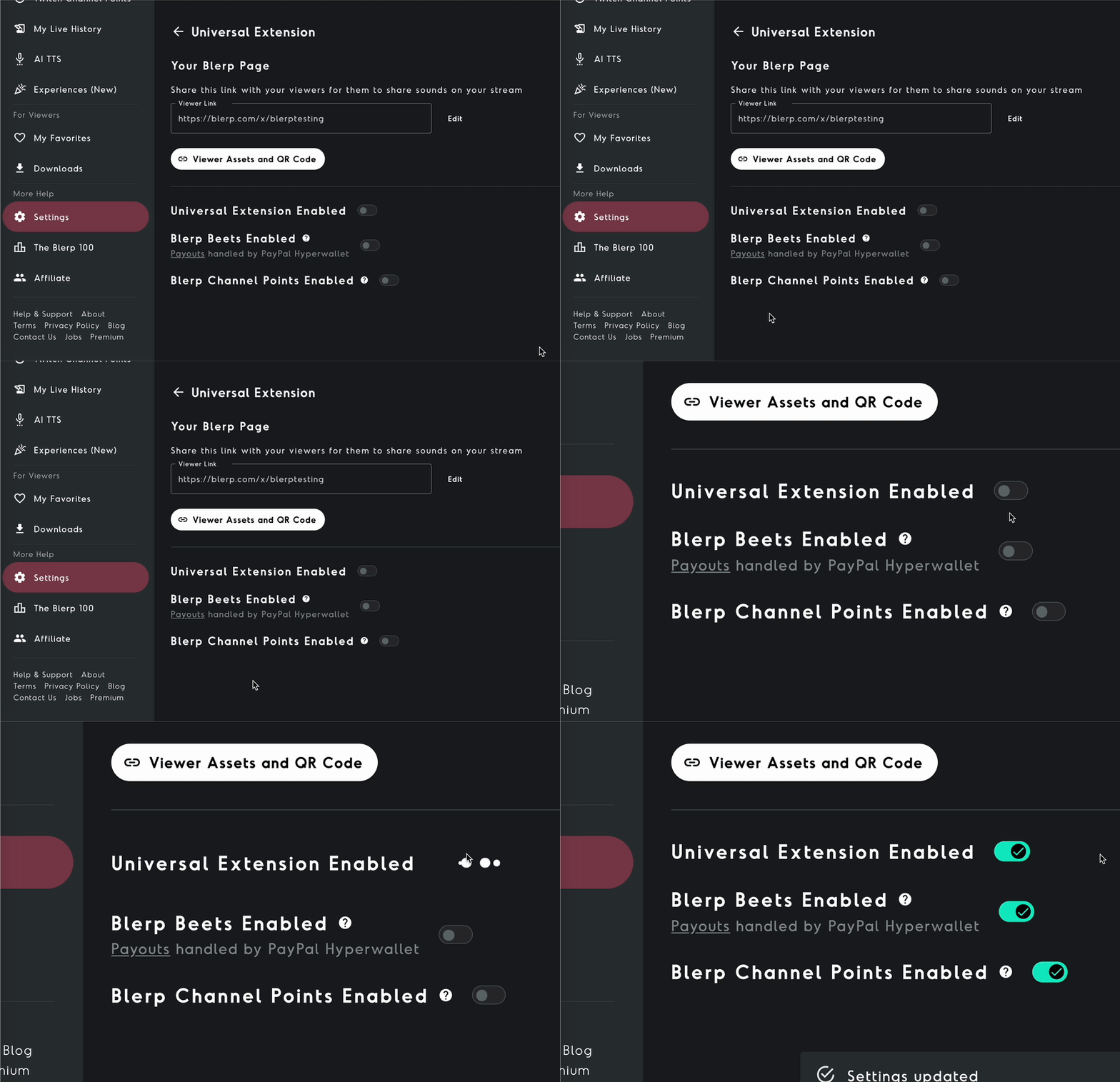
Set Up Viewer Engagement Options
- Enable or disable Blerp Beets and Channel Points, the two currencies viewers use to trigger sounds and features.
- Copy your viewer link from the "Your Blerp Page" section.
Share Your Viewer Link
- Add a Blerp panel to your channel with your viewer link to inform your audience about Blerp and how they can use it.
- Consider adding a timed chat bot to further increase engagement.
Choose from 13 fun image assets to include in your panel.
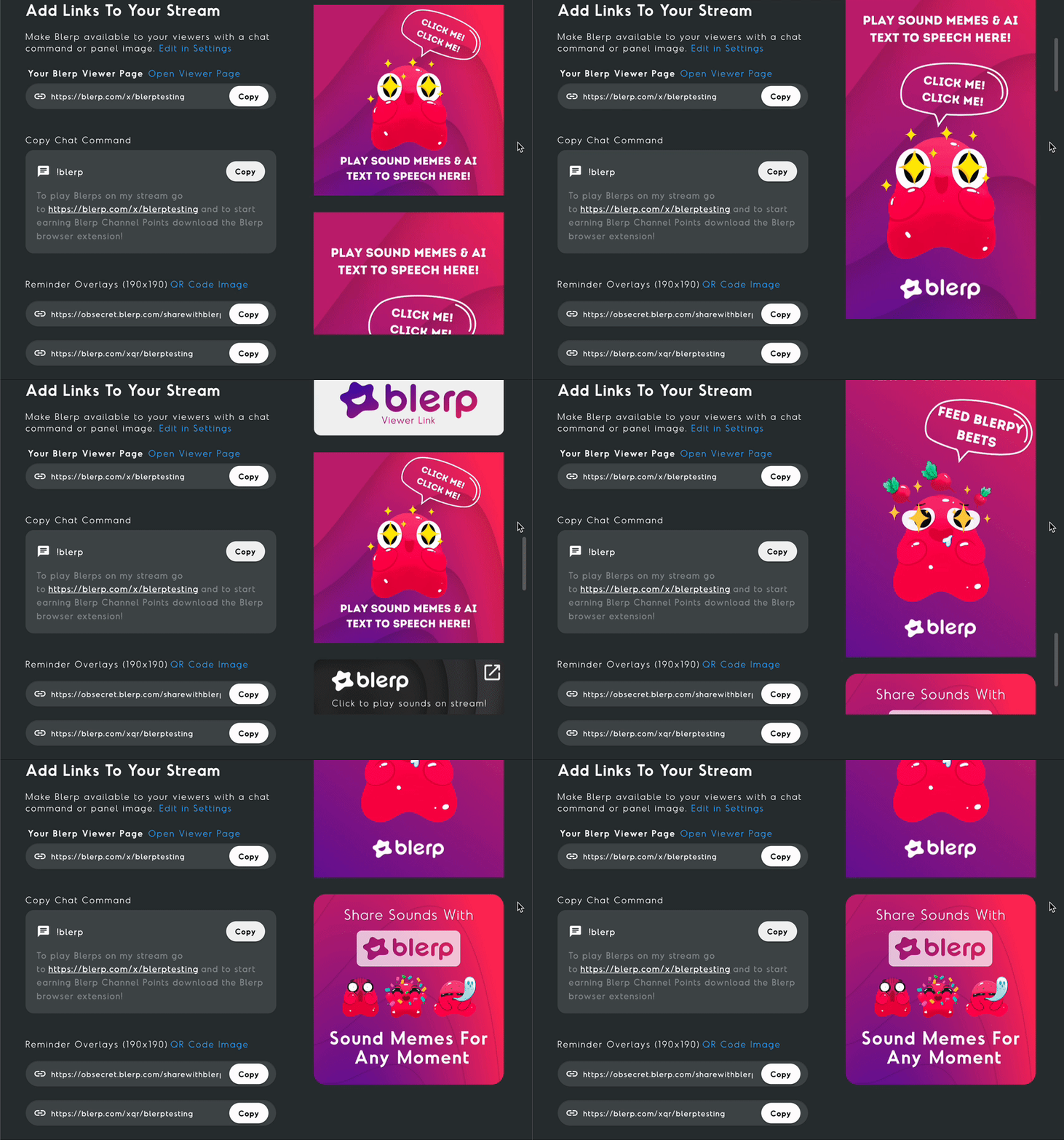
*Note* It is very important for you to share your viewer link with your community. This is what allows your viewers to share sounds on your stream. We strongly recommend you share this link by adding a Blerp panel to your streams channel, letting your viewers know what Blerp is and how to use it. As well as adding a timed chat bot, we’ve seen a large increase in engagement from streamers who implement a timed chat bot.
Adding Sounds to Your Extension
Access "My Stream's Blerps"
- Navigate to "My Stream's Blerps" from the side menu.
Add Sounds to Your Library
- Click "Add Sounds to Stream" or visit the Discover page.
Find a sound you like and select the “+” icon to add it to your library.
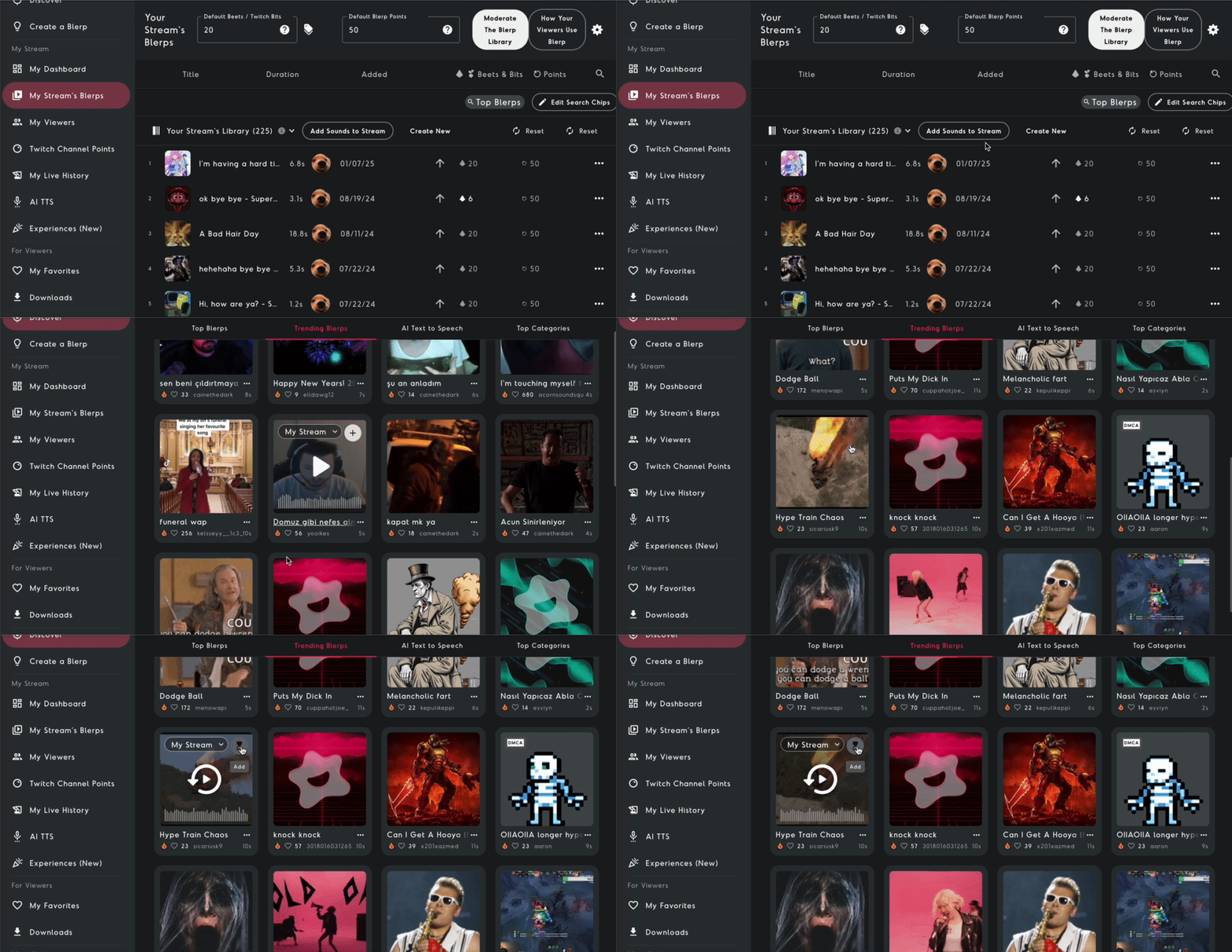
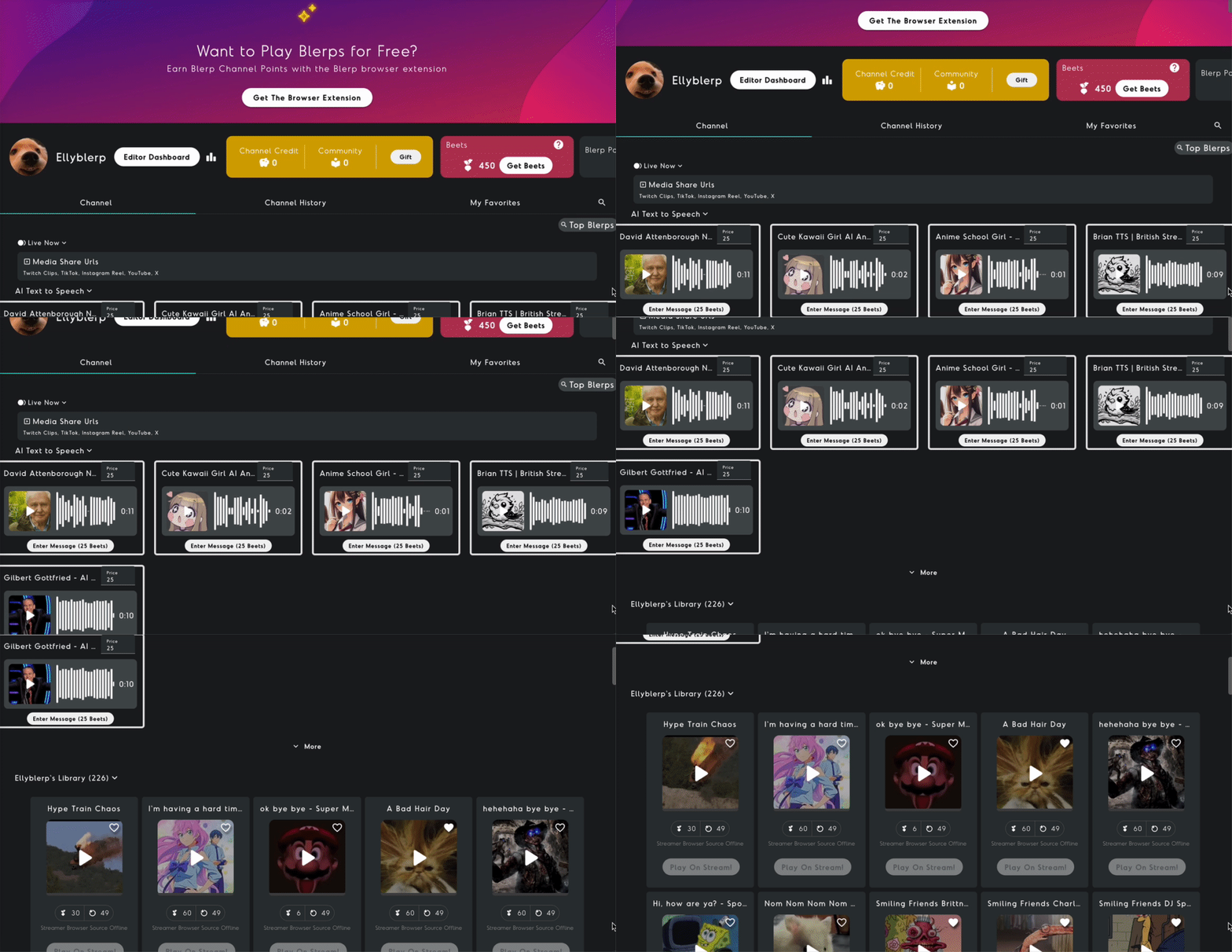
In addition to viewers sharing sounds you’ve featured on your extension, they can also use blerps search feature to share sounds from our library. Be sure to check out our library moderation guide to familiarize yourself with the settings and tweak them to fit your needs
Adjust Sound Prices
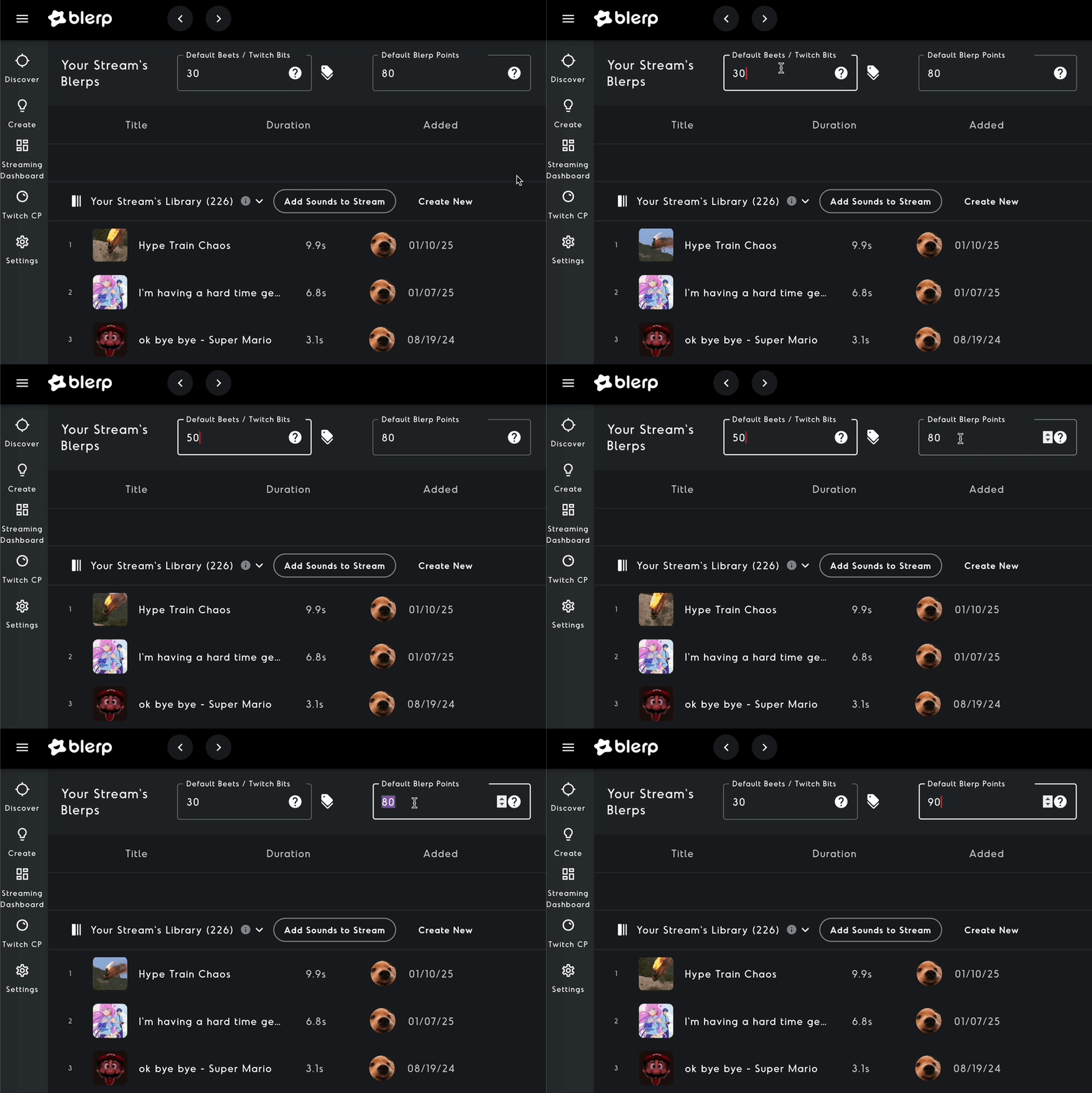
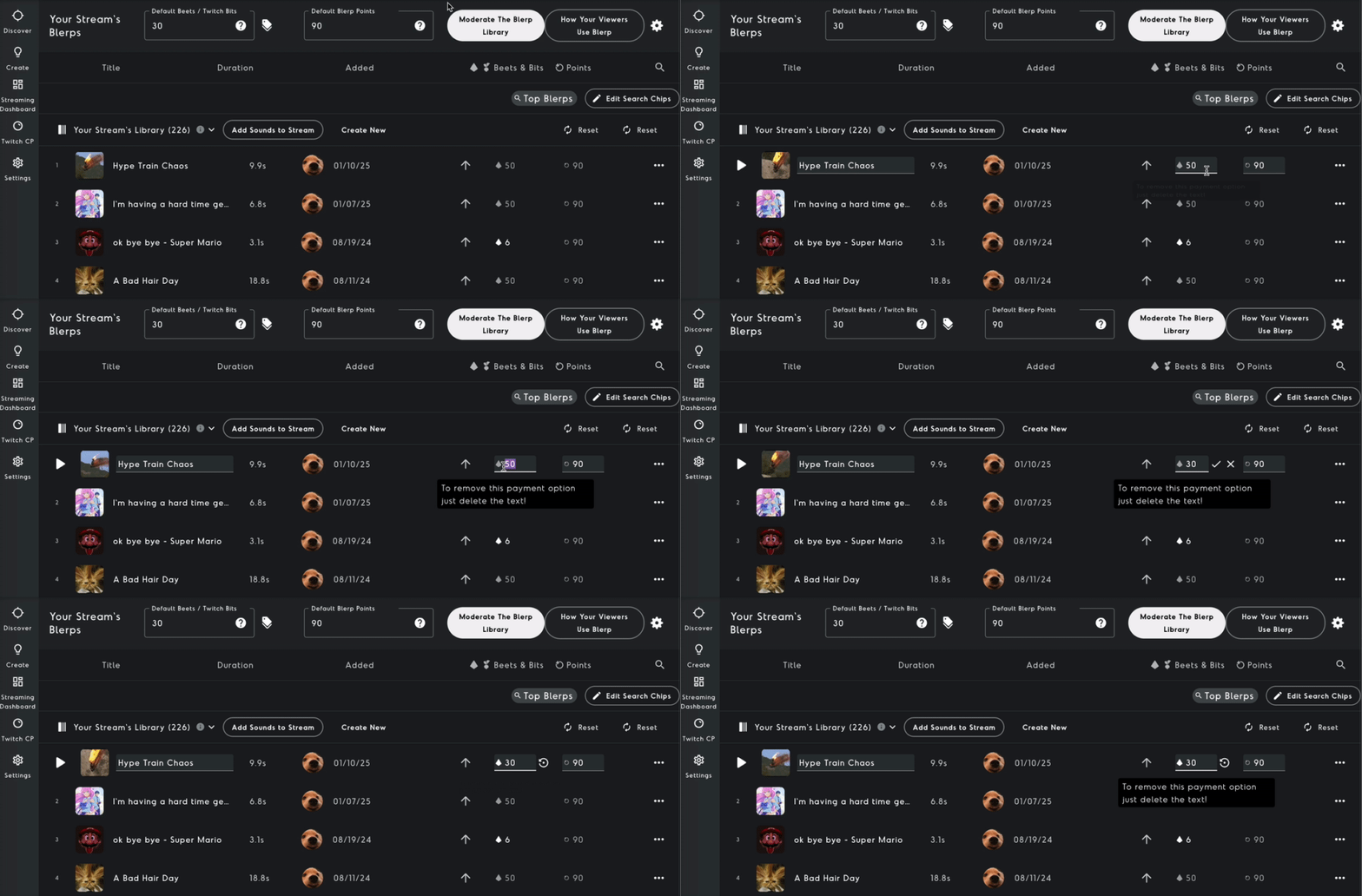
- Adjust default prices for Beets and Channel Points under "My Stream's Blerps" located at the top of the page. Setting the default price for Beets and Blerp channel points will change the price of all of your featured and non featured sounds.
- To change the the price of an individual sound, locate the sound under “My Streams Library” and adjust the beet or channel point price accordingly.
Additional Features
Be sure to check out our other guides on how to set up the following features to add to your Universal Extension:
How Viewers Can Share Sounds
Your viewers can easily interact with your stream by:
- Visiting your viewer link to redeem sounds or other features.
- Installing the Blerp Web Browser Extension
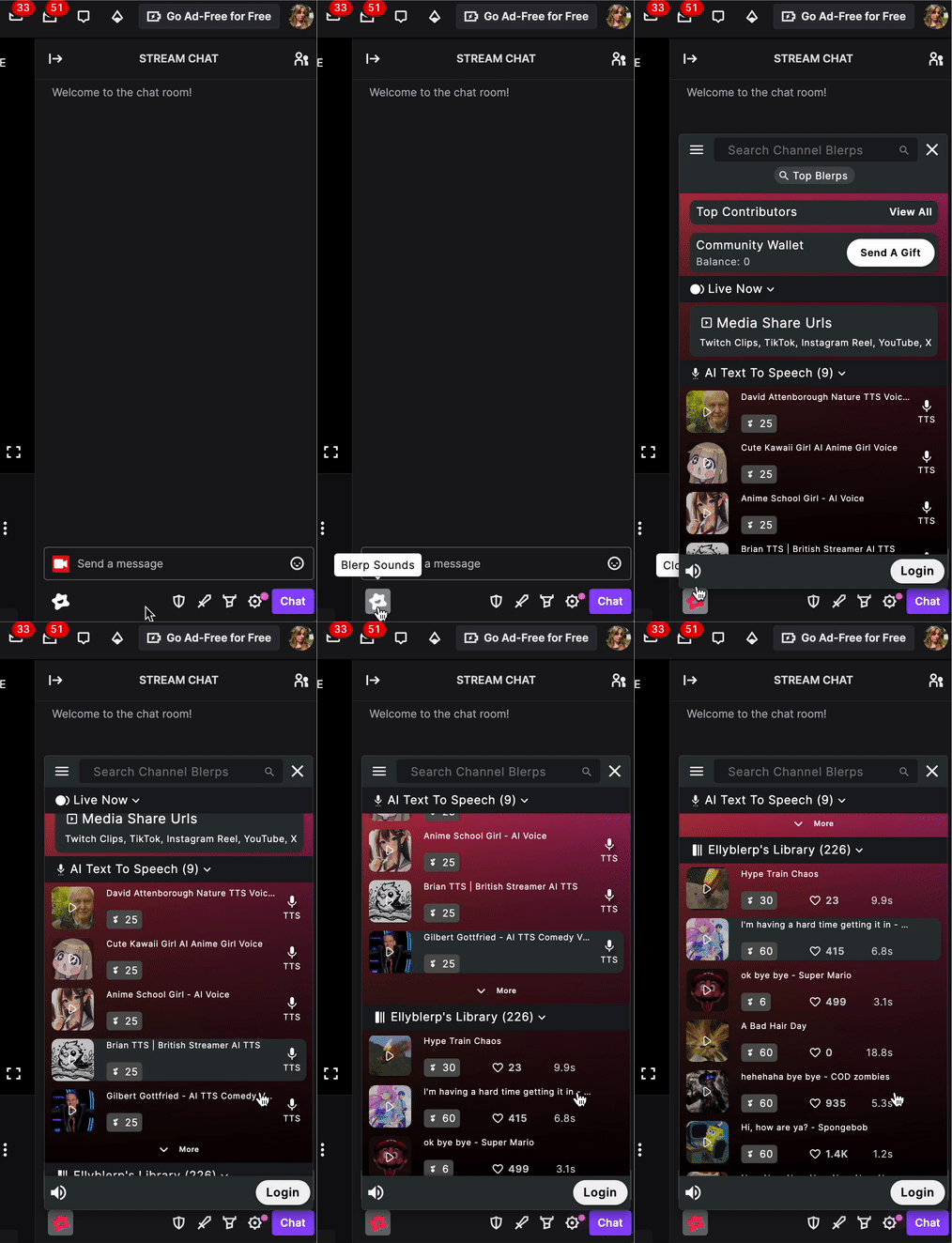
- After installing the Blerp browser source extension, viewers can access the extension directly from your stream’s chat.
Need Help?
Join our Discord server to connect with the Blerp team and get support for your setup.