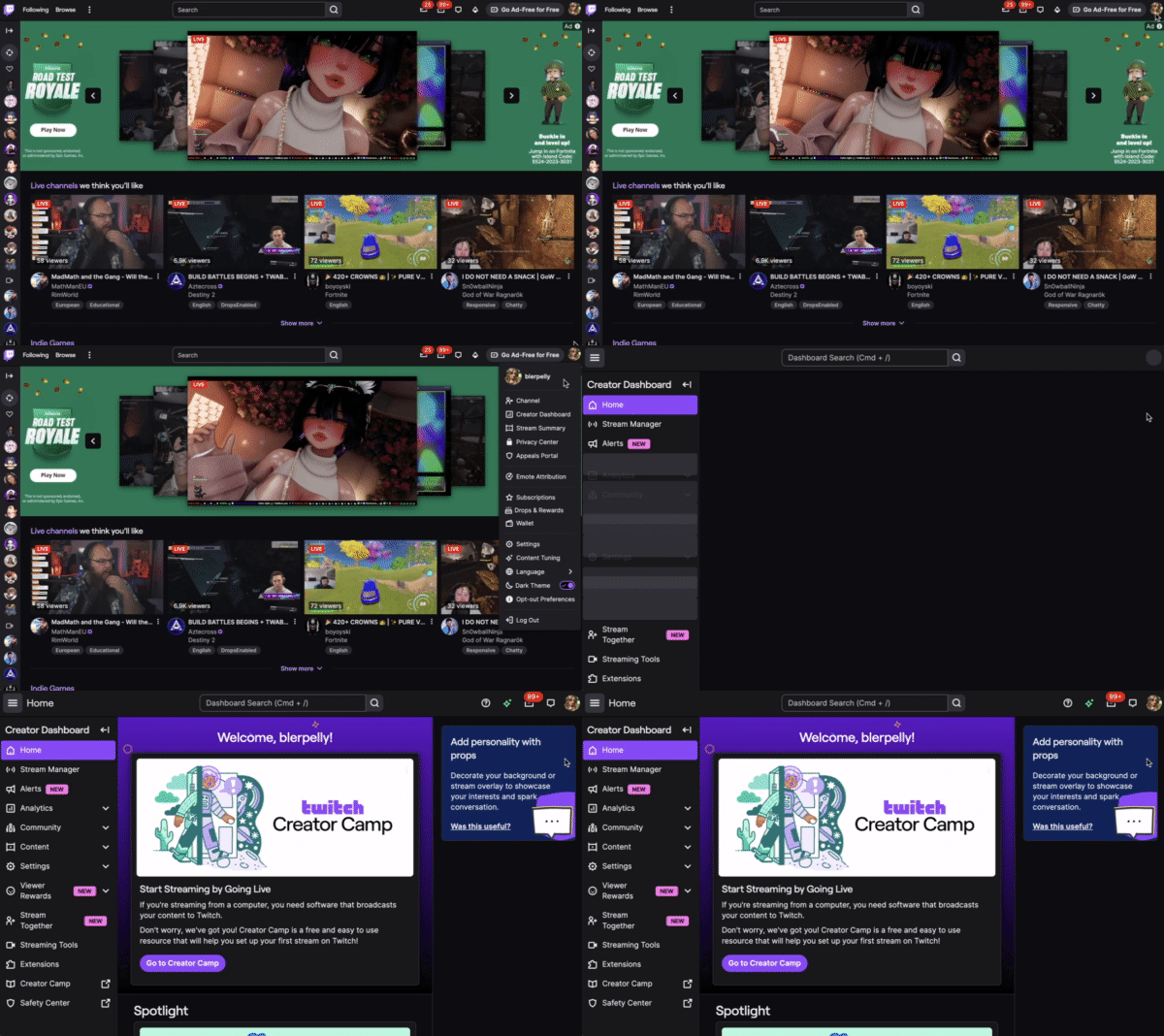
If you're serious about growing your Twitch channel, understanding how to use your Creator Dashboard is key. This is your command center, a hub for tracking performance, customizing stream settings, and learning more about who’s tuning in.
Whether you're brand new to streaming or looking to step up your content game, this guide will walk you through the essential features of the Twitch Creator Dashboard and how to use them effectively.
Why the Creator Dashboard Matters
The Creator Dashboard is more than just a backend panel, it’s a full analytics suite and control room that helps you monitor your content and viewer engagement. From stream metrics to real-time chat insights, it’s built to help you make smarter decisions and improve your streams over time.
Core Metrics to Understand
Before diving into the interface, it’s worth understanding the core Twitch metrics you’ll encounter:
- Views: Total times your stream or content was viewed, includes repeat visits and shared links.
- Unique Viewers: Number of individual users who tuned in, helping you gauge the real reach of your stream.
- Followers: Users who’ve opted to follow your channel and get notified when you go live.
- Concurrent Viewers: How many people are actively watching at the same time during a stream.
- Chat Activity: Total number of chat messages sent during your stream, a good sign of community engagement.
- Minutes Watched: Total watch time accumulated across all viewers, important for gauging overall interest and retention.
How to Access the Creator Dashboard
Getting to your dashboard is simple:
- Log into Twitch.
- Click your profile image in the top-right corner.
- Choose Creator Dashboard from the dropdown menu.
This will take you to the central hub where all your streaming tools and analytics live.
Key Sections of the Twitch Creator Dashboard
1. Overview Panel
The Overview section gives you a quick glance at what’s happening with your channel. You’ll see current viewership, follower count, minutes watched, and your most recent or top-performing clips. Think of this as your daily summary.
2. Stream Manager
Here’s where you manage your live broadcast in real time. The Stream Manager lets you:
- View your live chat and interact with your community.
- Monitor stream health (bitrate, resolution, stability).
- Adjust stream info like your title, tags, and category.
- Access your stream key and other settings.
This page is your on-air cockpit, everything you need to control your stream while you're live.
3. Stream Summary
Once you end a broadcast, head to the Stream Summary. This section breaks down:
- Average viewers and peak viewers
- Chat message volume
- Top clips from the stream
- Any new follows, subs, or raids that happened during your broadcast
Use these insights to review how your stream performed and spot what worked well.
4. Channel Analytics
For a deeper look into your performance over time, Channel Analytics is where you want to go. Here, you can filter data by day, week, or month and analyze:
- View and follower growth trends
- What games or categories drive the most views
- Viewer retention over time
This section is essential for spotting long-term patterns and setting growth goals.
5. Insights
Want to learn who your viewers are and how they’re watching? The Insights tab includes:
- Audience demographics like age range and geography
- Device usage (desktop, mobile, console)
- Viewer behaviors and interests
This helps you tailor your content strategy to better fit your core audience.
6. Revenue Tab
For Affiliates and Partners, this section tracks:
- Subscription earnings
- Bit donations
- Ad revenue
You can monitor trends in monetization and make decisions on when and how to promote subscriber benefits or donation incentives.
Tips for Using the Dashboard Strategically
Track Performance Regularly
Don’t just check your stats once in a while, look at them after each stream. This helps you understand what content is clicking with your audience and what needs improvement.
Use the Scheduler
Planning your streams in advance with the built-in scheduling tool increases the chances of viewers showing up. It also creates consistency, which is key to building loyal followers.
Engage in Real-Time
Use the chat viewer inside Stream Manager to talk directly with your audience during broadcasts. A responsive streamer helps create a welcoming community and keeps people coming back.
Review Your Top Clips
Studying what gets clipped can give you insight into what moments are most entertaining or valuable. Use these clips for social content or highlight reels.
Optimize Based on Insights
If your viewers are mostly on mobile, keep your overlays clean and readable. If most are in a certain time zone, consider shifting your stream schedule to match.
Final Thoughts
Mastering the Creator Dashboard isn’t just about knowing where things are, it’s about using the tools to create a more engaging, efficient, and growth-focused streaming experience. The more comfortable you get with the data and features Twitch provides, the better equipped you are to level up your content and build a thriving community.