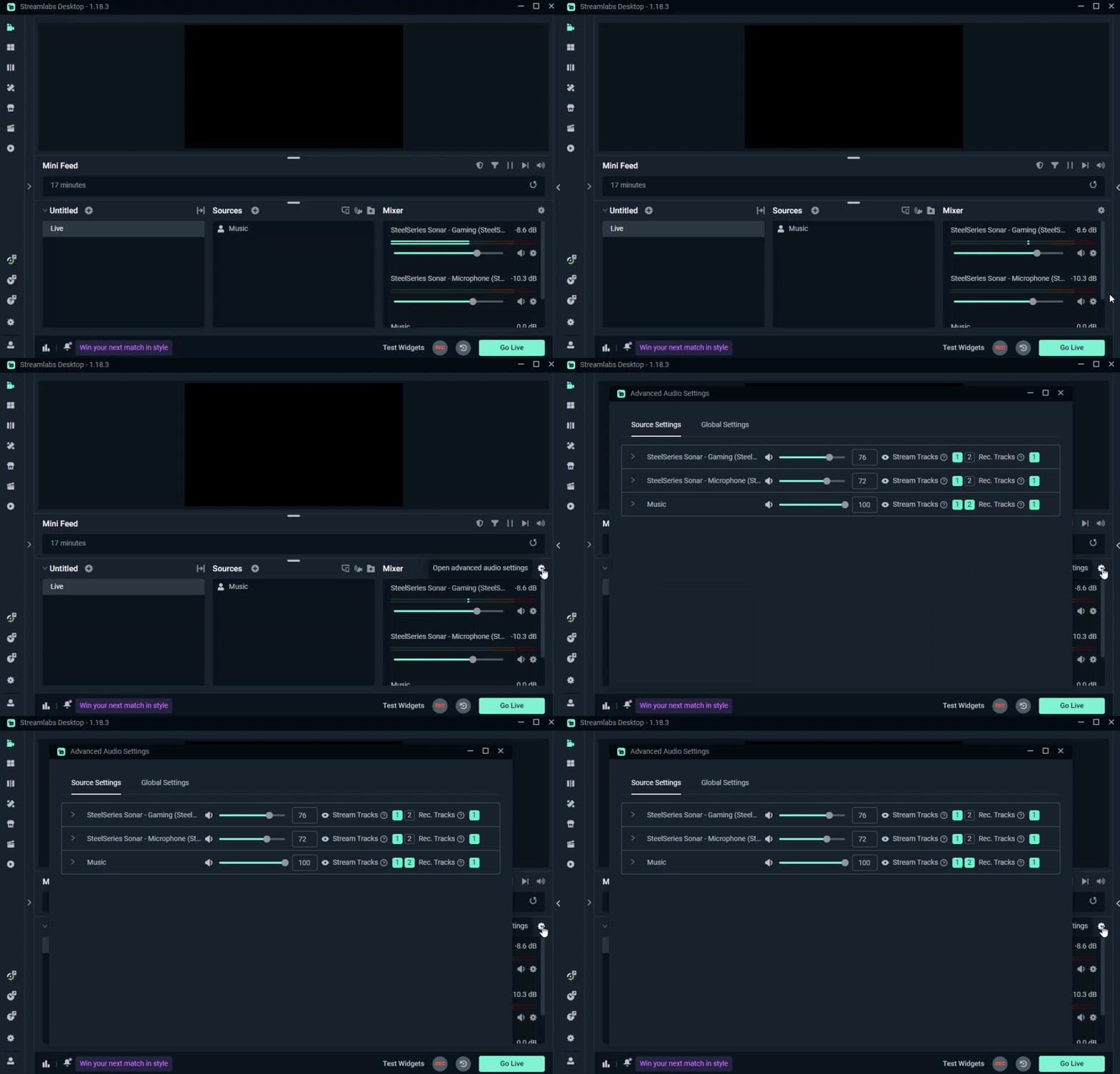
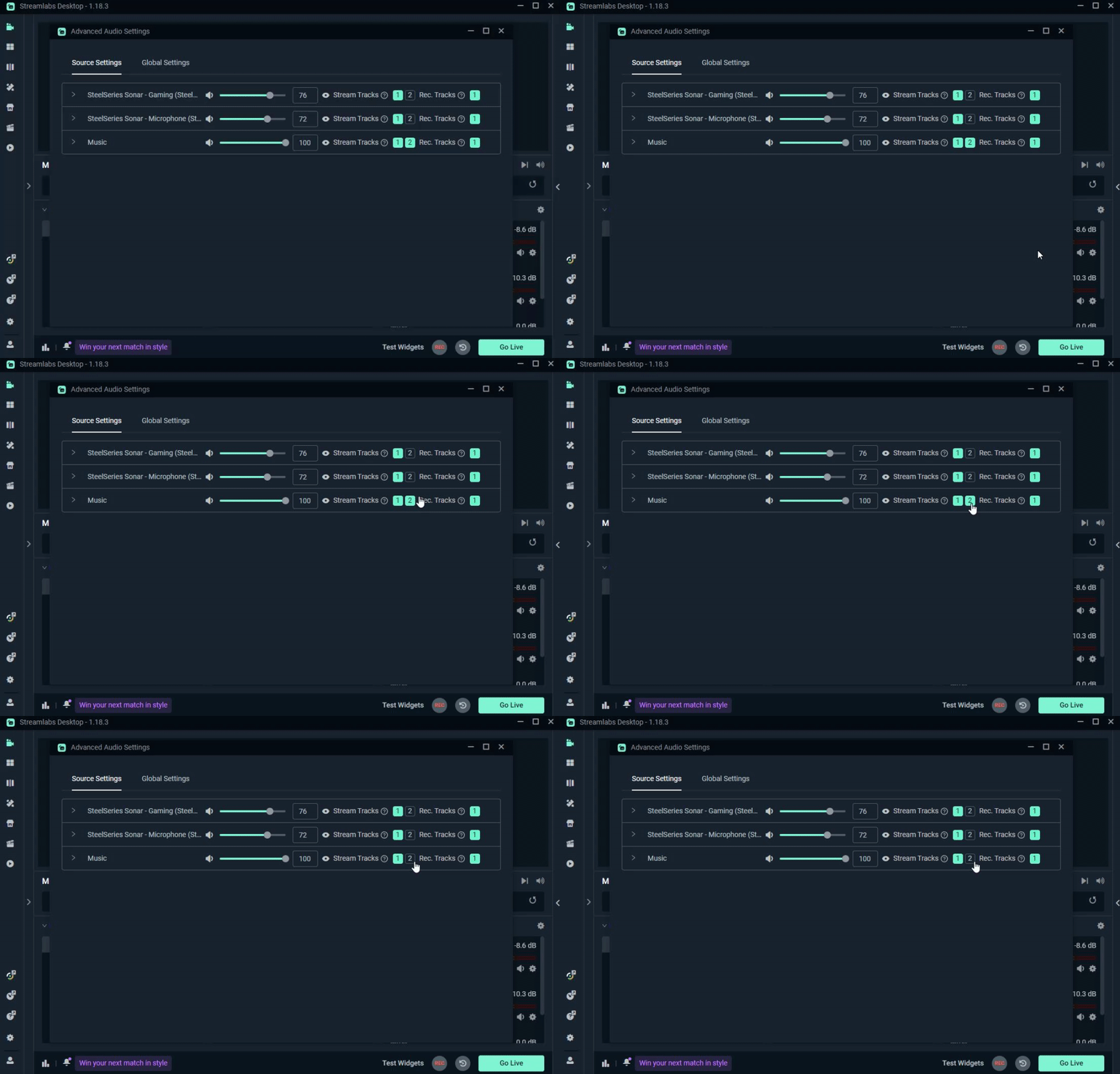
If you’re streaming on Twitch, copyright is something you can’t afford to ignore. DMCA strikes can lead to muted VODs, takedowns, or even suspensions. While muting copyrighted music in your VODs can help protect you, it’s important to know that you can still receive a copyright strike while live, muting your VOD doesn’t make you completely safe. That said, it’s still a smart step to take if you want to protect your content after the stream ends.
In this guide, we’ll walk you through how to remove music from your Twitch VODs using Streamlabs OBS.
1. Connect Your Twitch Account
Before you do anything else, make sure your Twitch account is connected to Streamlabs OBS.
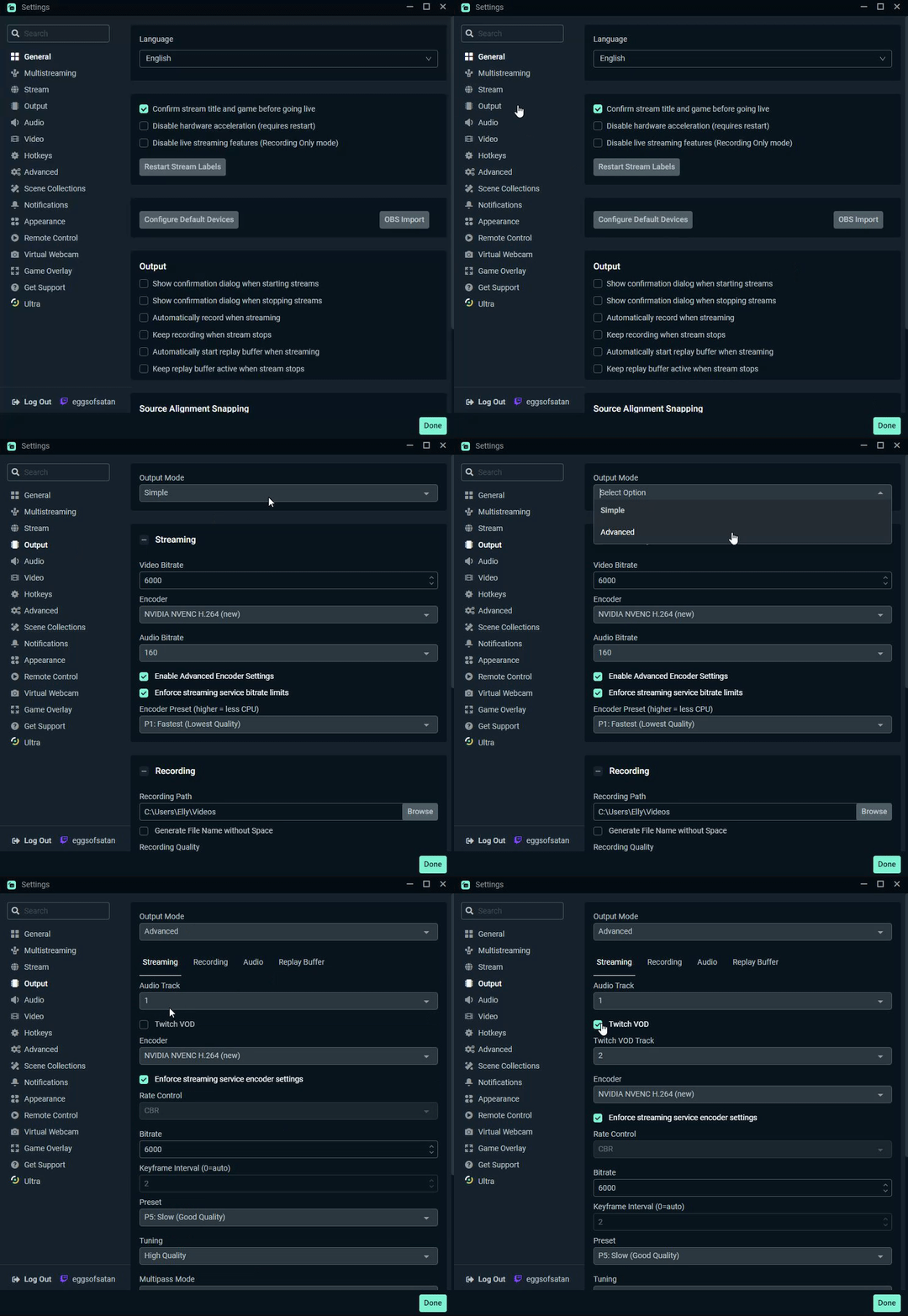
- Go to Settings → Stream
- Click Connect Account (Recommended)
This step makes everything smoother down the line, especially when configuring stream-specific settings.
2. Enable Custom Encoder Settings
Now it’s time to unlock the VOD-specific audio track feature:
- Go to Settings → Output
- Tick the box for Enable Custom Encoder Settings
Alternatively, switch the Output Mode at the top to Advanced, then enable Twitch VOD Track. This tells Streamlabs you want to treat your live audio and VOD audio separately.