Easy Sound Alert Setup in OBS with Blerp for Streamers
Setting up sound alerts in OBS can transform your Twitch, Kick, or YouTube stream by adding interactive, DMCA-safe audio that engages viewers. With Blerp’s Universal Extension, easy sound alert setup in OBS takes just minutes, letting you add over 1 million safe sounds without copyright worries. This guide provides a step-by-step process to get Blerp’s sound alerts running in OBS, optimized for streamers who want a hassle-free experience. Follow these steps to elevate your stream today.
Why Choose Blerp for Sound Alerts in OBS?
Blerp makes easy sound alert setup in OBS a breeze with features designed for streamers:
- Massive DMCA-Safe Library: Access 1M+ reviewed, copyright-free sounds, from memes to game effects.
- Seamless Integration: Works with Twitch bits, channel points, and subscriptions for instant viewer interaction.
- Custom Sounds: Upload your own clips, moderated for DMCA compliance.
- Revenue Boost: Earn 33% more via Beets (Blerp’s currency) with no fee deductions.
- Universal Compatibility: Supports Twitch, Kick, YouTube, and more through OBS or StreamElements.
Blerp’s user-friendly setup and safe sounds make it the top choice for streamers looking to avoid DMCA strikes while keeping chat engaged.
How to Set Up Sound Alerts in OBS with Blerp (Step-by-Step)
Follow these simple steps for easy sound alert setup in OBS using Blerp’s Universal Extension:
- Sign Up for Blerp: Create a free account at blerp.com and link your streaming platform (Twitch, Kick, or YouTube).
- Open OBS: Launch OBS on your PC or Mac. Keep the Blerp dashboard open in your browser (blerp.com/dashboard).
- Add a Browser Source:
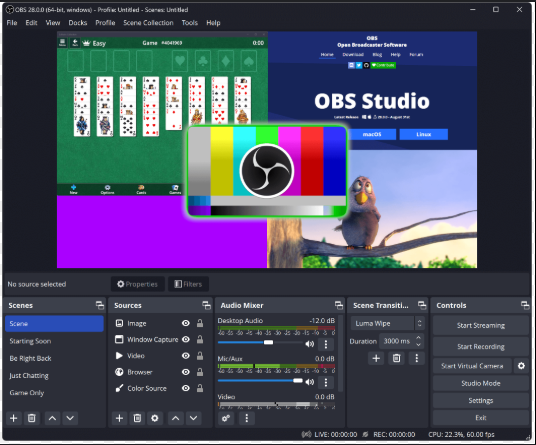
- In OBS, locate the “Sources” panel (bottom left).
- Click the “+” symbol to add a new source.
- Select “Browser” from the menu.
- Create the Source:
- Choose “Create new” and name it “Blerp Sound Alerts” (or similar).
- Ensure “Make source visible” is checked.
- Click “OK.”
- Configure the Browser Source:
- In the browser source properties, paste the Blerp Universal Extension URL (found in your Blerp dashboard under “Extension Setup”).
- Set the width to 1920 and height to 1080 (adjust for your canvas if needed).
- Check “Control audio via OBS” to manage sound levels.
- Click “OK.”
- Select DMCA-Safe Sounds:
- In the Blerp dashboard, go to the “Sounds” tab.
- Choose from 1M+ “reviewed” DMCA-safe sounds or upload custom clips for moderation.
- Set Up Rewards:
- Navigate to the “Channel Points” or “Bits” tab in Blerp.
- Add sound alerts as rewards, setting point or bit prices (e.g., 500 points for a meme sound).
- Customize cooldowns (e.g., 10 seconds) to prevent spam.
- Test Your Setup:
- Go live in OBS and test a sound alert via your streaming platform’s dashboard.
- Adjust volume in OBS’s audio mixer if needed.
- Promote to Viewers: Announce your new sound alerts to chat to spark engagement.
That’s it! Your easy sound alert setup in OBS with Blerp is complete, ready to delight viewers with safe, interactive audio.
Troubleshooting Common Setup Issues
If you encounter problems, try these fixes:
- No Sound: Ensure the browser source is not muted in OBS’s audio mixer and that “Control audio via OBS” is enabled.
- Alerts Not Triggering: Verify the Blerp Extension URL is correct and your streaming platform is linked in the Blerp dashboard.
- Lag or Delay: Lower the OBS canvas resolution or reduce browser source dimensions (e.g., 1280x720).
- DMCA Concerns: Only use Blerp’s “reviewed” sounds to guarantee copyright safety.
For more help, check Blerp’s setup guide or join their Discord community.
Top 5 DMCA-Safe Sound Alert Ideas for Your Stream
To maximize engagement, try these Blerp sound alerts:
- Hype Fanfare: Epic music for subscriptions or raids.
- Funny Meme: “Airhorn” or “Sad Trombone” for comedic moments.
- Custom Catchphrase: Your unique phrase, DMCA-safe via Blerp’s moderation.
- Game Sound: Retro 8-bit effects for in-game wins.
- Viewer Shoutout: A personalized clip for loyal fans.
Why DMCA Safety Matters for Sound Alerts
Using non-DMCA-safe sounds, like in-game effects or copyrighted music, can lead to muted VODs, deleted clips, or channel bans. Blerp’s 1M+ “reviewed” sounds and VOD track feature ensure your alerts are safe, protecting your stream while keeping it fun.
Benefits of Blerp’s Sound Alerts
- Instant Engagement: Sound alerts turn passive viewers into active participants.
- Community Building: Memorable sounds create shared moments.
- Easy Management: Blerp’s dashboard lets you update alerts in seconds.
- Cross-Platform: Works seamlessly across Twitch, Kick, and YouTube.
Streamers using Blerp report up to 20% more viewer retention due to interactive alerts.
Get Started with Blerp’s Easy Sound Alert Setup
Ready for easy sound alert setup in OBS? Blerp’s Universal Extension offers the fastest way to add DMCA-safe, engaging sound alerts to your stream. Sign up at blerp.com, follow the steps above, and watch your audience light up with every trigger. Protect your channel, boost interaction, and make streaming unforgettable with Blerp.
Last updated: April 20, 2025
Here Are Some Useful Links
🔗 Blerp Links
🎮 Twitch Official Hype Train Resources
📢 Streamer Growth & Engagement
📱 Social Media Promotion Tips
🛠 Recommended Twitch Extensions & Tools