If you’re looking to make your YouTube streams more engaging, Blerp’s video alerts are the perfect way to do it. With Blerp, your viewers can trigger short, fun video clips that appear right on your stream, from fullscreen moments to draggable overlays. Here’s how to set them up:
Step 1: Open the Stream Editor
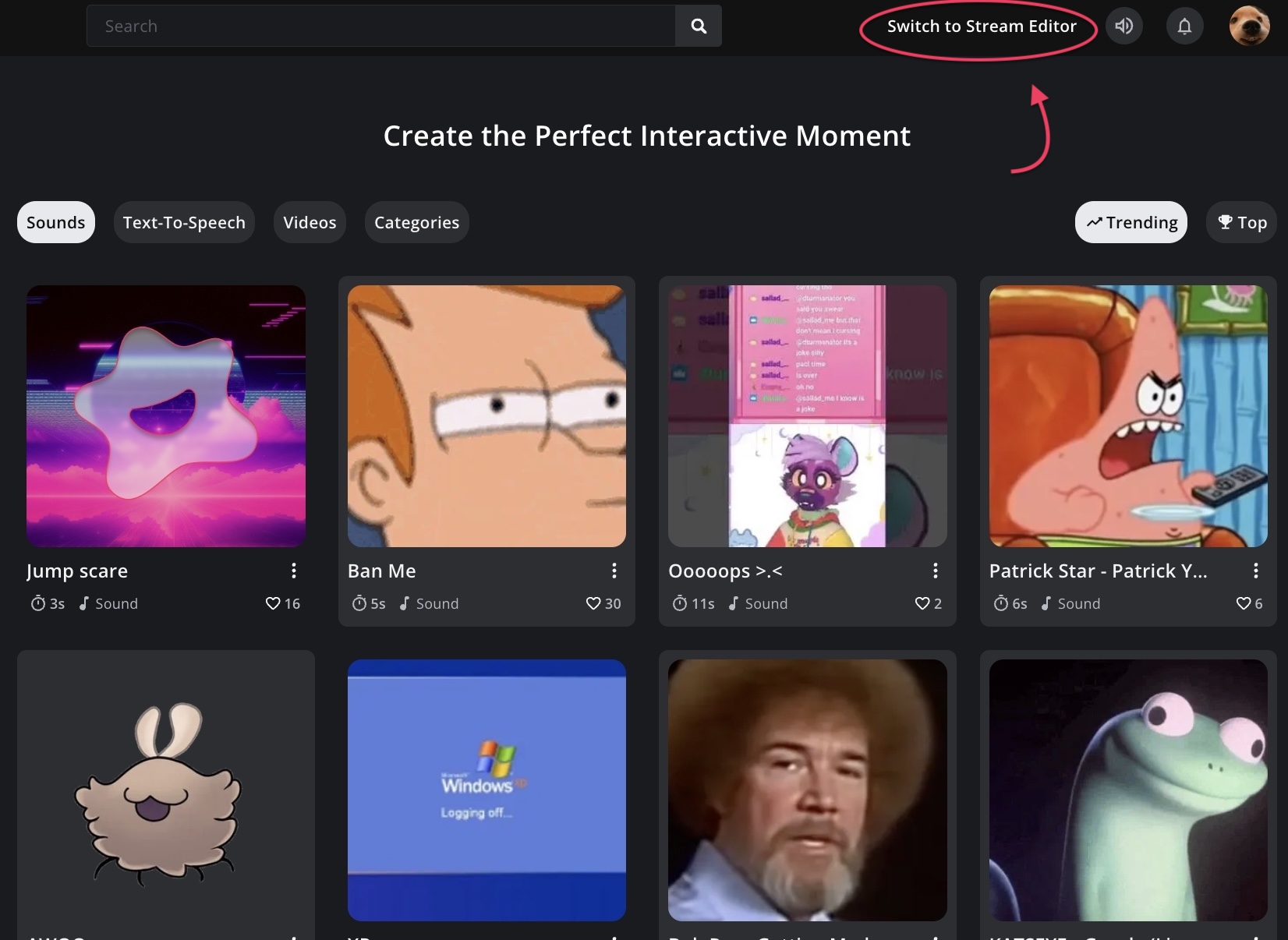
Head to blerp.com and click “Switch to Stream Editor” in the top right corner.
Step 2: Enable Video Alerts
In the top navigation menu, make sure you’re in the “Extension” section.
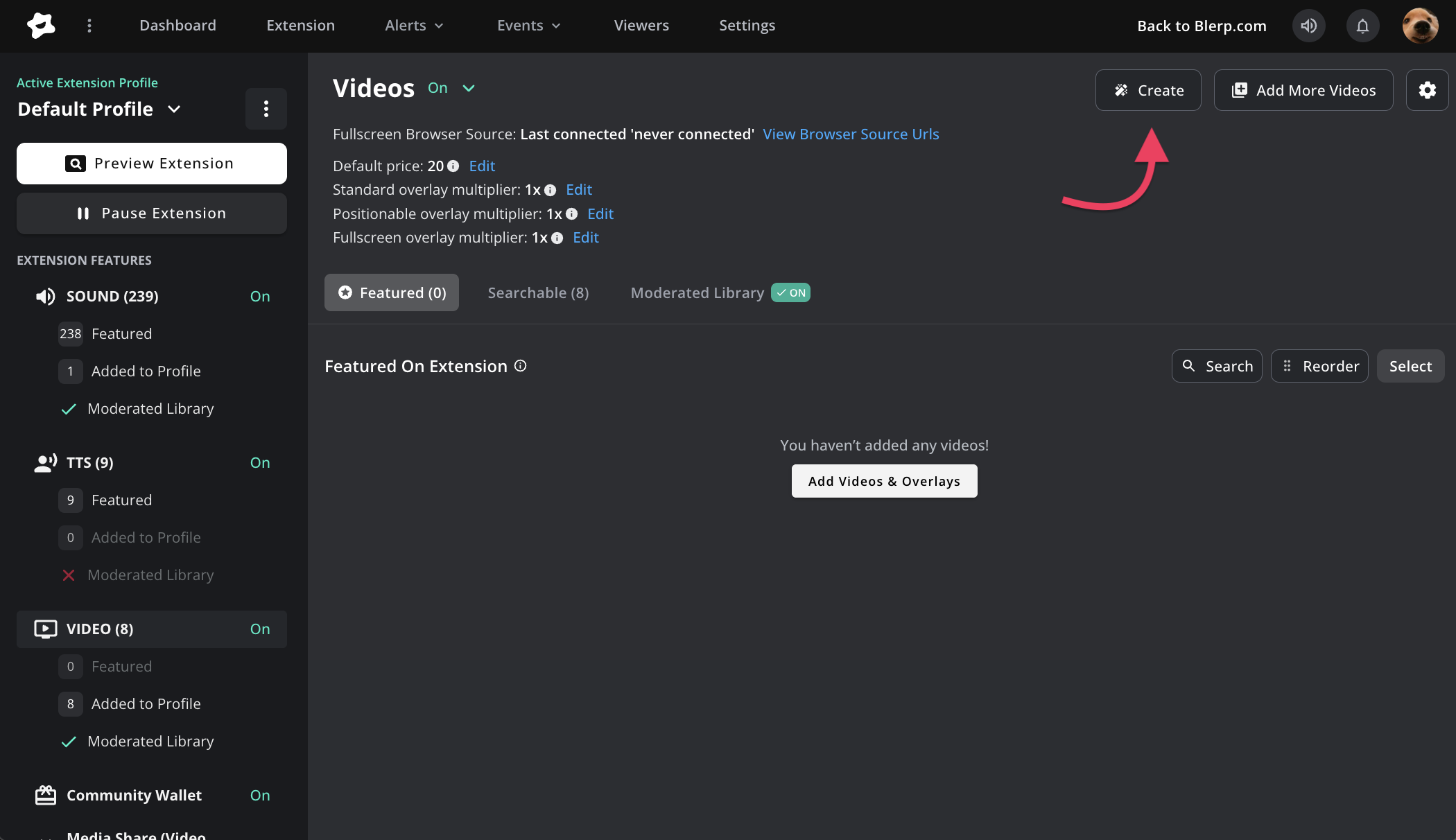
Scroll down to find the “Video” option and toggle it on to activate video content for your stream.
Once enabled, you can start adding and customizing your video alerts!
Step 3: Add Videos and Overlays
Click “Add Videos & Overlays” to begin featuring video alerts on your extension.
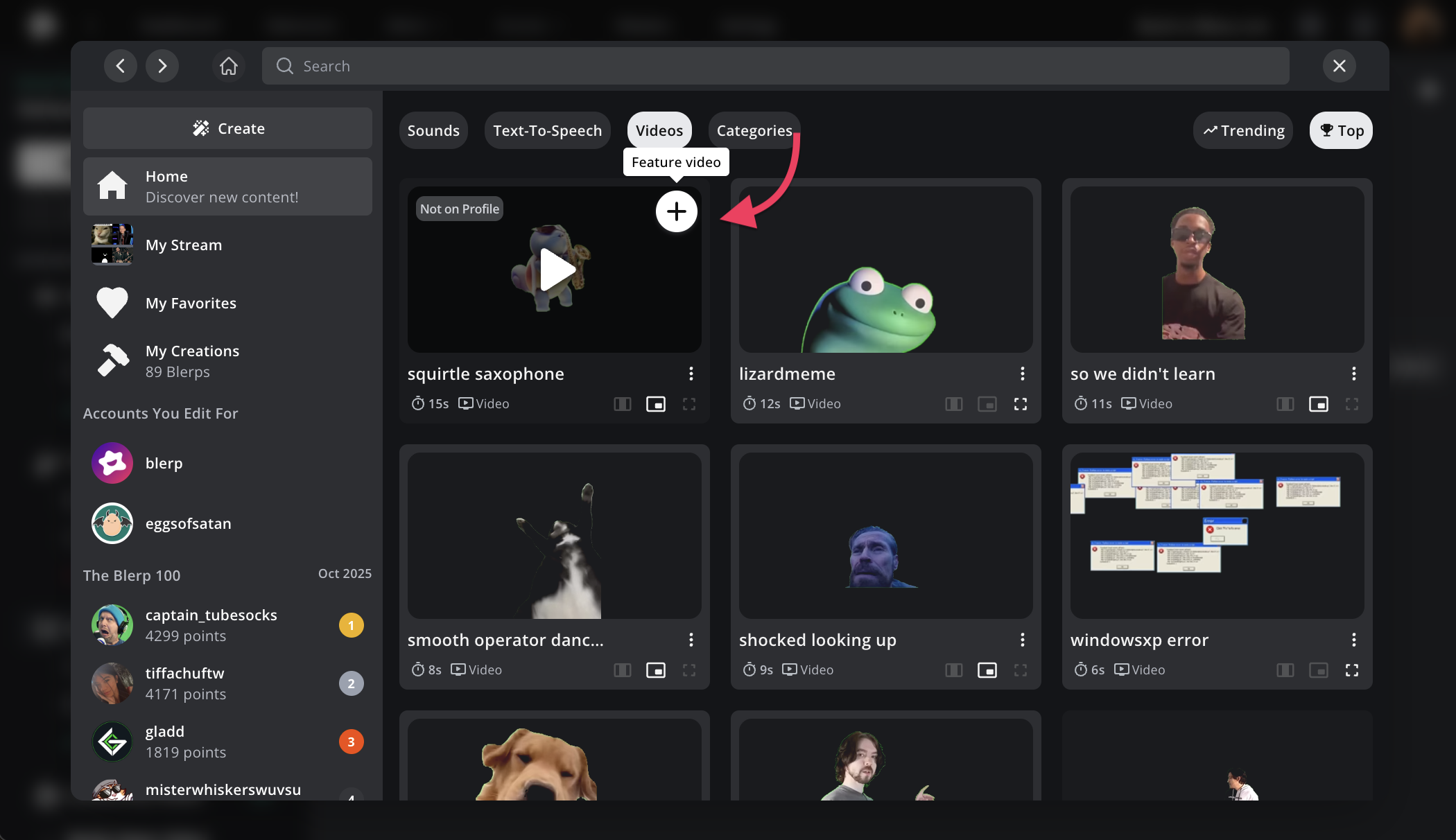
Browse through Blerp’s massive video library and select the “+” icon to add videos to your own collection.
You can also upload and create your own custom video alerts.
Step 4: Customize Video Settings
From your video settings, you can:
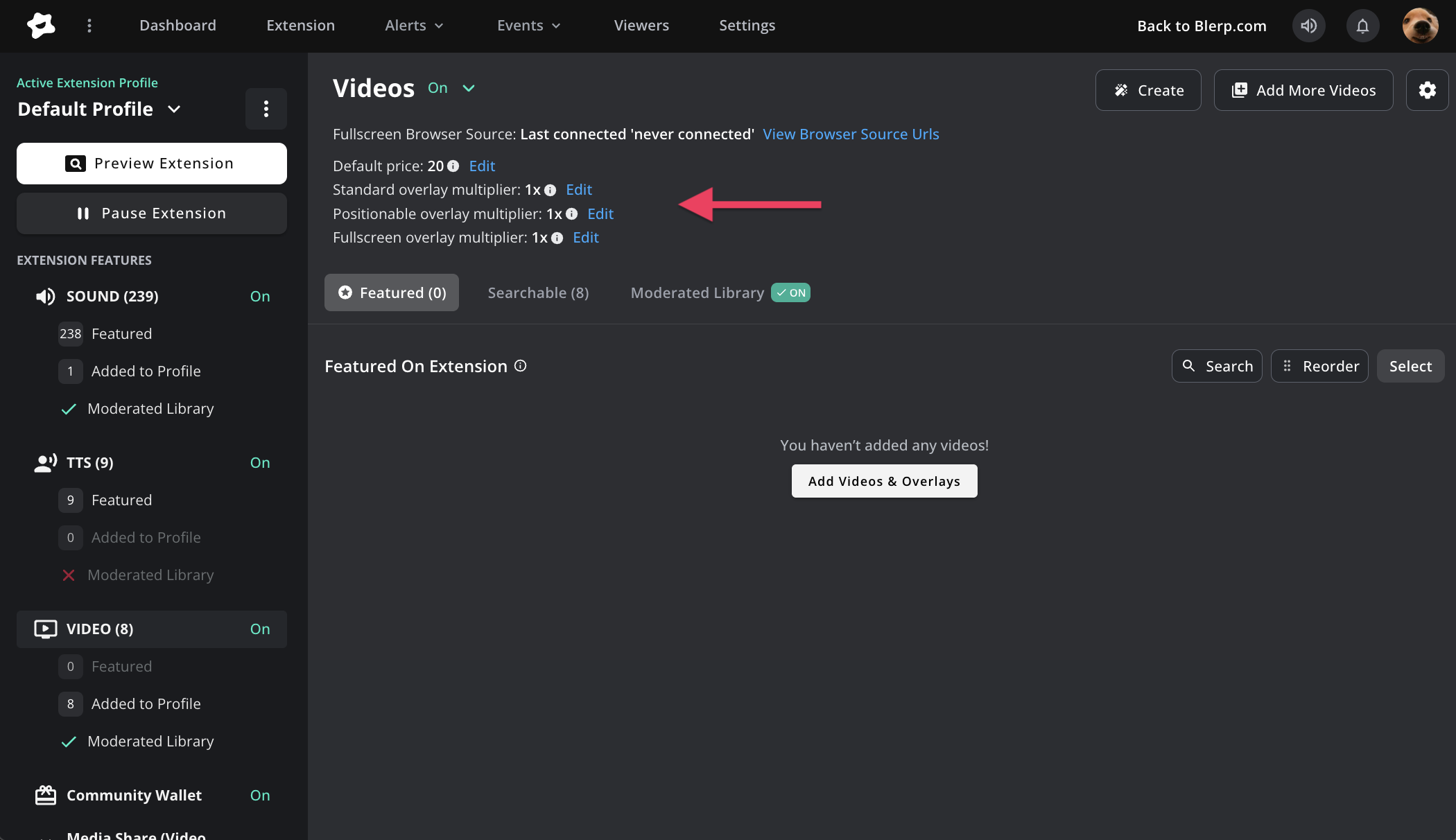
- Set default prices for video alerts
- Adjust price multipliers for different video types
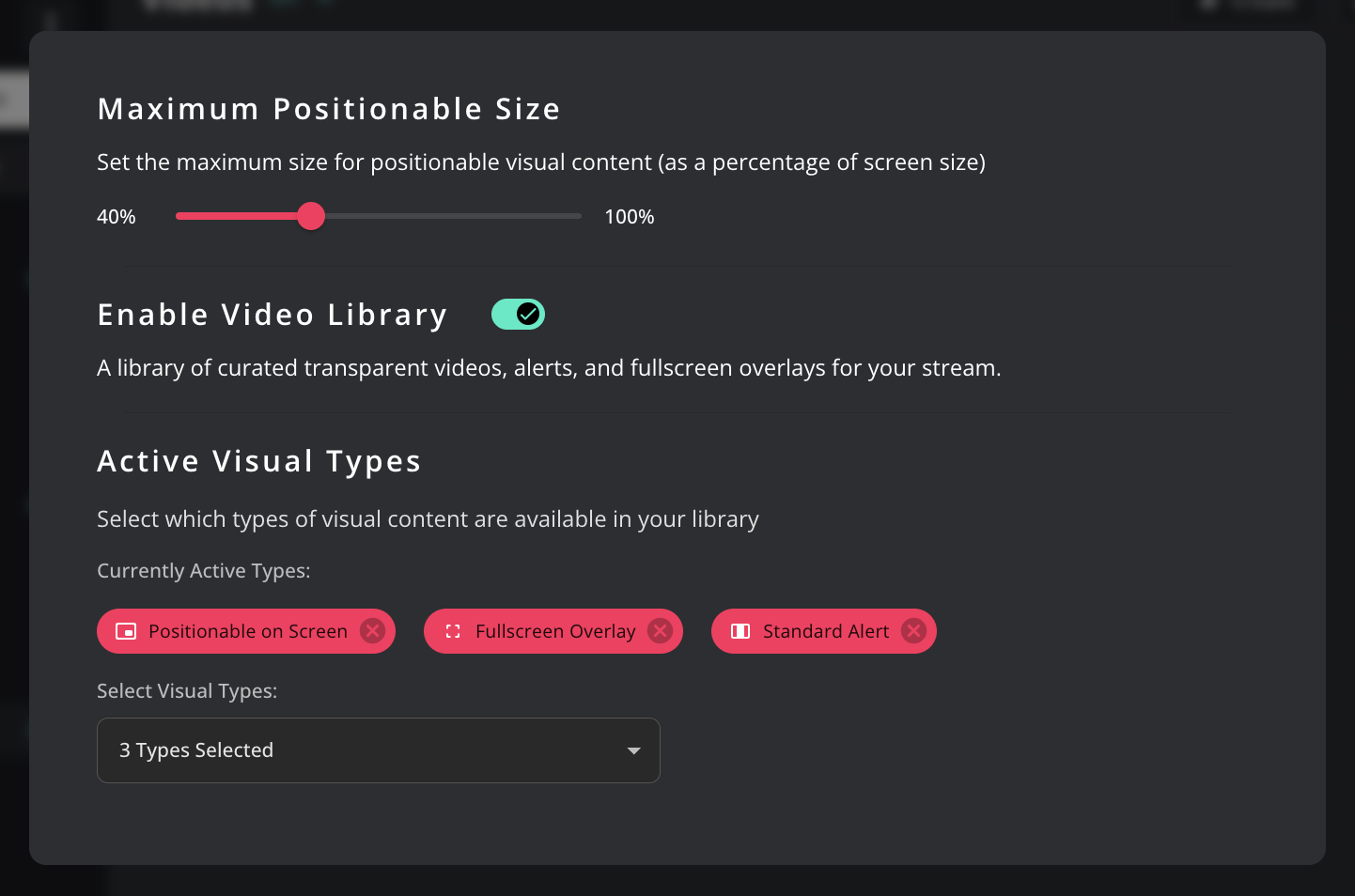
- Choose which visual types (standard, positionable, fullscreen) are active
Standard: Displays normally on stream
Positionable: Lets viewers drag and drop where the video appears
Fullscreen: Takes over your entire stream screen for dramatic moments
With the video library enabled, your viewers can also share videos from Blerp’s public library, in addition to the ones you’ve featured.
Step 5: Edit Individual Video Alerts
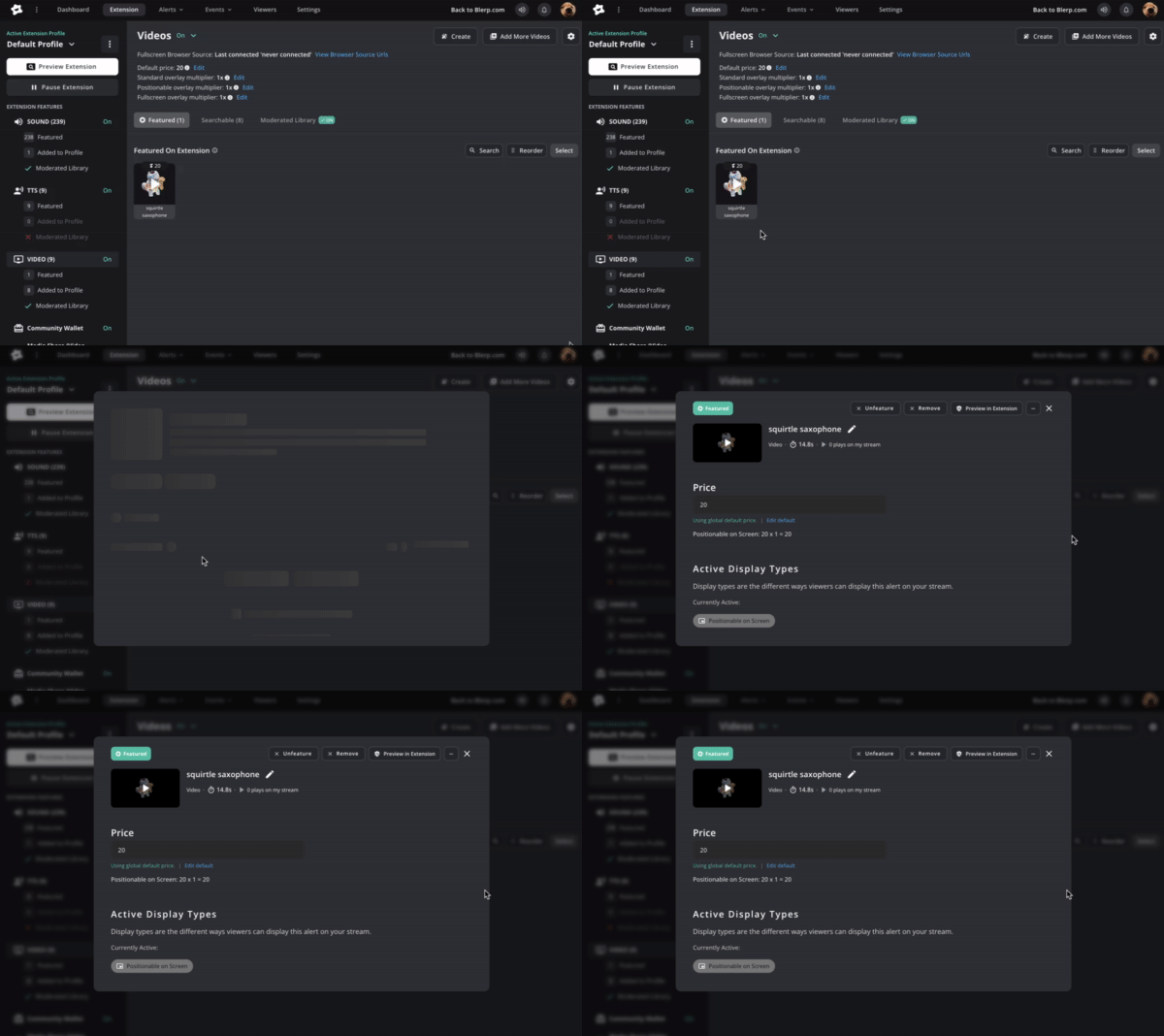
You can fine-tune each alert individually, from pricing to volume, and even custom chat messages.
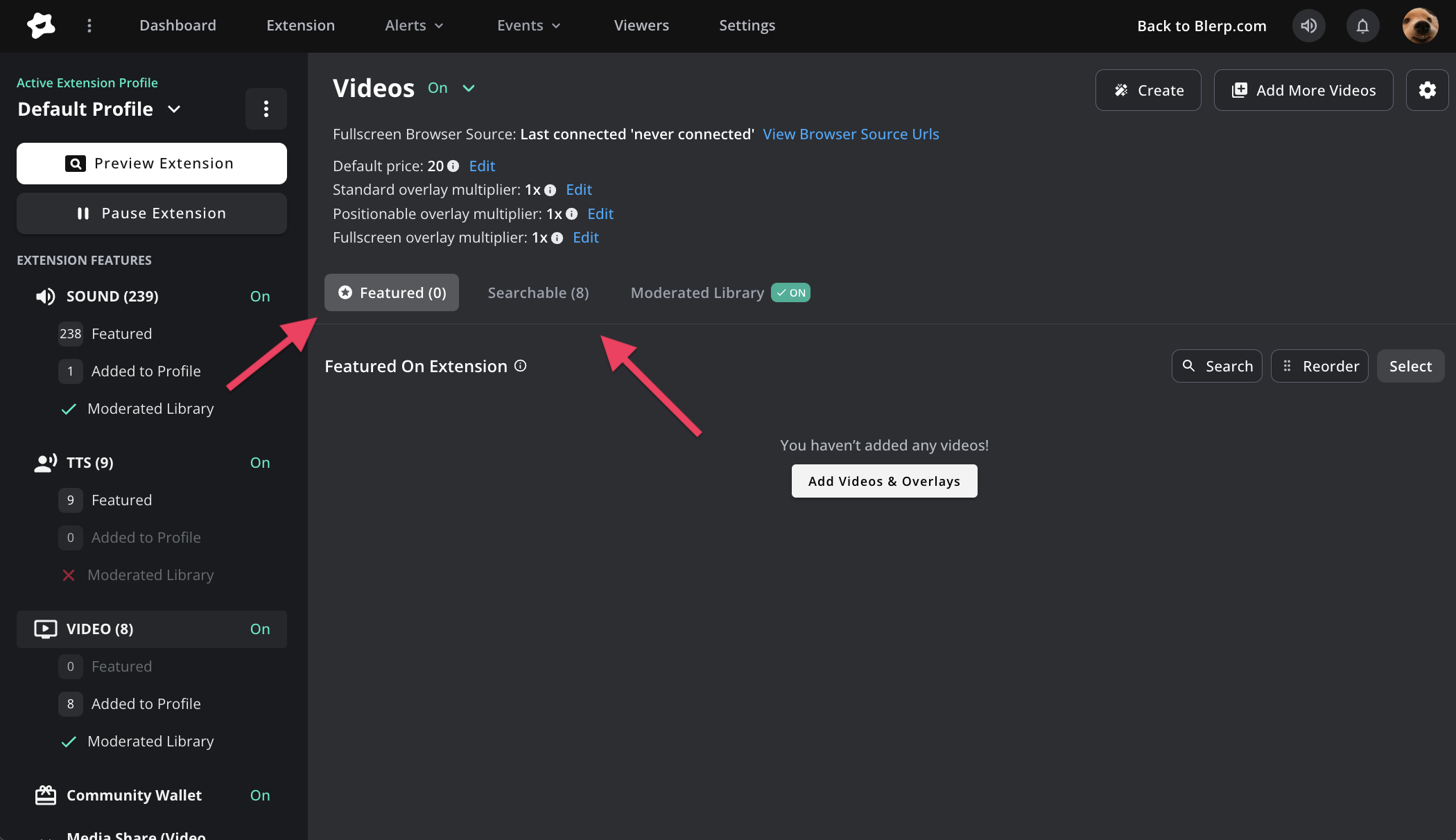
Featured vs. Searchable Videos
- Featured videos appear directly on your Blerp extension for viewers to see and use easily.
- Searchable videos (or those just added to your profile) are hidden from the main extension and only show up when viewers search for them manually.
Step 6: Add Browser Source to OBS or Streamlabs
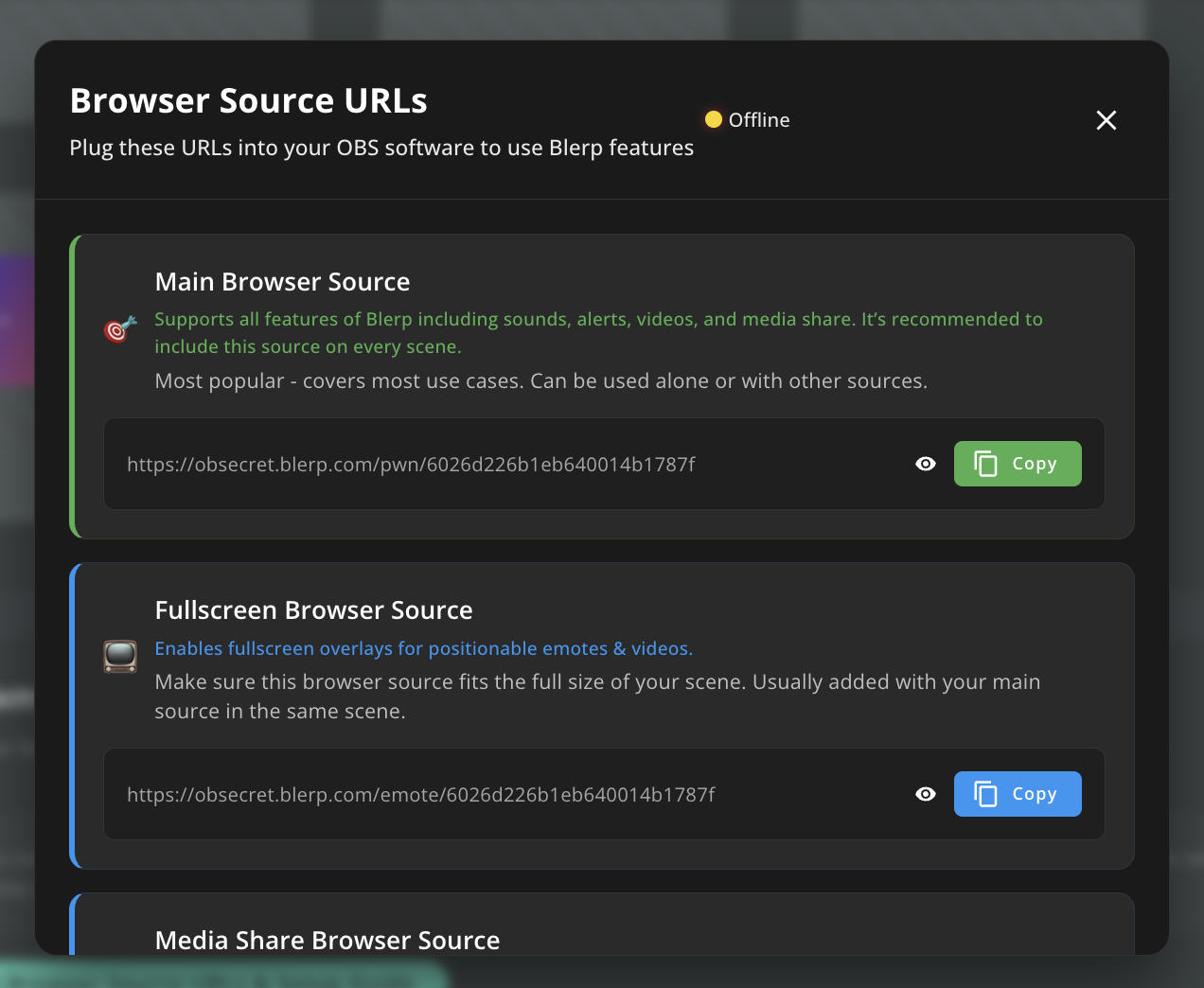
To make sure fullscreen and positionable videos display properly on stream, you’ll need to add a new browser source in your broadcasting software (OBS, Streamlabs, etc.).
This also allows you to resize your video alerts separately from your main alerts.
You can find your browser source URLs from the Alerts tab in the top menu.
Add the “Fullscreen Browser Source” for the best experience.
You’re All Set!
Now your viewers can trigger hilarious, hype, or unexpected video moments right on your YouTube stream. Whether you use fullscreen videos for big reactions or draggable overlays for subtle touches, Blerp video alerts make your stream more fun and interactive.
 Ellyblerp