Want to take your stream reactions to the next level? Blerp’s new Video Alerts feature lets your viewers send short videos straight onto your stream. Whether it’s a hilarious meme, a reaction clip, or a moment that fits the vibe perfectly. Here’s how to set it up for your Twitch stream.
Step 1: Open the Stream Editor
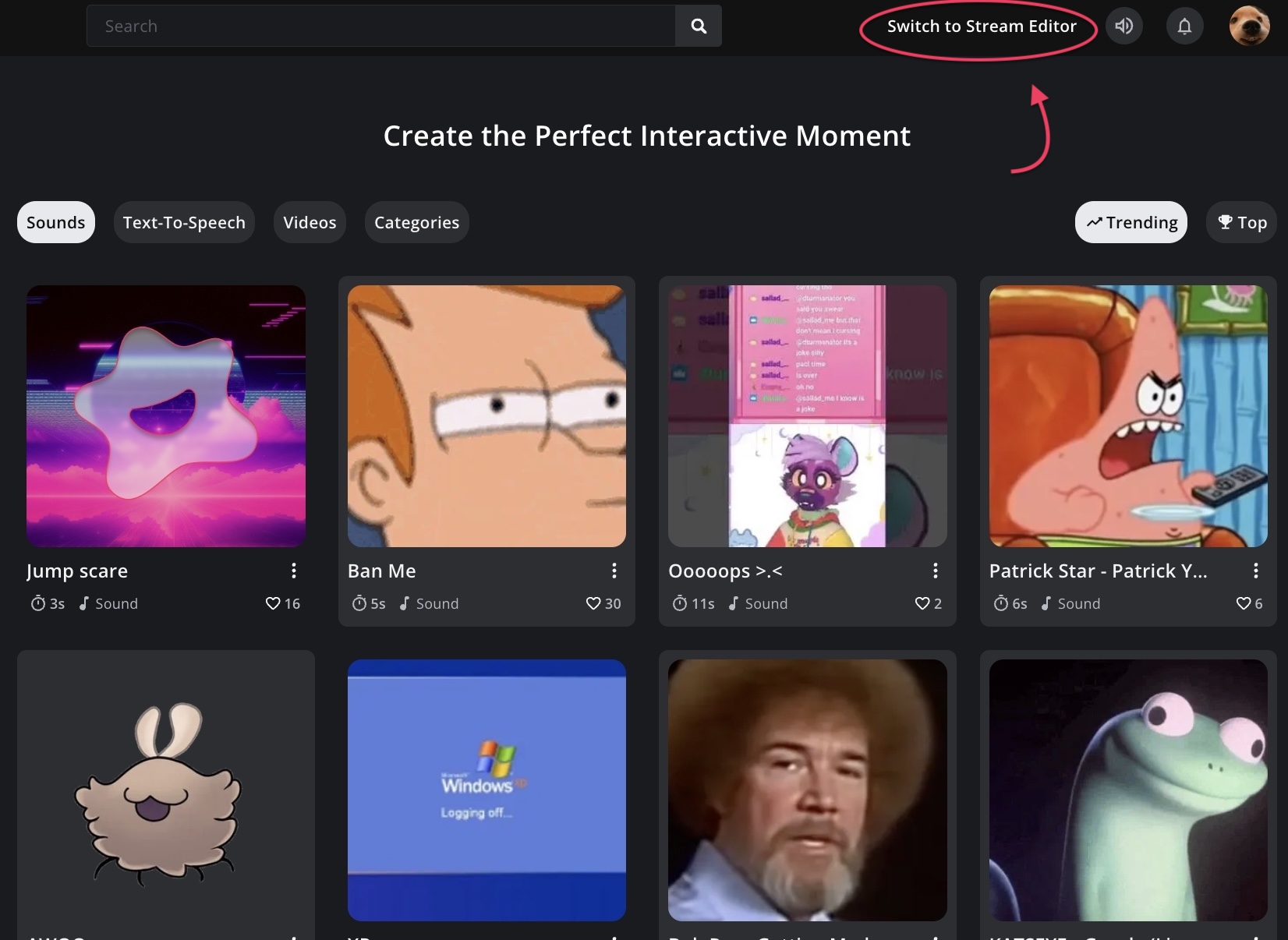
Head over to blerp.com and click “Switch to Stream Editor” in the top-right corner.
Step 2: Enable Video Alerts
In the top navigation menu, make sure you’re in the “Extension” section.
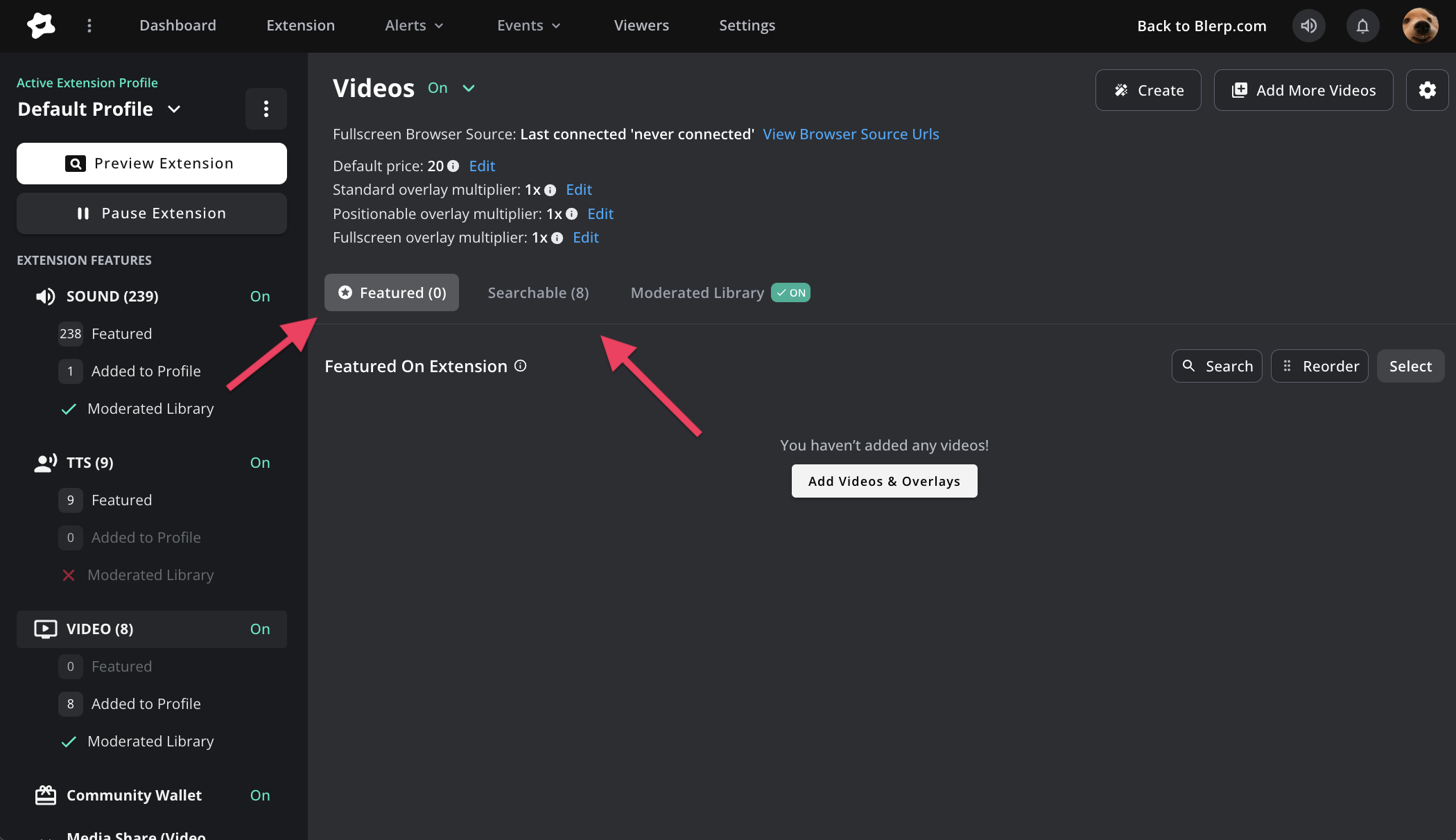
Scroll down to find the “Video” option and toggle it on to activate video content for your stream.
Once it’s enabled, you can start adding video alerts to your Blerp extension.
Step 3: Add Videos & Overlays
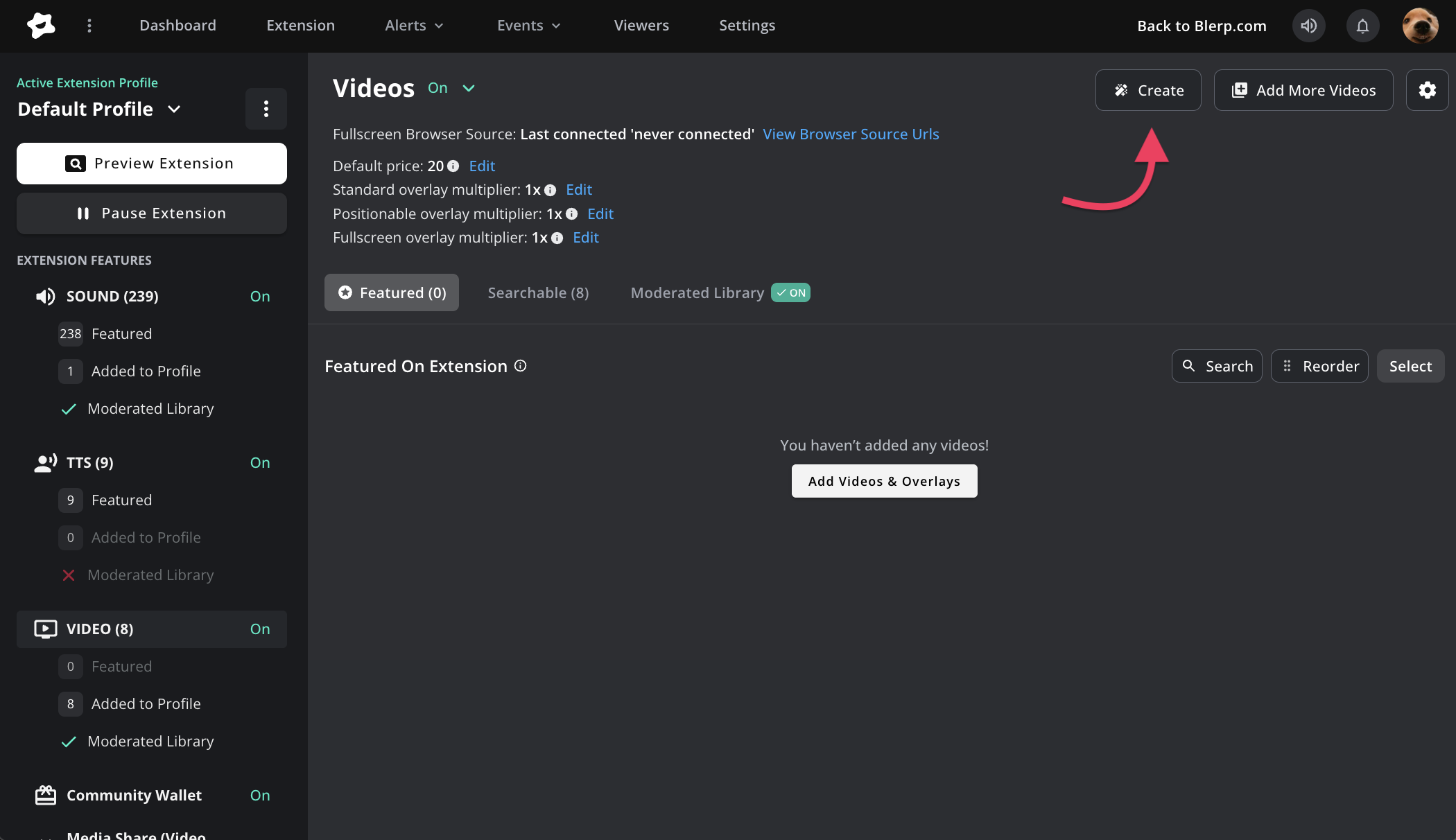
Click “Add Videos & Overlays” to start adding video alerts to your extension.
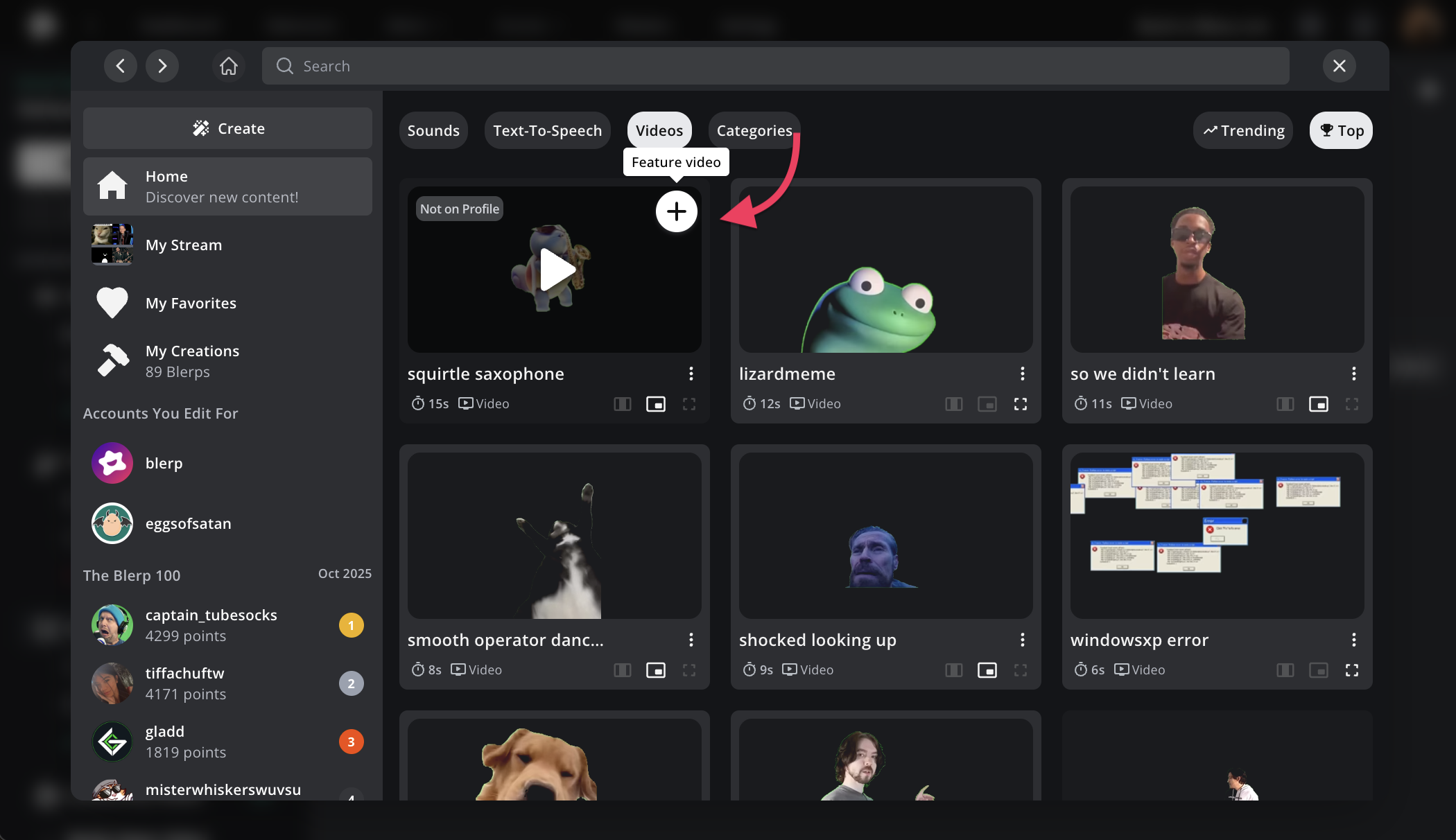
You can browse Blerp’s library of community-created videos and select “+” to add your favorites to your personal library.
You can also upload and create your own custom video alerts.
Step 4: Adjust Your Video Settings
From the Video Settings tab, you can:
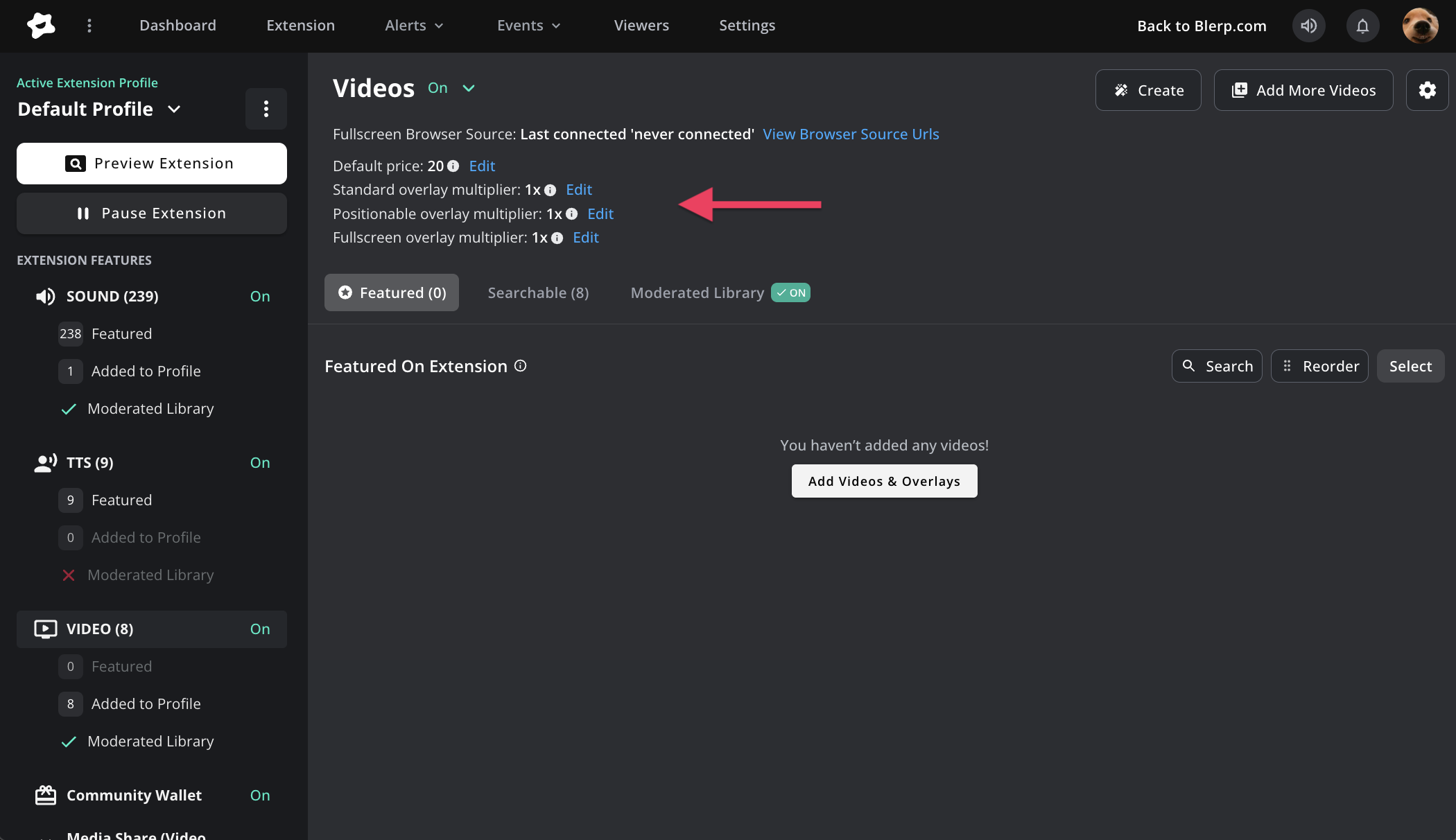
- Set default prices for video alerts
- Customize price multipliers by video type
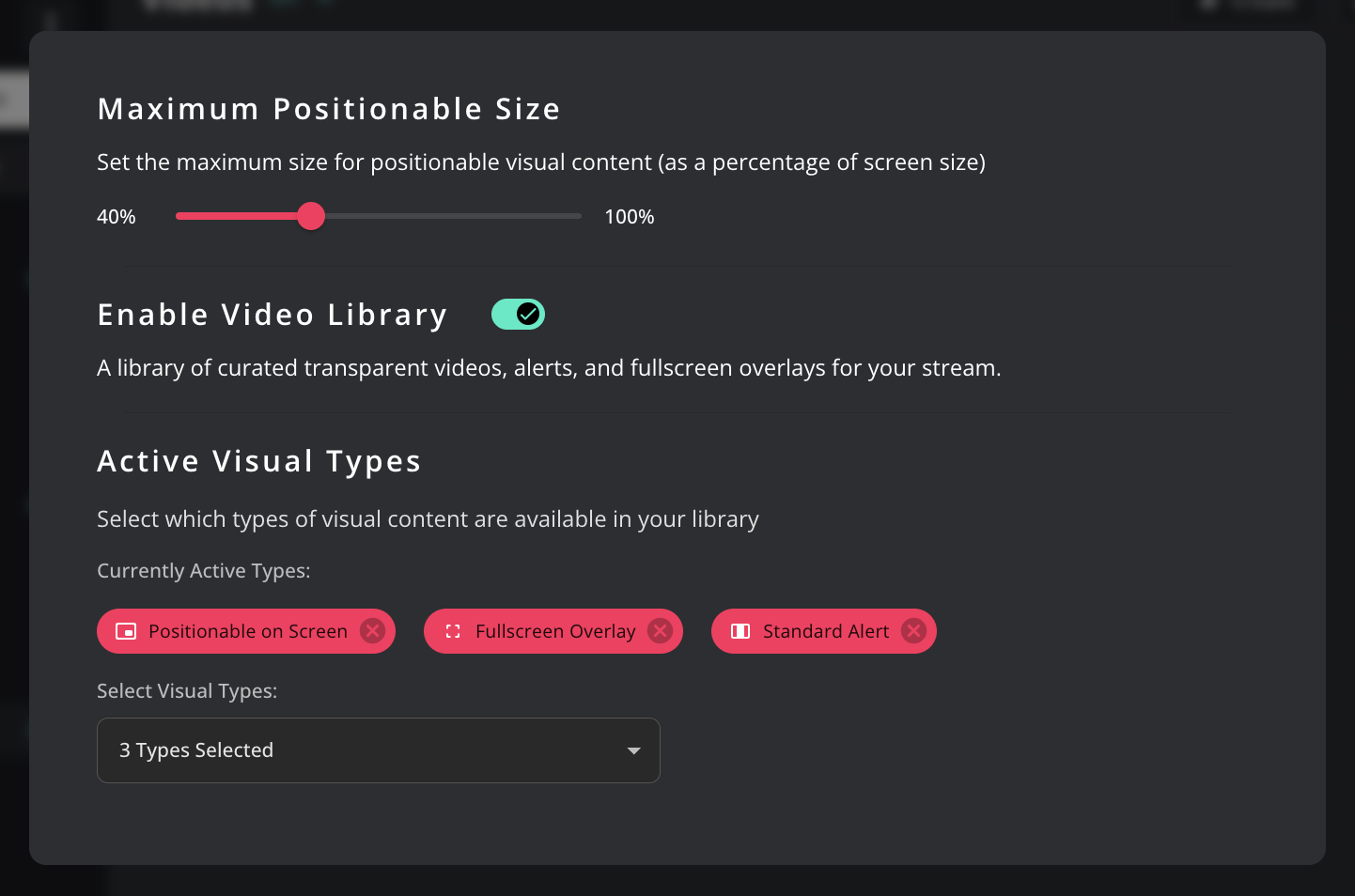
- Choose which visual types are active
- Fine-tune your viewer experience
There are three video types available:
- Standard: Plays the video normally.
- Positionable: Viewers can drag and drop where the video appears on your stream.
- Fullscreen: Plays the video across your entire stream.
Step 5: Let Viewers Use the Library
With your Video Library enabled, viewers can send videos from both your selected clips and the wider Blerp library, giving them tons of ways to interact with your stream.
Step 6: Customize Each Video Alert
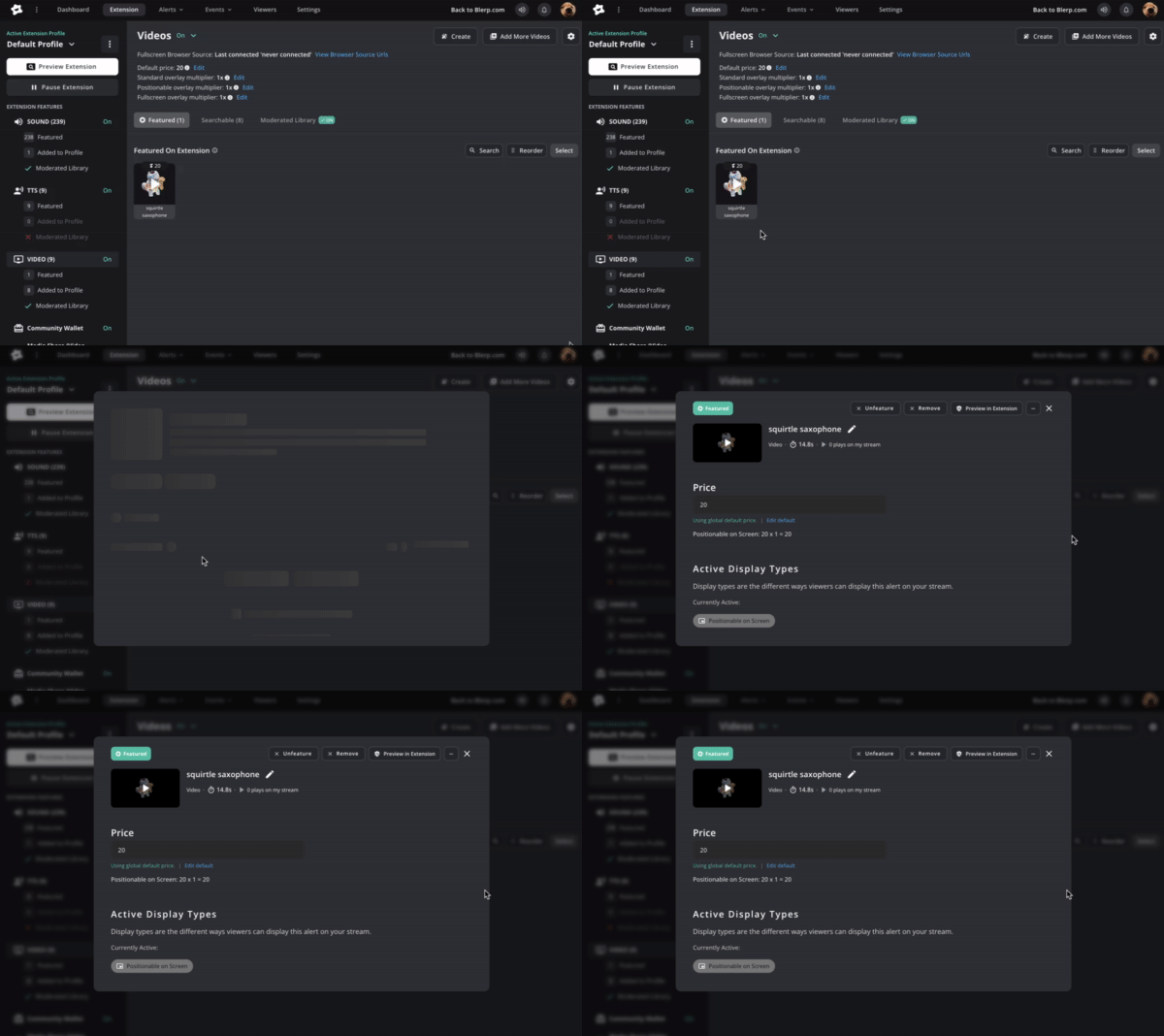
Each video alert can be customized individually.
Featured videos are showcased directly on your extension and are easy for viewers to find and play.
Searchable videos are hidden from the main extension and only appear when searched for manually.
Step 8: Add a Browser Source in OBS or Streamlabs
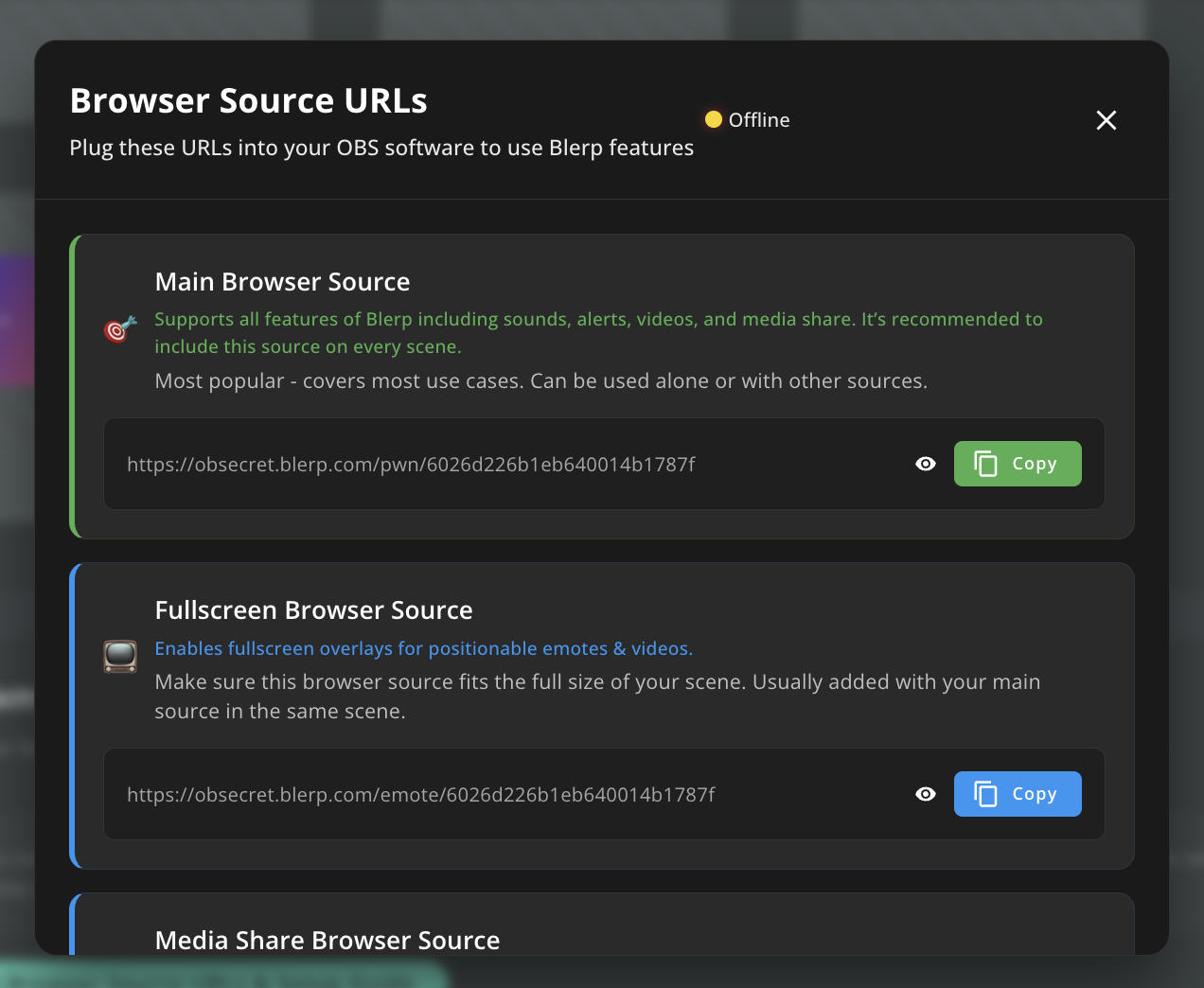
To make sure your fullscreen and positionable videos display correctly, you’ll need to add an additional browser source in your broadcasting software (like OBS or Streamlabs).
This ensures you can adjust the video overlay size without affecting your main alert sizes.
Head to the Alerts tab at the top menu and look for your Fullscreen Browser Source URL.
Add that URL to your OBS or Streamlabs setup as a browser source, and you’re ready to go!
You’re All Set
That’s it! Your Blerp Video Alerts are now live and ready for action. Viewers can surprise you with videos, reactions, and memes directly on your Twitch stream. It’s a fun, interactive way to let your community share in the moment, literally.
 Ellyblerp