October 11, 2025 Ellyblerp

Adding video alerts to your Kick stream is one of the best ways to make your channel more interactive and entertaining. With Blerp’s new Video Alerts feature, your viewers can share hilarious, dramatic, or custom videos right on your stream, creating unforgettable moments while supporting you.
Here’s how to set everything up step-by-step:
1. Open the Stream Editor
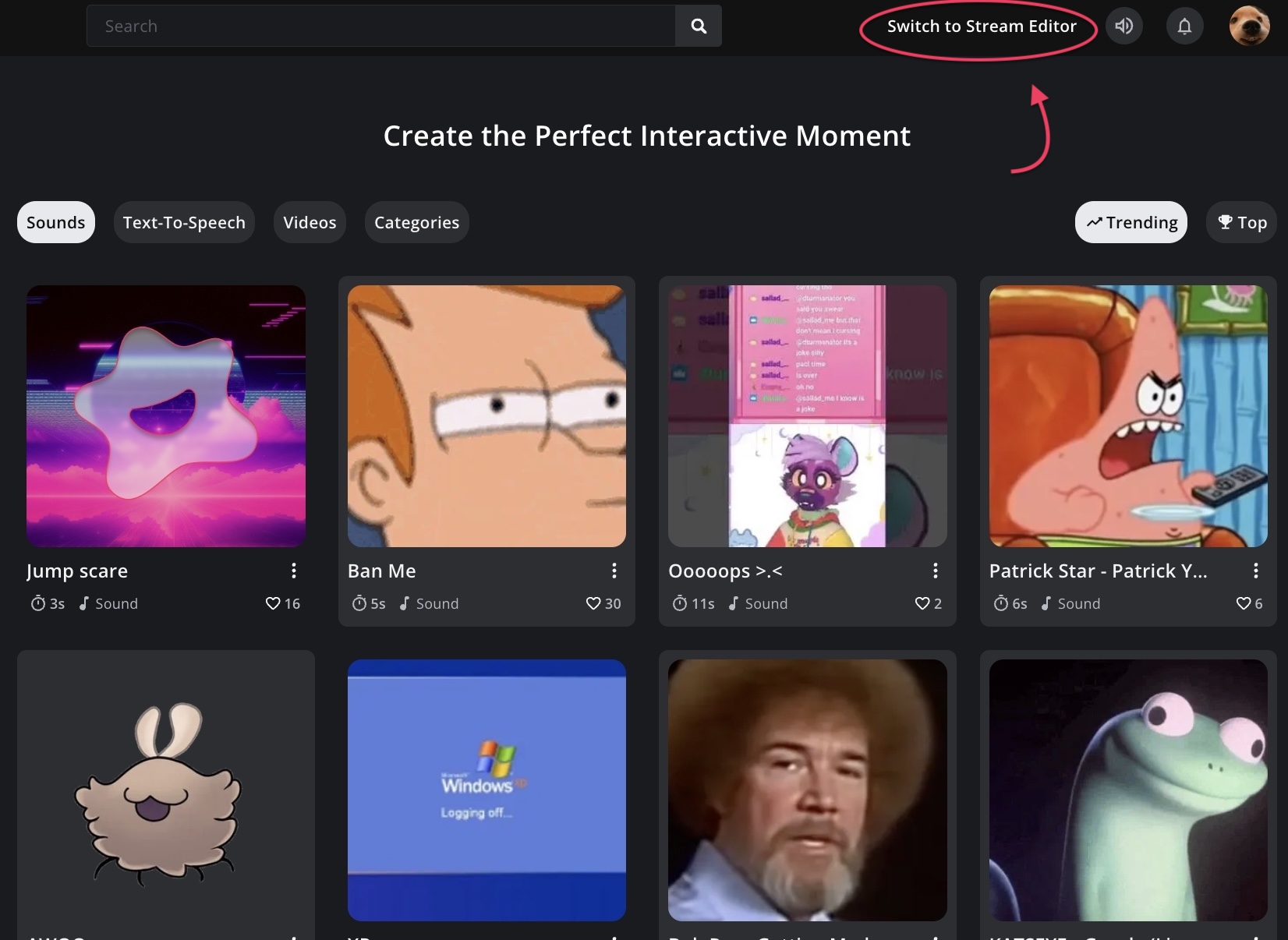
Head over to blerp.com and click on “Switch to Stream Editor” in the top-right corner.
2. Enable Video Alerts
In the top navigation menu, make sure you’re in the “Extension” section.
Scroll down until you find the “Video” option and toggle it on to activate video content for your stream.
Once enabled, you’ll be ready to start adding video alerts to your extension.
3. Add Videos & Overlays
Click “Add Videos & Overlays” to start featuring video alerts on your extension.
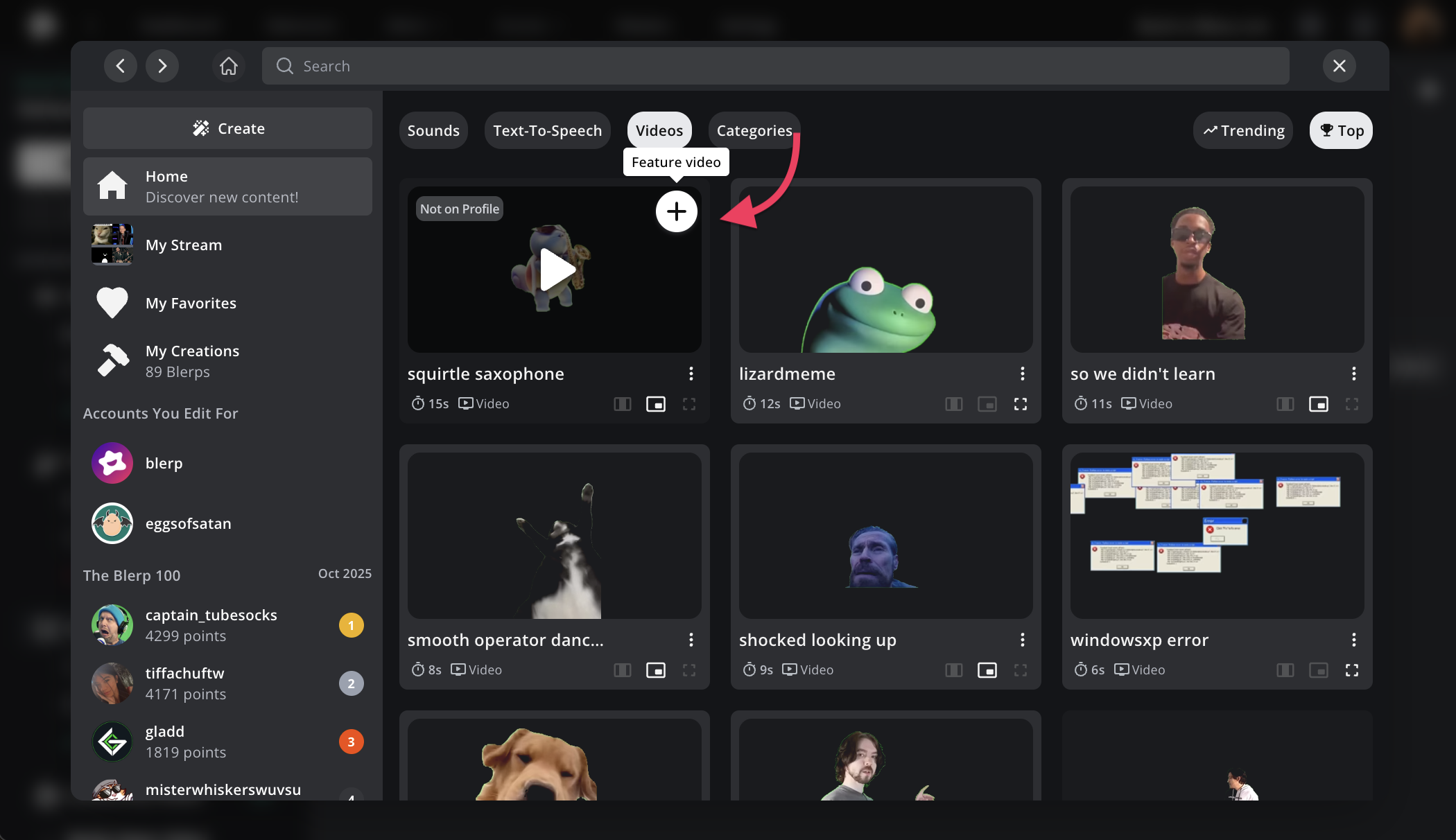
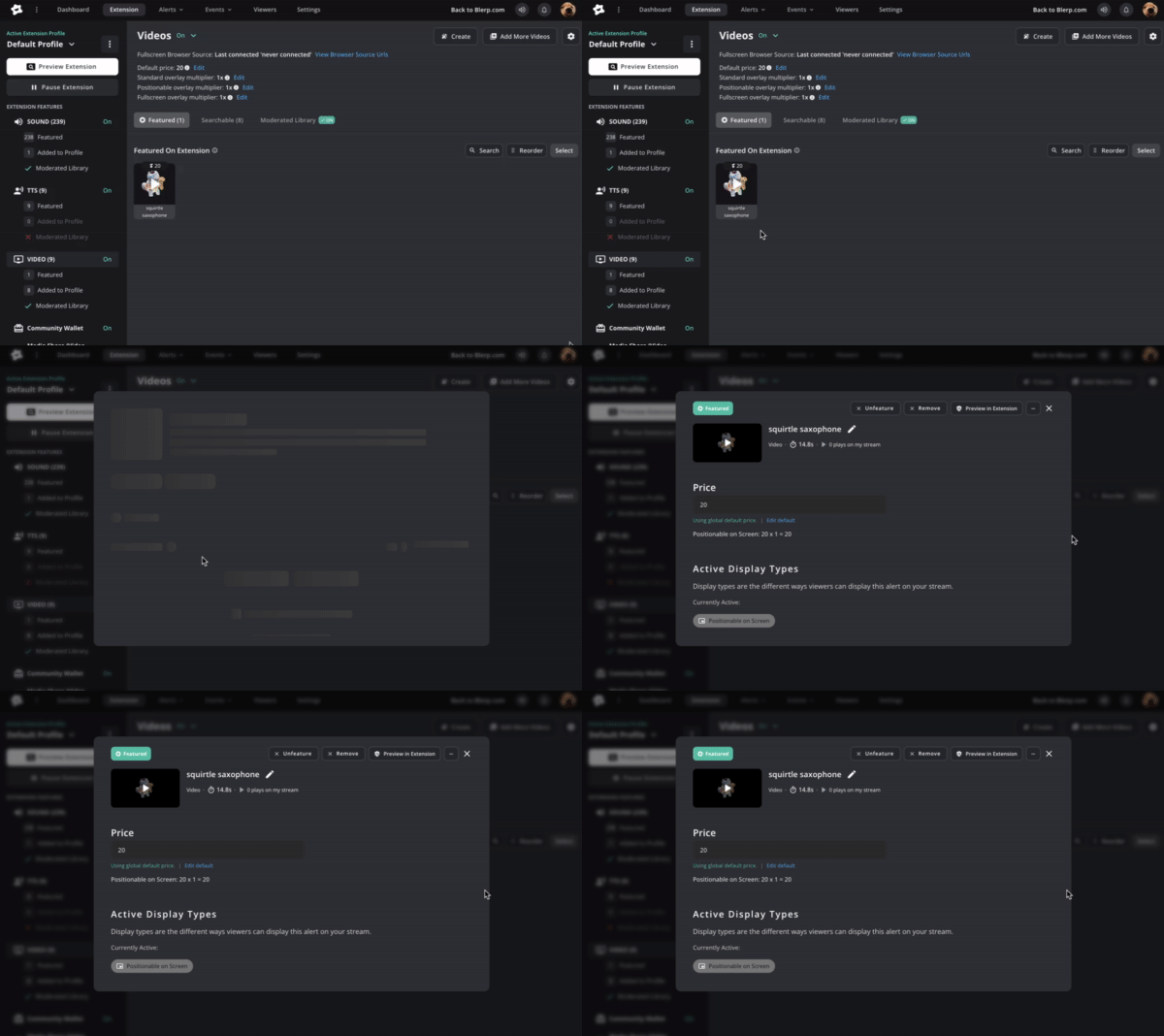
You can browse Blerp’s massive video library and click “+” to add any clip you like to your personal library.
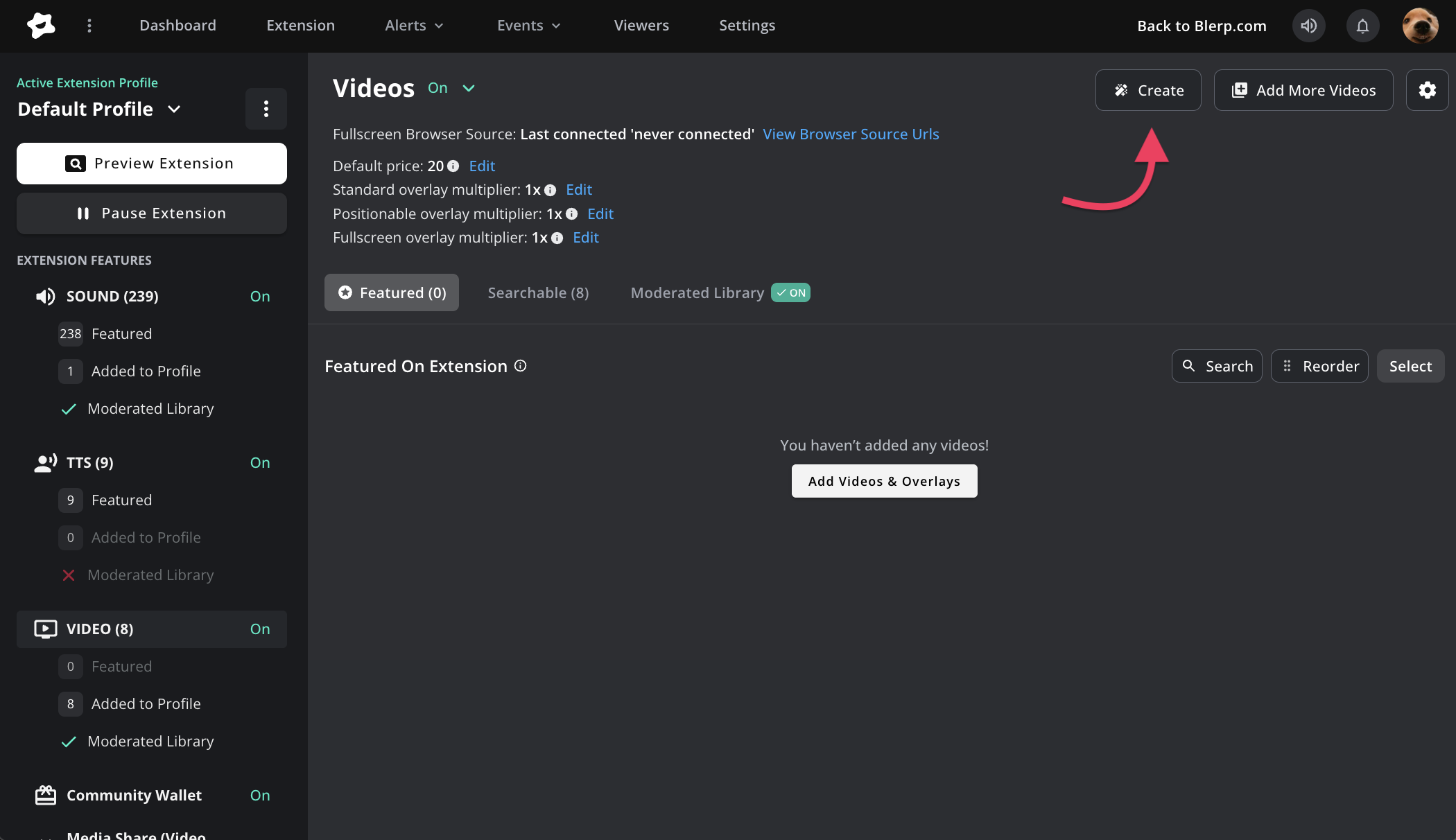
You can also create your own videos to match your stream’s vibe:
4. Customize Your Video Settings
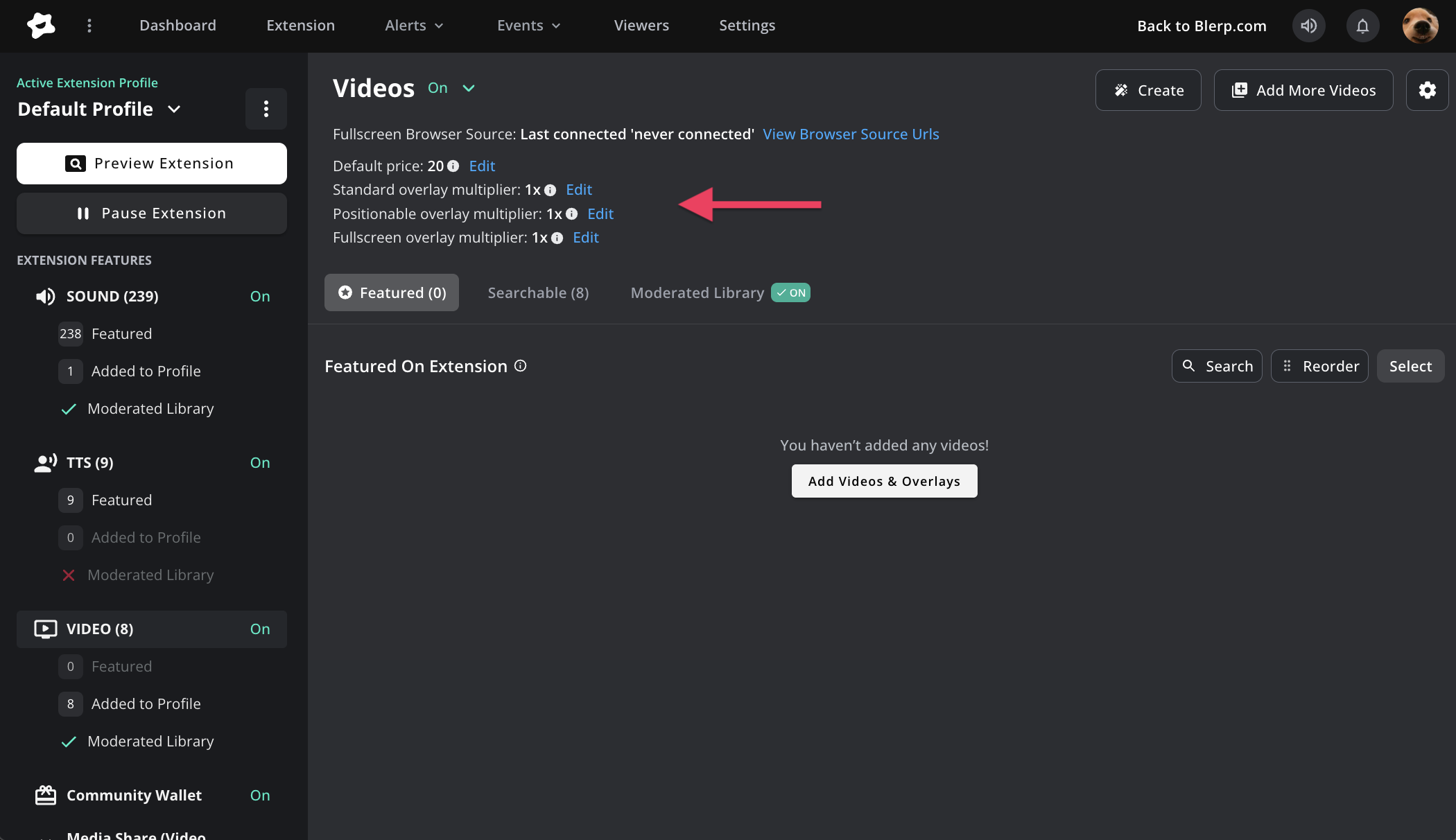
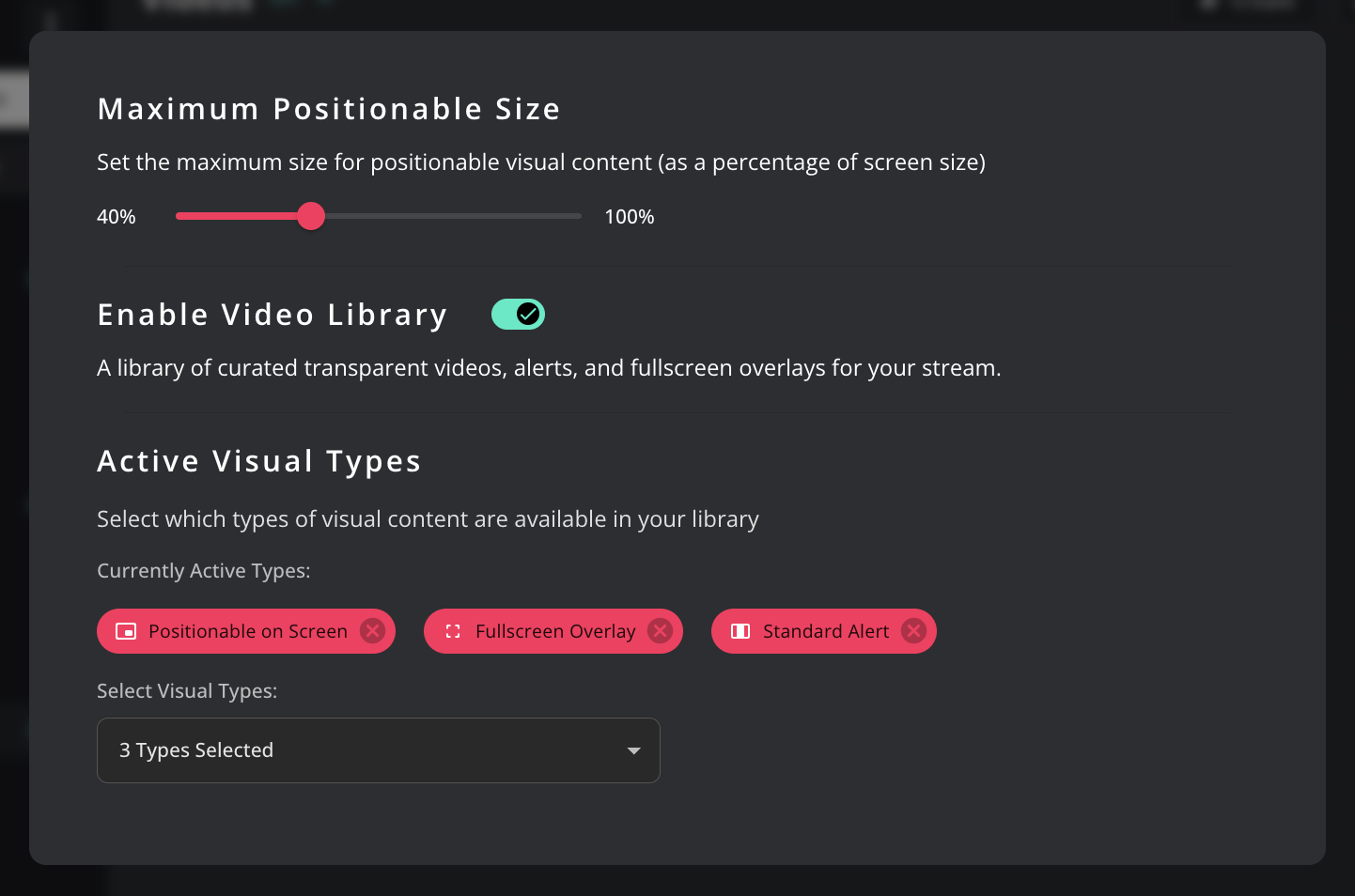
In your Video Settings, you can:
- Set default prices for videos
- Set price multipliers for video types
Choose active visual types (Standard, Positionable, or Fullscreen)
Here’s what each type means:
- Standard: Plays in a fixed position.
- Positionable: Lets viewers drag and drop the video location on your stream.
- Fullscreen: Takes up the entire screen for big moments or dramatic reactions.
5. Enable the Video Library
When you turn on your Video Library, viewers can share videos from Blerp’s main library in addition to the ones you’ve personally featured.
6. Customize Each Video
You can tweak every video alert to fit your channel’s style.
Change the price, volume, or chat message for each video individually.
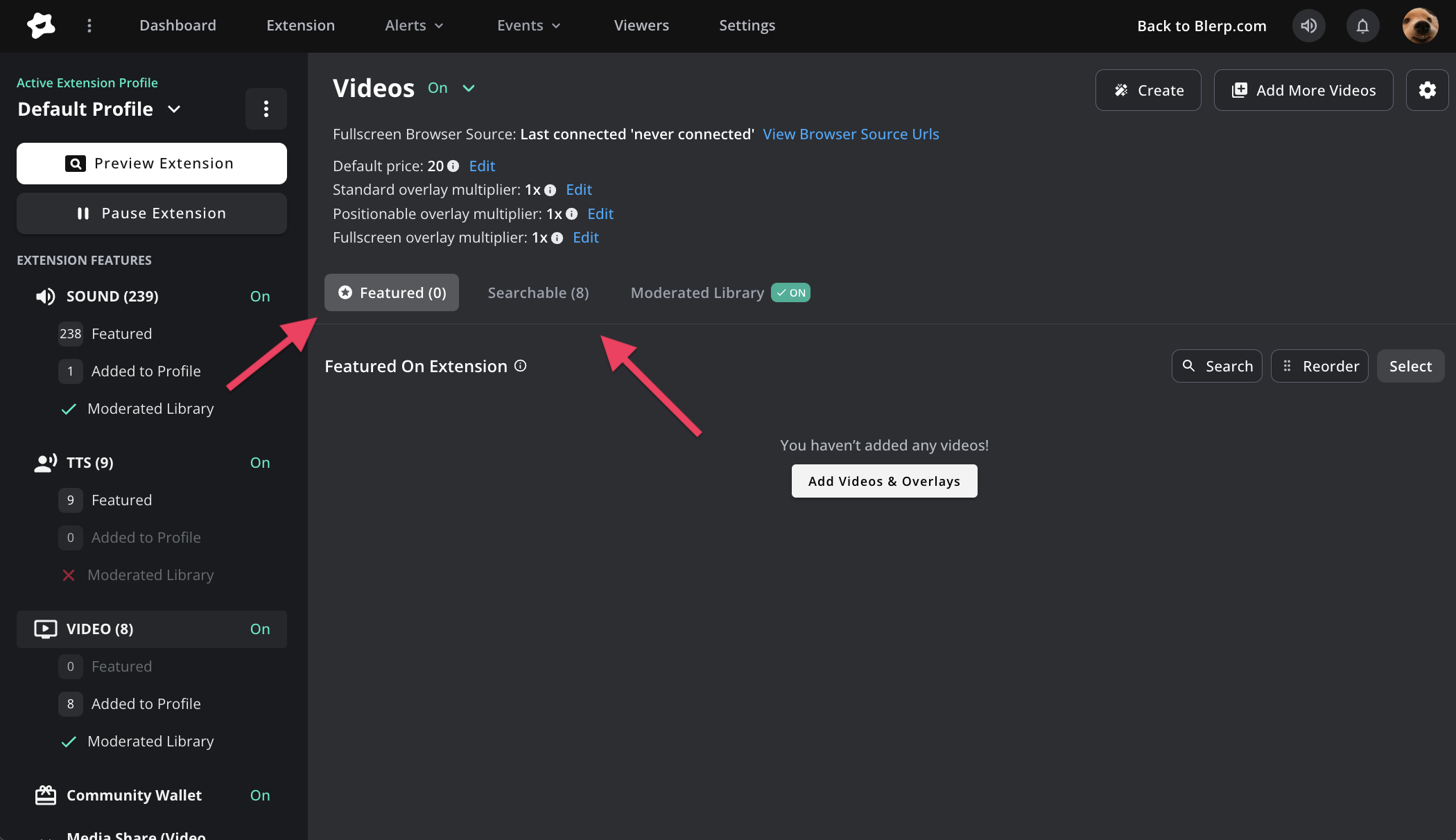
7. Featured vs. Searchable Videos
Here’s the difference:
- Featured: Videos shown directly on your extension for viewers to see and play.
- Searchable: Hidden from display — only visible when searched for within your extension.
If you want videos to be visible on your stream, make sure they’re featured.
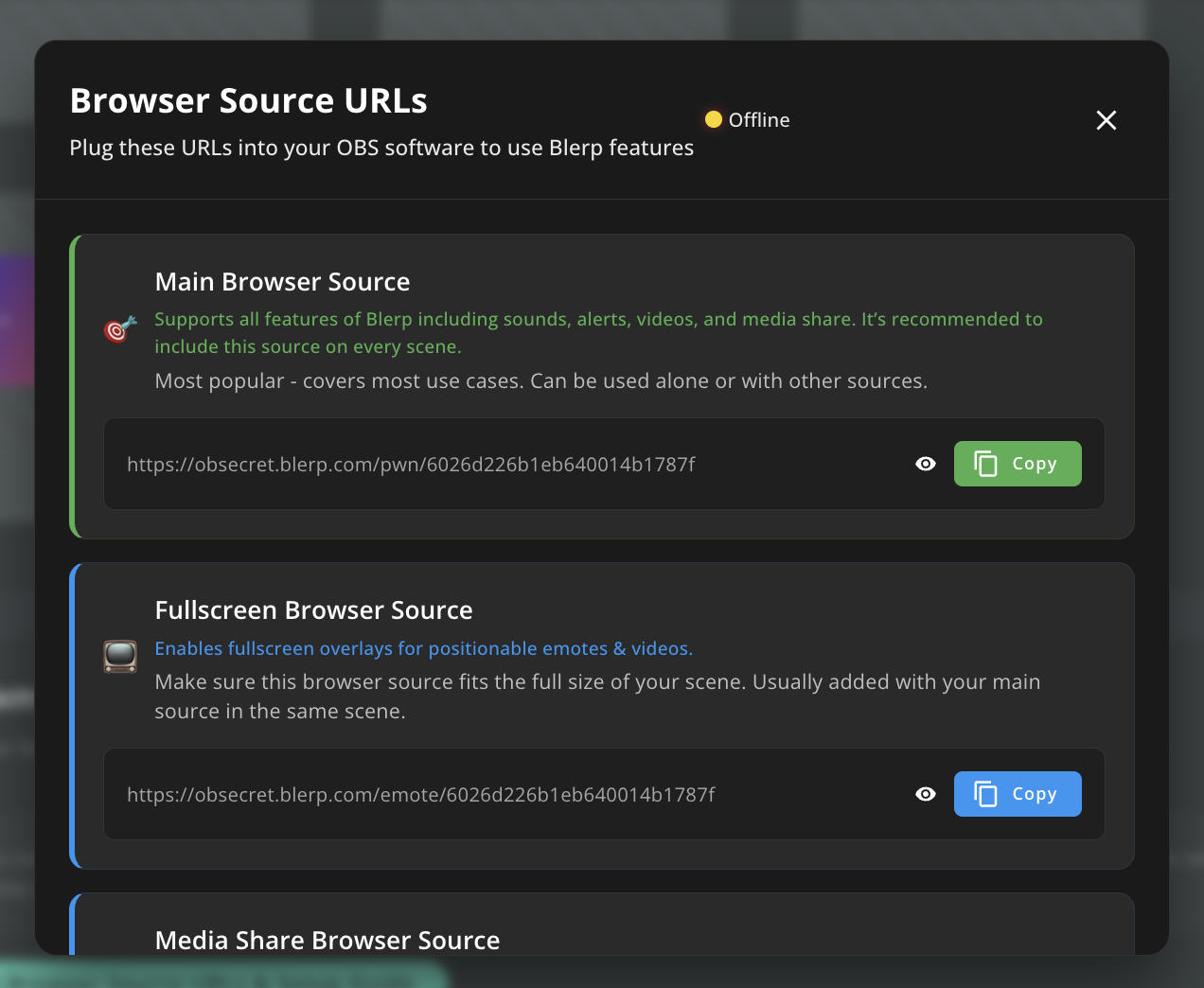
8. Add a Browser Source in OBS or Streamlabs
To make fullscreen and positionable videos appear correctly on your stream, you’ll need to add an additional browser source in your broadcasting software (OBS, Streamlabs, etc.).
This lets you adjust the video’s size and position without affecting your main alerts.
Find your browser source URLs under the Alerts tab in the top menu and select the “Fullscreen Browser Source.”
Bring Your Kick Stream to Life
And that’s it! You’re ready to launch Blerp Video Alerts and let your community drop videos right onto your stream. Whether it’s a funny meme, a hype clip, or a perfectly-timed reaction, Blerp makes your content more dynamic, engaging, and unforgettable.