Looking to make your Rumble stream more dynamic and interactive? Blerp Video Alerts are here to help! With Blerp’s latest update, you can now add video reactions and memes directly to your stream. Whether it’s fullscreen, draggable, or embedded in your overlay. Here’s how to set it up for your Rumble channel.
Step 1: Switch to Stream Editor
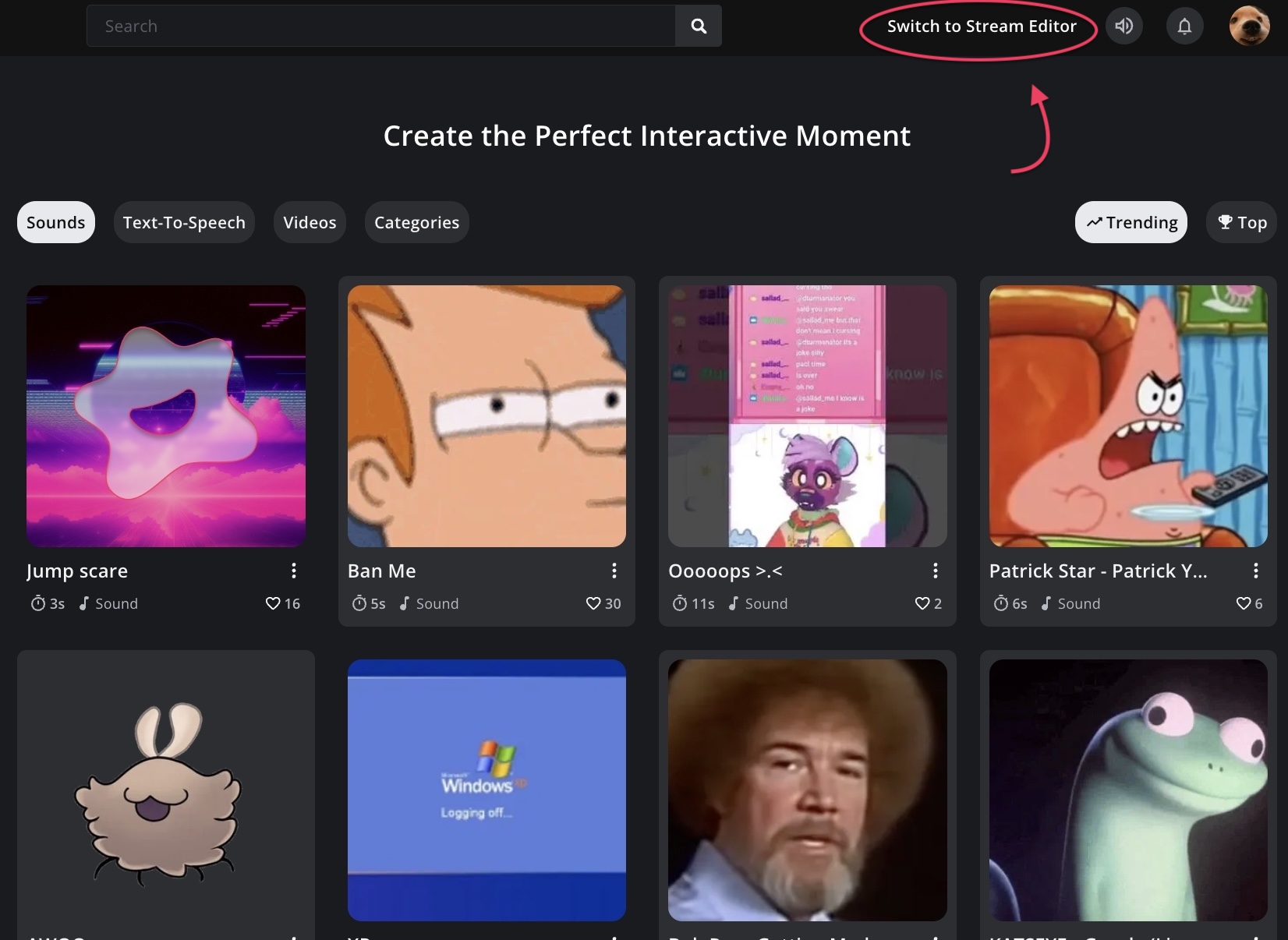
Go to blerp.com and click “Switch to Stream Editor” in the top right corner.
This will bring you into the new Blerp 2.0 layout where you can manage extensions, alerts, and features all in one place.
Step 2: Enable Video Alerts
In the top navigation menu, select the “Extension” section.
Scroll down until you find the “Video” option and enable it to activate video content for your stream.
Once enabled, you’ll unlock access to Blerp’s video alert tools.
Step 3: Add Videos and Overlays
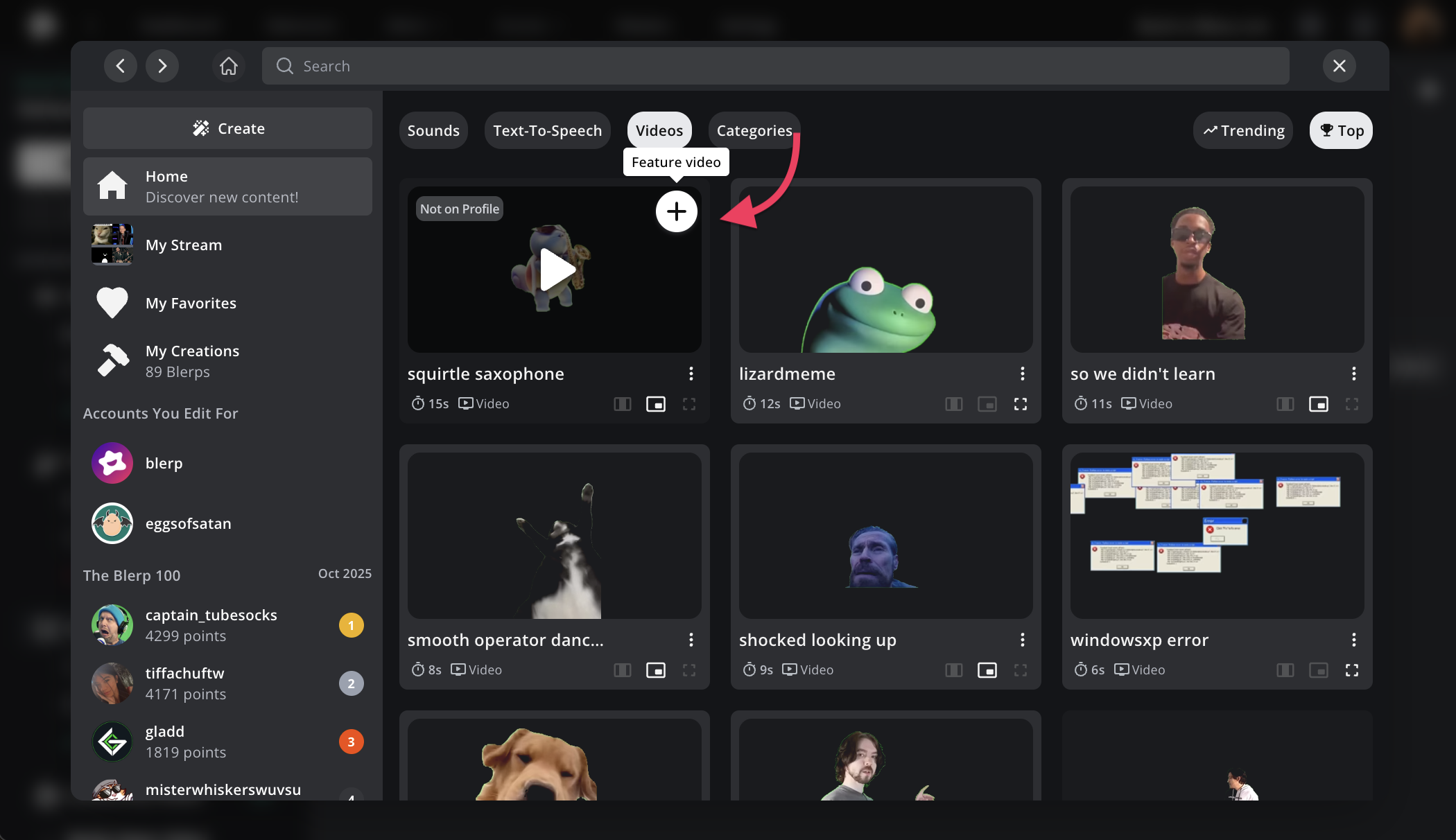
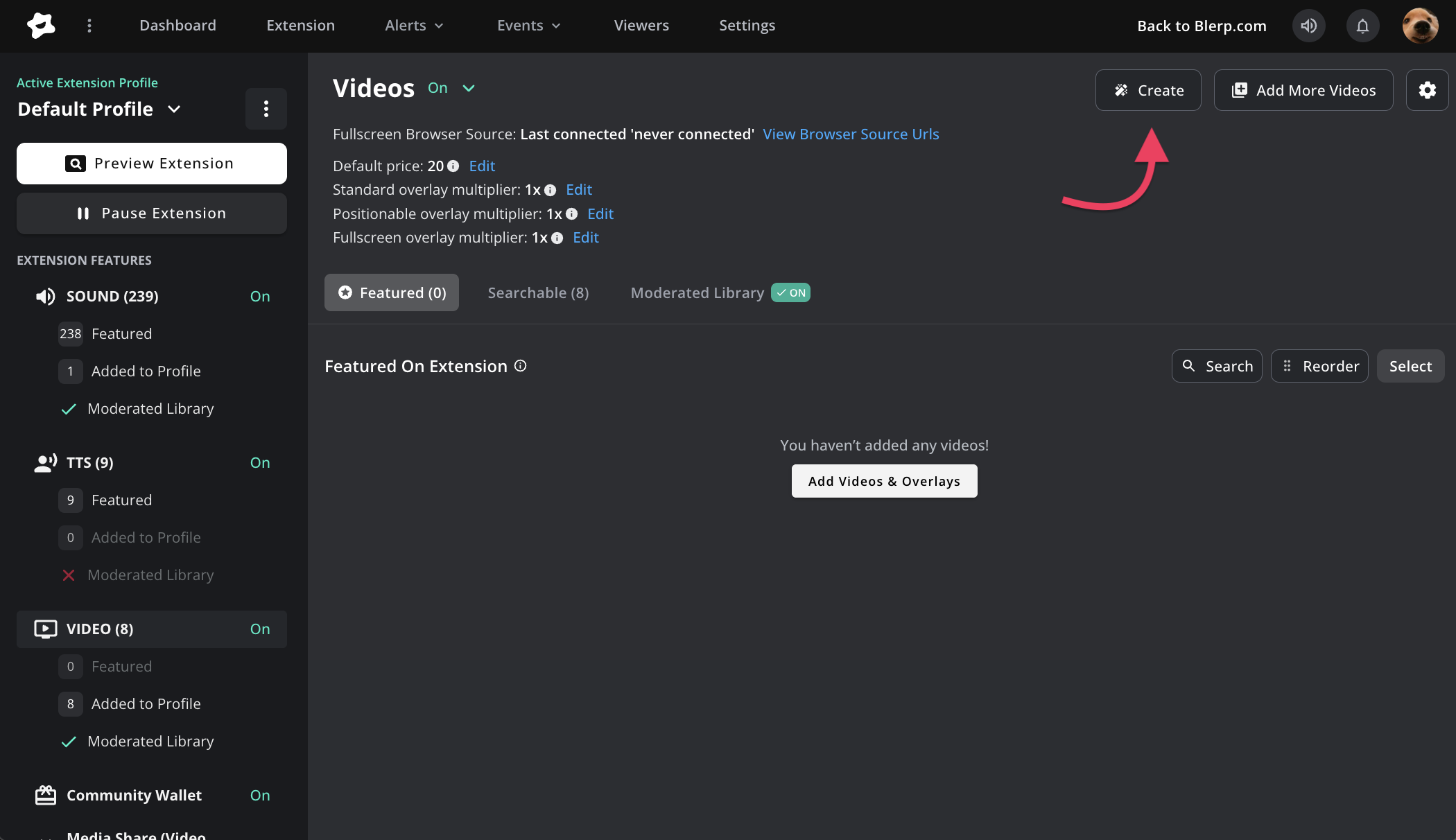
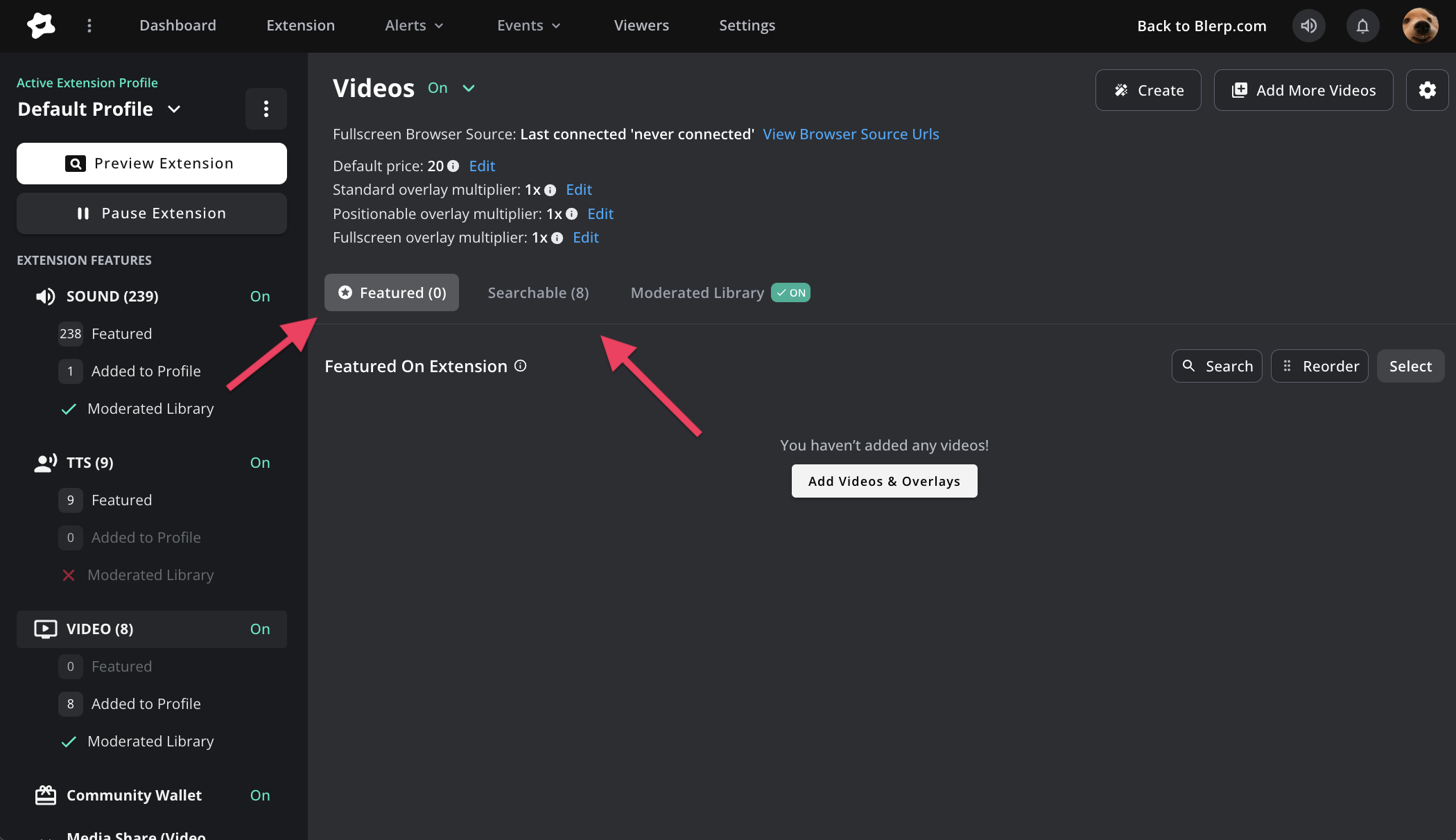
Select “Add Videos & Overlays” to start featuring video alerts on your extension.
From there, you can browse Blerp’s video library and click the “+” button to add videos you want available for your viewers to trigger.
You can also upload your own custom videos!
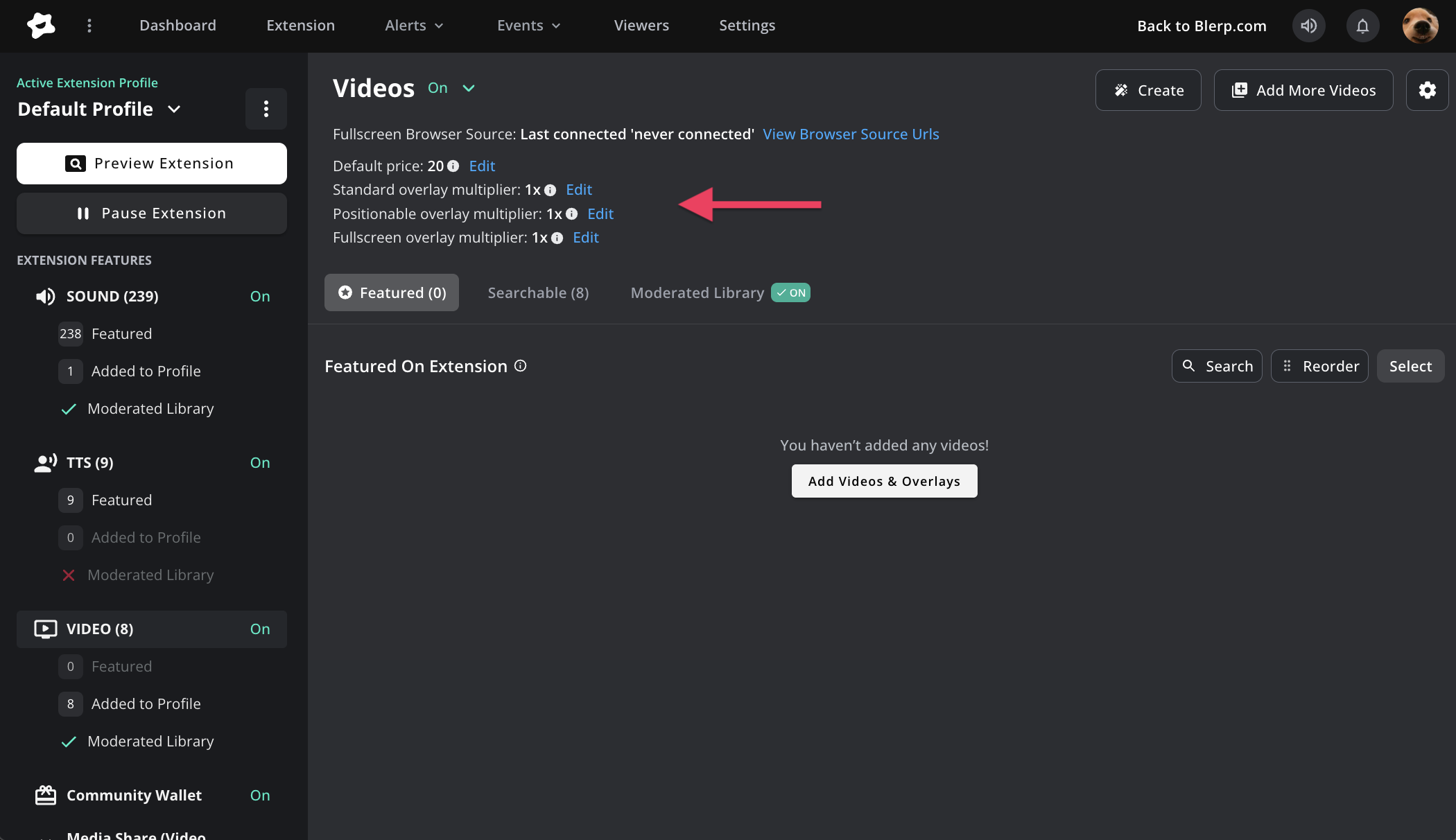
Here’s what each video type does:
- Standard – Fixed position video on stream
- Positionable – Viewers can drag and drop video placement directly from your extension
- Fullscreen – Plays over the entire stream
Step 5: Customize Each Video Alert
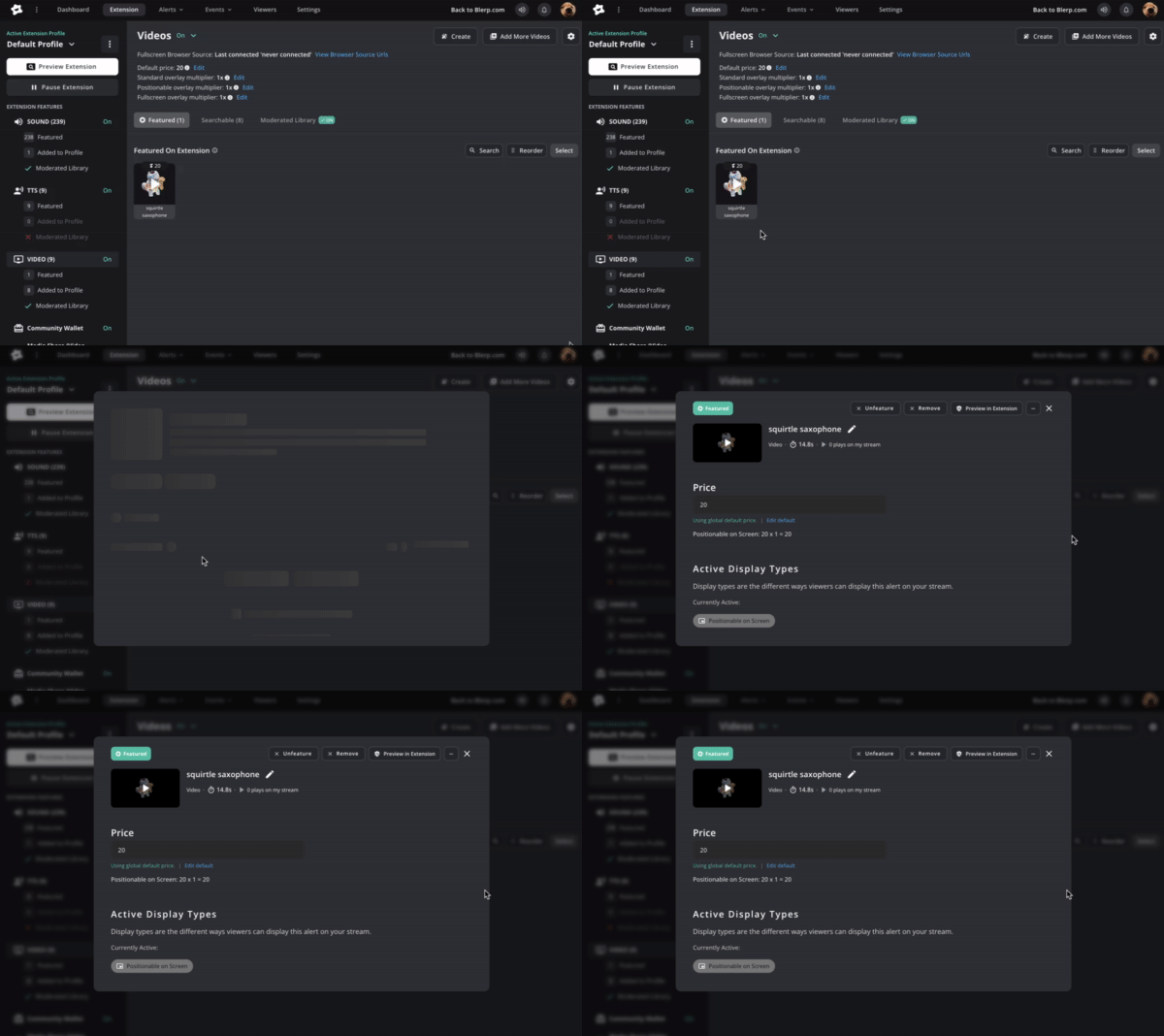
Each individual video can have unique settings. You can:
- Change pricing
- Set volume
- Add custom chat messages
- Control visibility
- Featured videos are showcased directly on your extension—making them easy for viewers to trigger.
- Searchable or profile-added videos are hidden from the main display but can still be found through search.
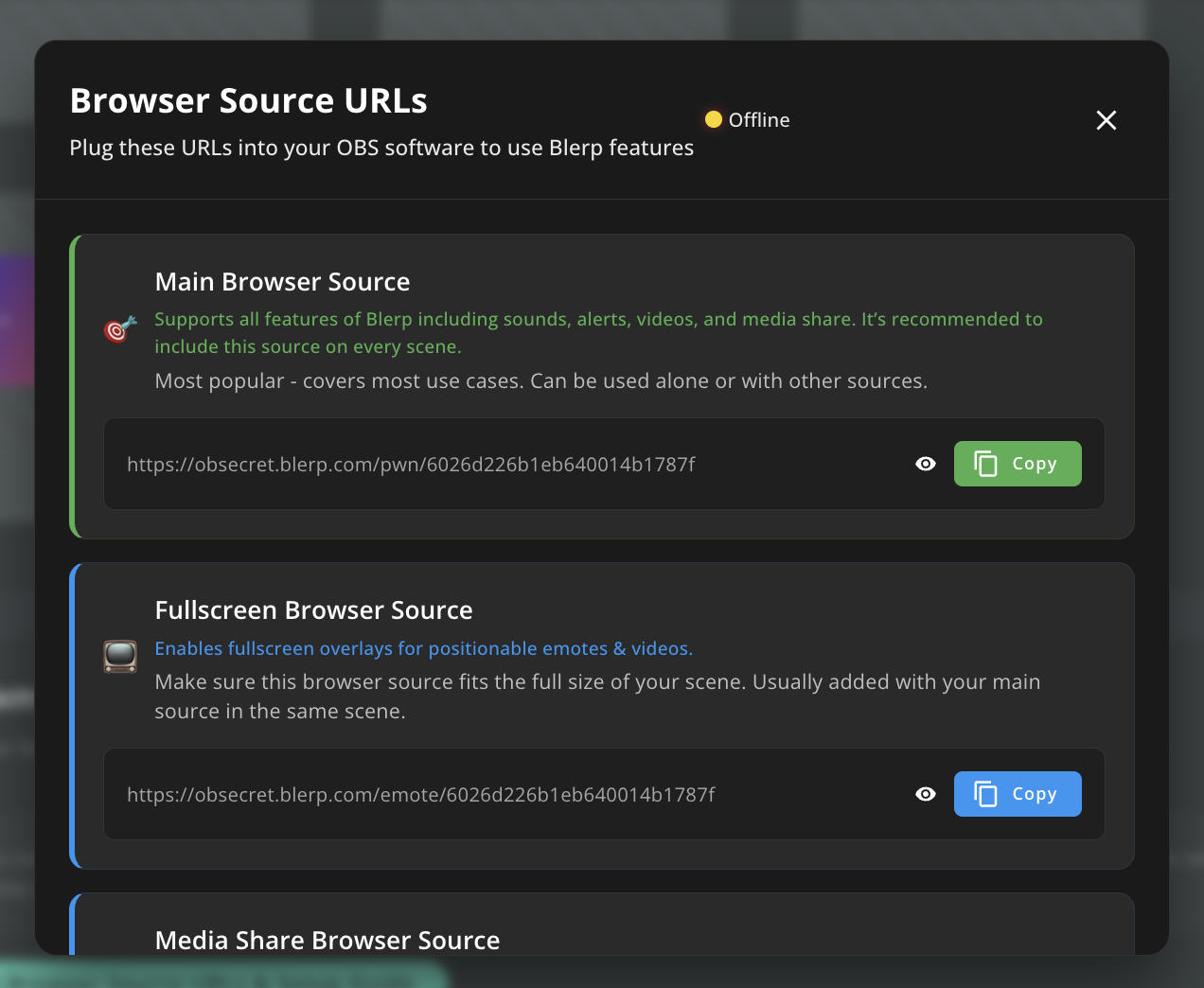
Step 7: Add a Browser Source in OBS or Streamlabs
To make fullscreen and positionable videos show up correctly, add a new browser source in your broadcasting software.
You can find your browser source URLs under the “Alerts” tab in your top menu.
Make sure to add the Fullscreen Browser Source so you can control video sizing without affecting your main alerts.
Step 8: Go Live and Let Viewers React!
With your Blerp Video Alerts set up, your Rumble stream is ready for next-level interaction. Viewers can now share moments, memes, and reactions in real time, making your stream more engaging than ever.
Ready to set it up?
Head to blerp.com to start adding video alerts today.
 Ellyblerp