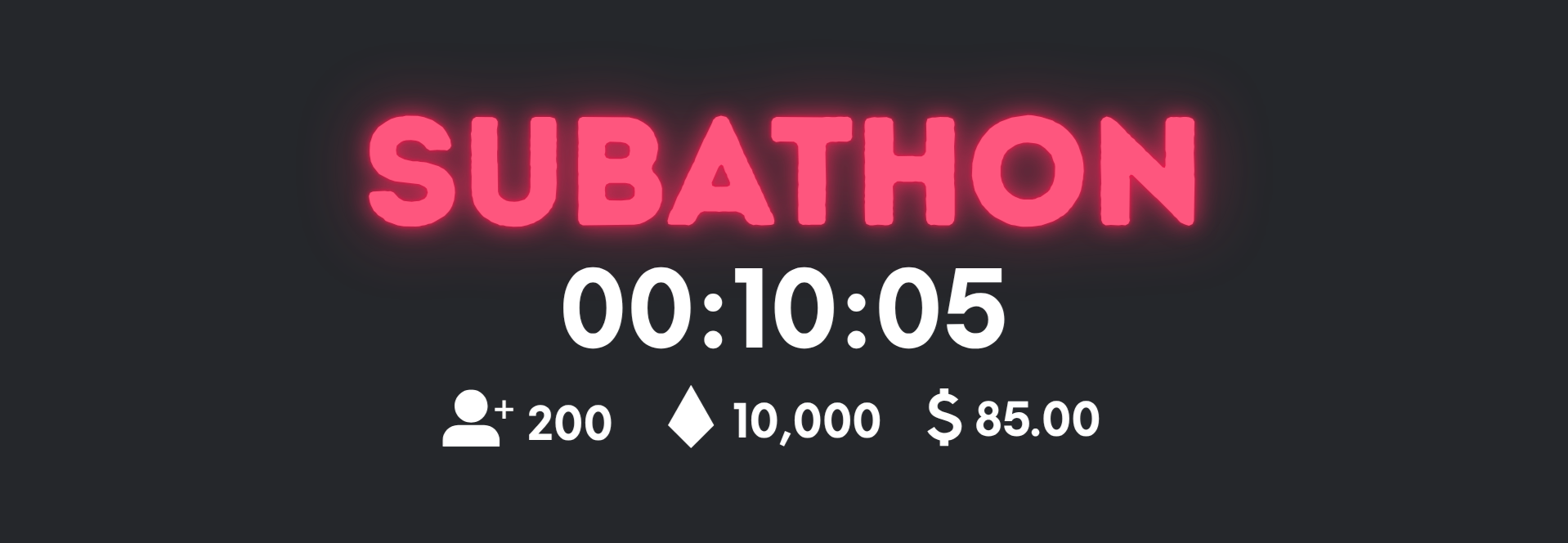
Running a subathon is one of the best ways to boost engagement, celebrate milestones, and grow your community. With Blerp’s Subathon Timer, you can easily track time during your Kick (or Twitch) stream and keep your audience invested in every second. Here’s a step-by-step guide to setting it up.
Step 1: Open the Stream Editor
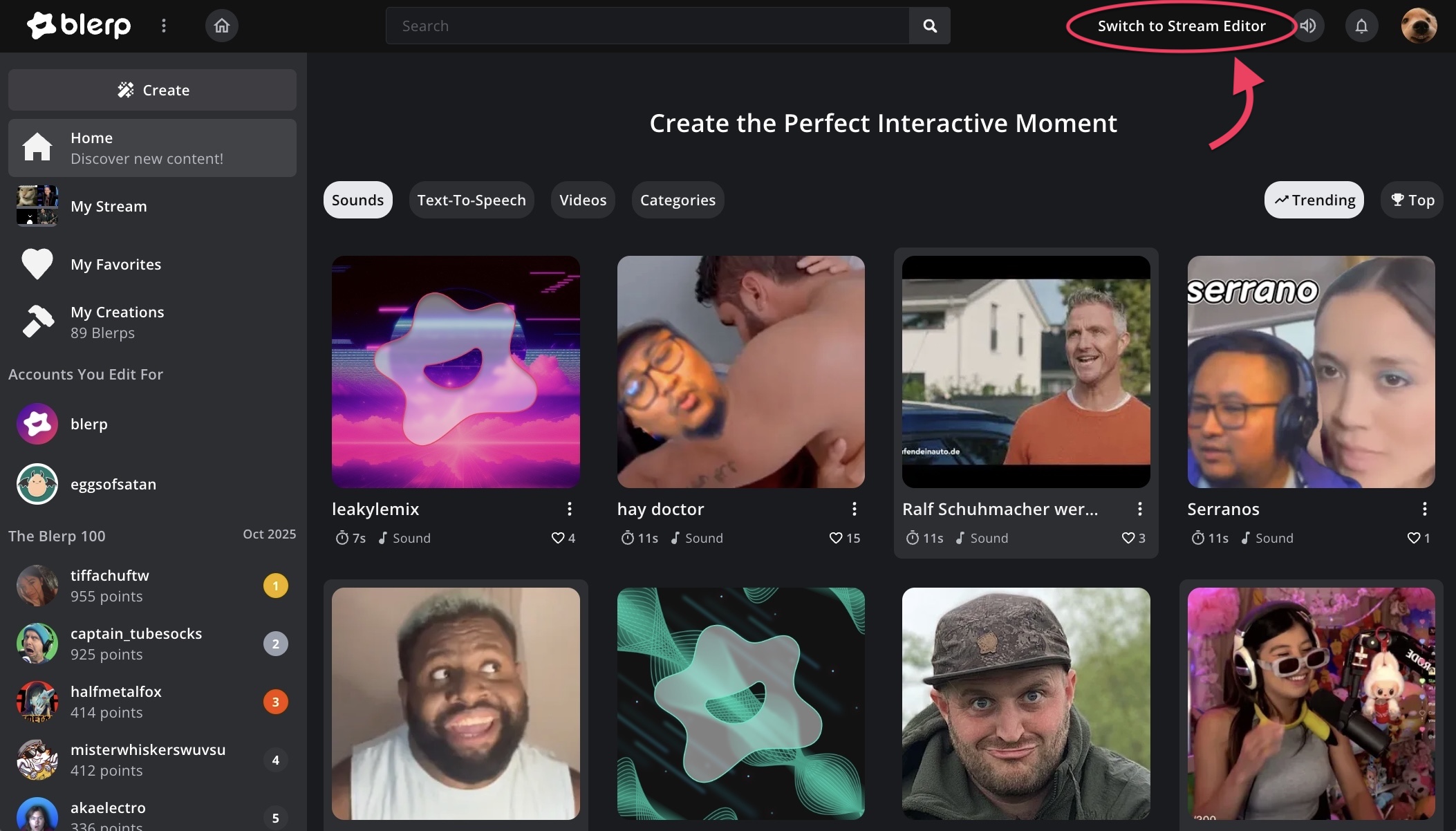
Head over to Blerp and log in. Once you’re in, click “Switch to Stream Editor.”
Step 2: Navigate to Timers
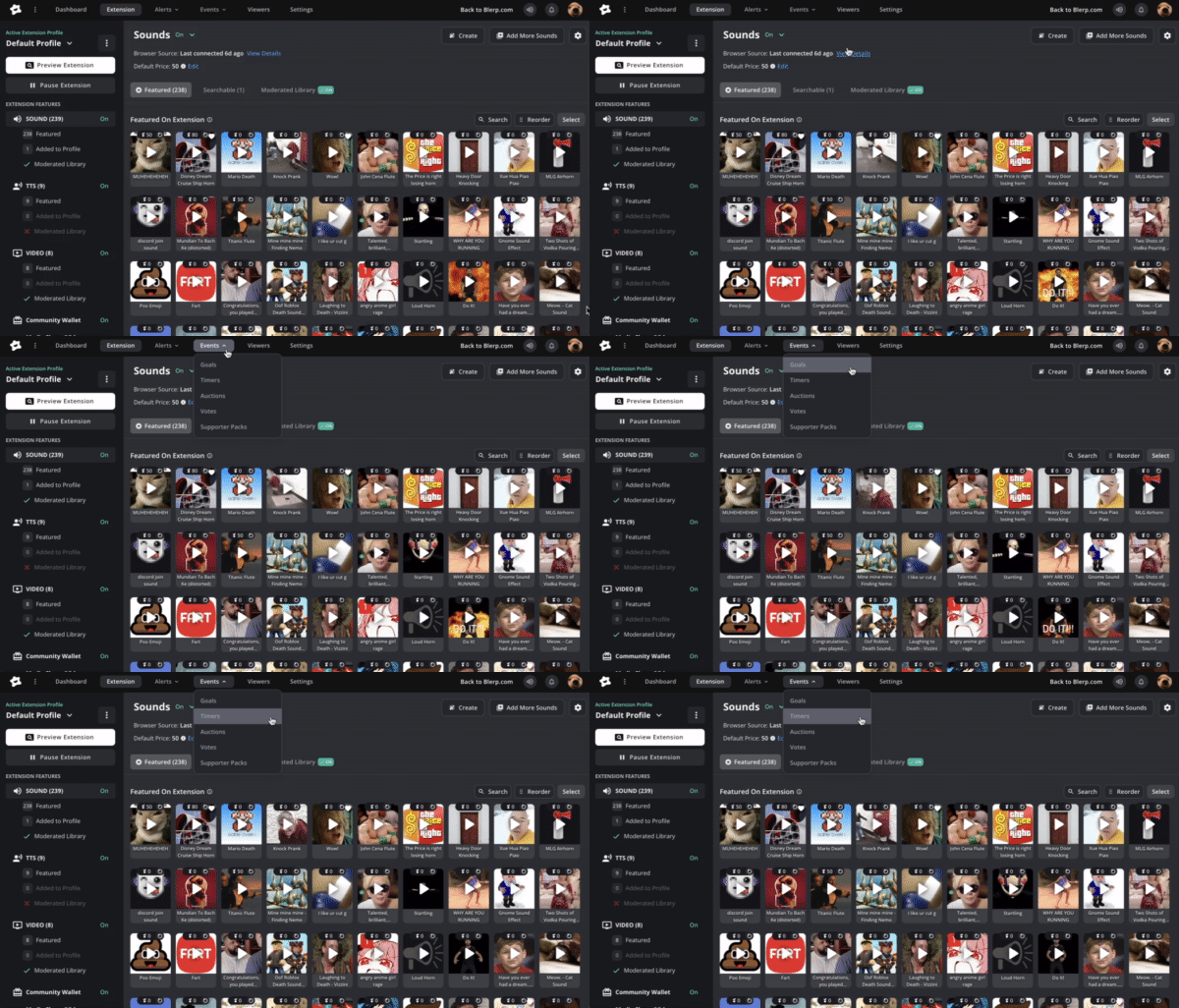
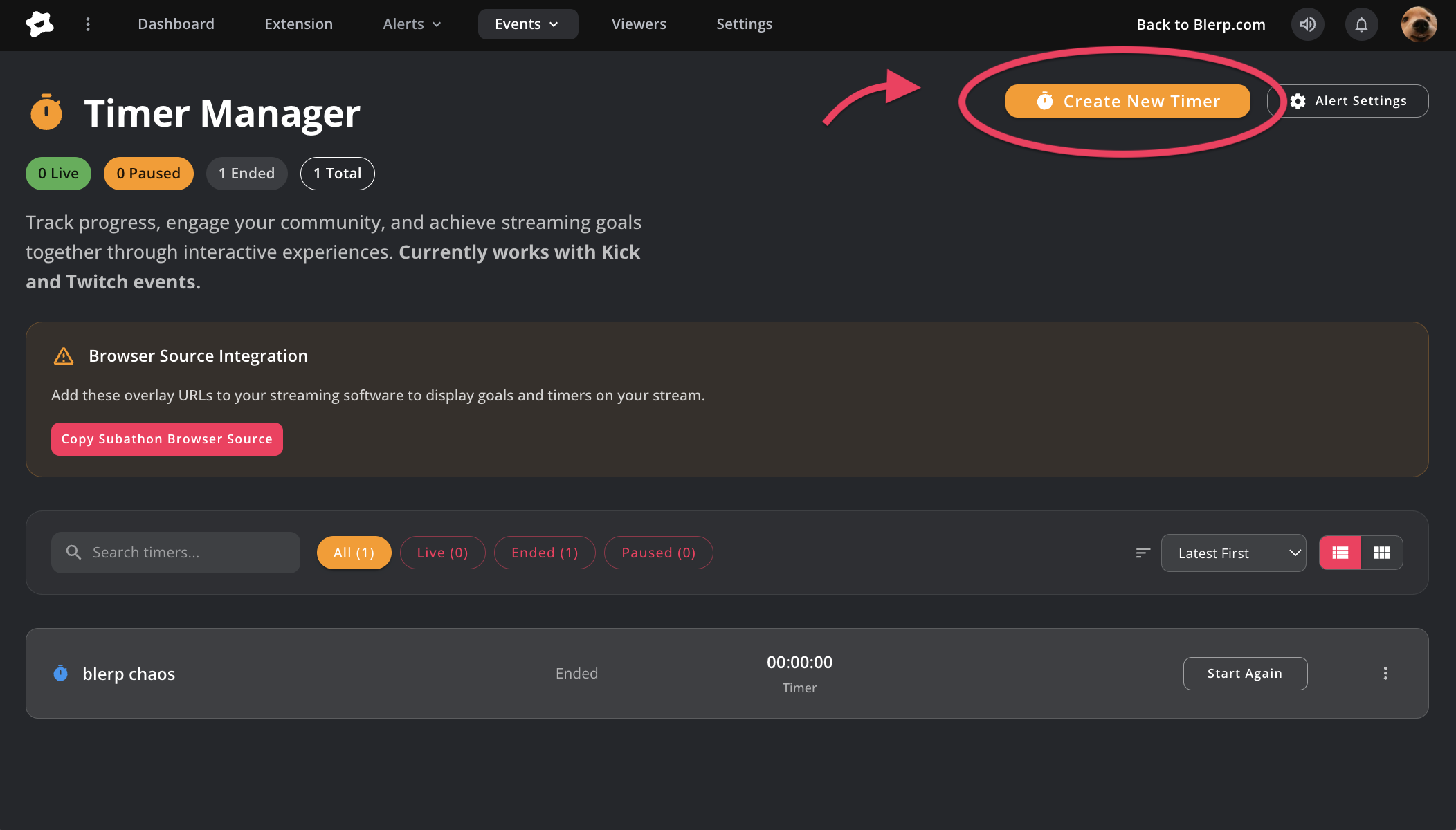
From the top navigation bar, select “Events” and then choose “Timers” from the dropdown.
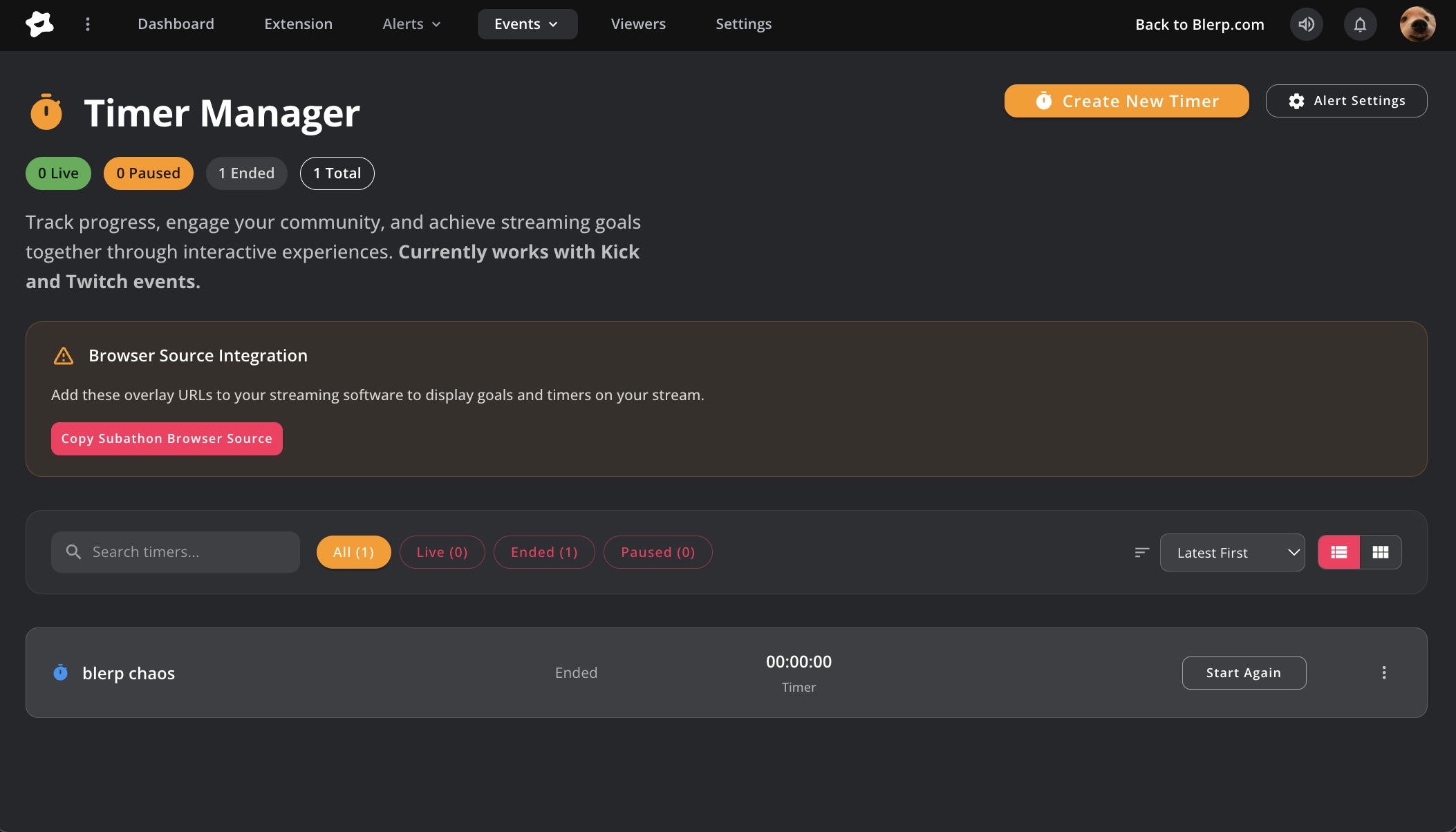
Step 3: Manage Your Timers
In the Timer Manager, you can:
- Create new timers
- Track active timers
- Edit timers mid-stream
- End timers when your subathon is over
Step 4: Create a New Timer
Click “Create a new timer.”
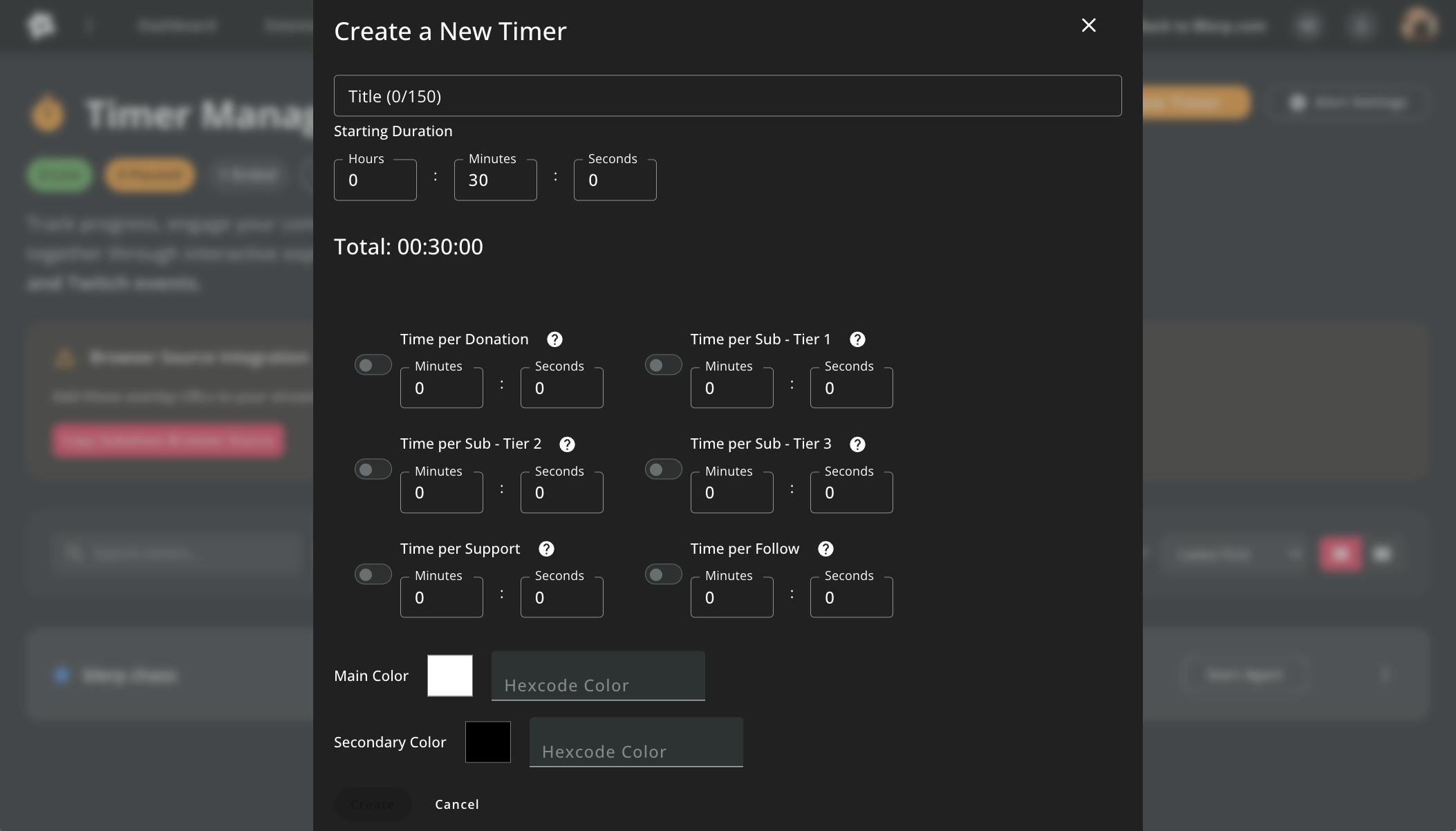
From here, you can customize:
- Title → Name your timer (e.g., “Kick Subathon Timer”).
- Starting Duration → How much time your subathon begins with.
- Additional Time per Event → Set how much time gets added for each follow, donation, subscription, or other event.
- Colors → Adjust the main and secondary colors to match your stream’s theme.
Step 5: Add the Timer to OBS or Streamlabs
Once your timer is ready, copy the browser source URL provided by Blerp and paste it into your OBS or Streamlabs as a browser source. This will display the timer directly on your stream for your audience to follow along.
That’s It!
Your Blerp Subathon Timer is now live on your Kick stream. With every follow, sub, or donation, your timer will update in real time, keeping your community excited and motivated to keep the fun going.
Try it out for your next subathon and let your viewers control the clock!
 Ellyblerp